
Add custom fields
Track your own details, like gate codes, permit numbers or roof type, on customers, leads, jobs, estimates, properties and equipment.
Custom fields let you add your own details to records in Homeforce. Use them for anything the built-in screens don't ask for: a gate code on a customer, a permit number on a job, a roof type on a lead.
Owners and admins can add and change custom fields.
Where to find them
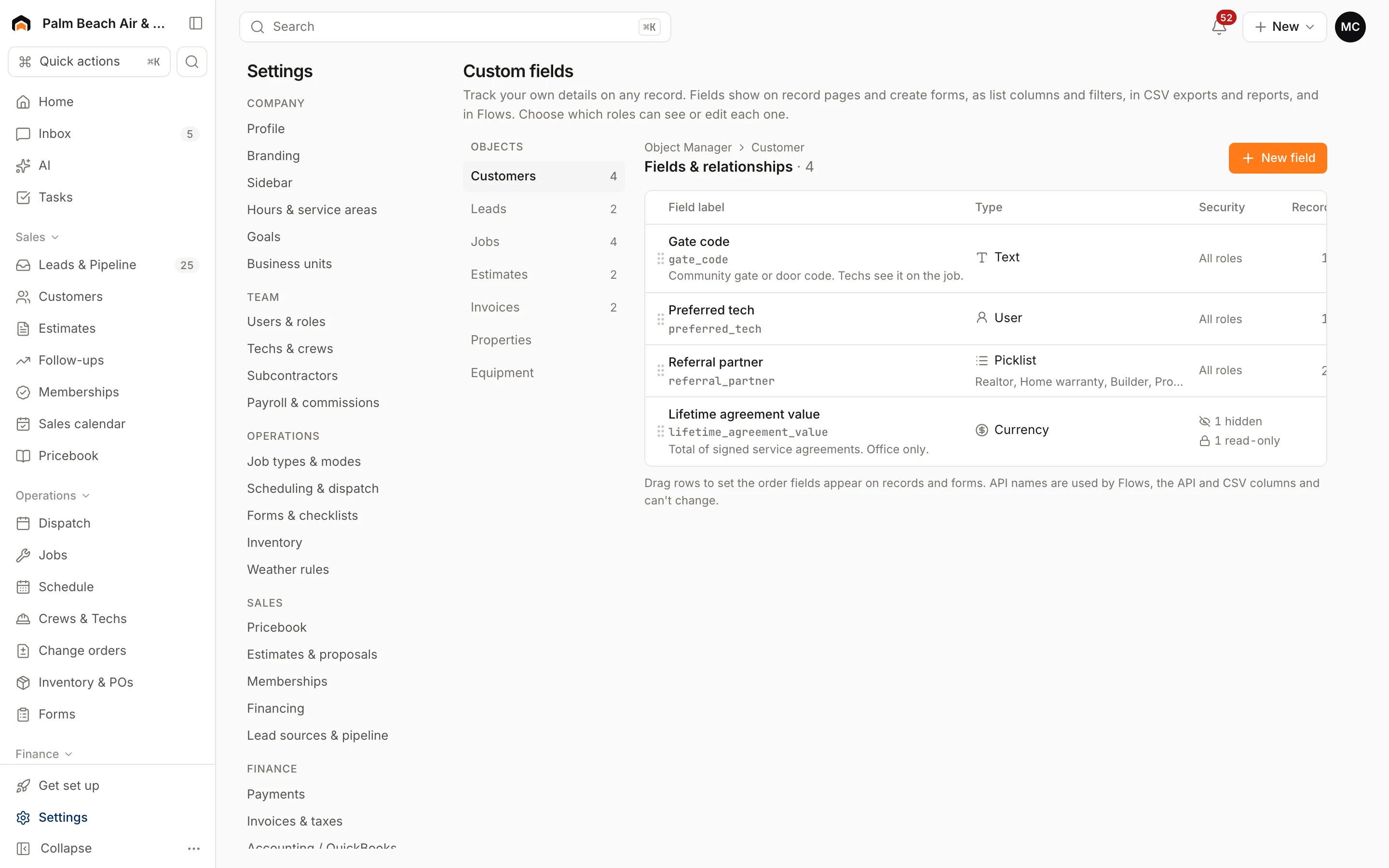
Go to Settings → Forms & checklists and click Manage custom fields, or go straight to /settings/fields.
The tabs across the top are the record types you can add fields to: Customers, Leads, Jobs, Estimates, Properties and Equipment. Each tab shows how many fields it has.
Add a field
- Click the tab for the record type you want, for example Jobs.
- In the Add a field card, type a Label, like "Permit number".
- Check that On shows the right record type.
- Pick a Type (see below).
- For a dropdown, type the choices in Options, separated by commas, like "Tile, Shingle, Metal".
- Tick Required on forms if people must fill it in.
- Click Add field.
Field types
| Type | Use it for |
|---|---|
| Text | Short notes, codes, model numbers |
| Number | Square footage, tonnage, number of rooms |
| Date | Install date, permit expiry |
| Dropdown | A fixed list of choices |
| Checkbox | Yes/no questions, like "HOA approval needed" |
| File | A document attached to the record, like a site plan |
A required field must have a value before the record saves. File fields can't be made required.
Change the order
Fields show on forms and record pages in the order listed. Use the up and down arrows at the left of each row to move a field.
Edit or archive a field
- Click a field's name to open it. You can change the Label, the dropdown Options and Required, then click Save. You can't change a field's type after it's created.
- To retire a field, hover over its row and click Archive. Values already saved on records are kept.
Was this helpful?
Related articles
Custom fields and layouts
Fill in and find custom fields
Where your custom fields show up, how to fill them in, and how to use them in lists, exports and Flows.
Custom fields and layouts
Filter, sort and save list views
Pick columns, add filters, sort, and save views of your customers, leads, jobs, estimates and invoices lists.
Custom fields and layouts
Build forms and checklists
Create inspection, safety and sign-off checklists that techs fill out in the field app, attached to your job types.
Custom fields and layouts
Customize the sidebar
Reorder, hide and favorite pages in your own sidebar, and set the default sidebar for each role.
Still stuck?
Our team answers support emails during business hours, usually within a few hours.