
Fill in and find custom fields
Where your custom fields show up, how to fill them in, and how to use them in lists, exports and Flows.
Once you've added custom fields, they appear in the places your team already works. This article covers where to find them and what you can do with them.
On new customers and leads
When you add a new customer or lead, your custom fields for that record type appear in a More details section of the form. Required fields must be filled in before the form saves.
On record pages
Customer, job and estimate pages have a Custom fields section. Click a value to change it. It saves as soon as you click away, pick a dropdown choice or tick a checkbox.
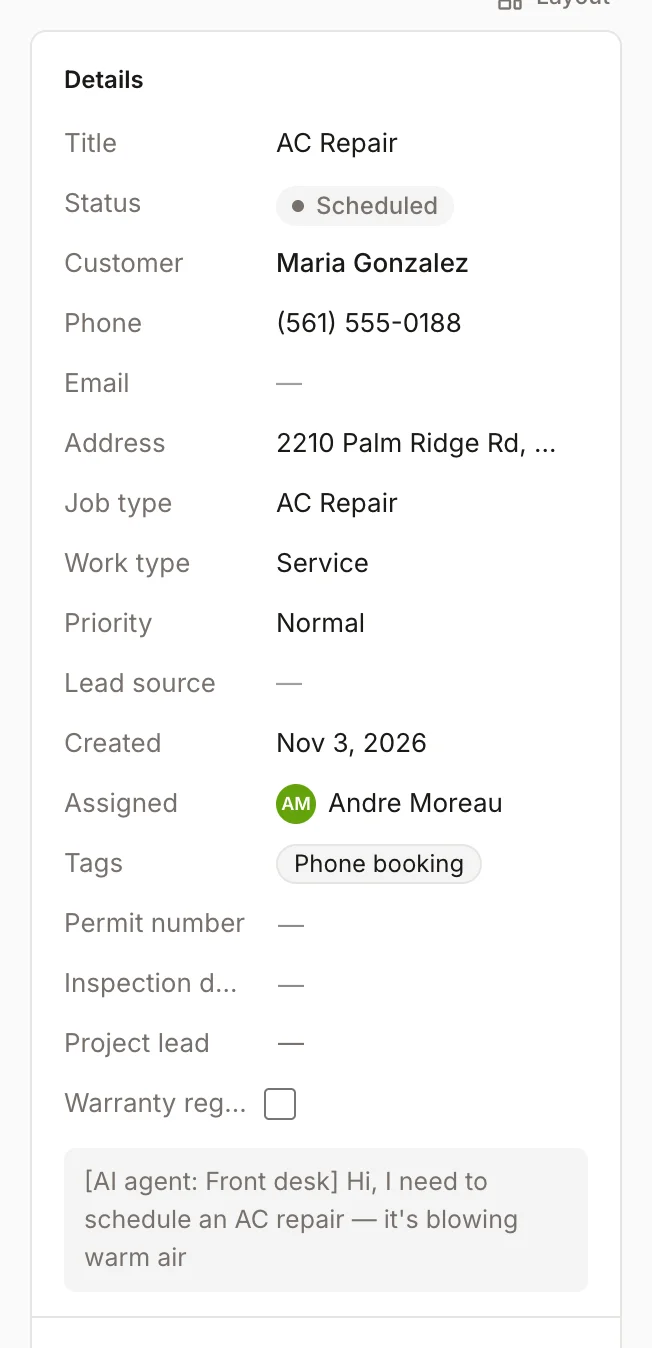
For a File field on a job or estimate, upload the file right in that section. The file name shows as a link to open it.
Anyone who can edit the record can edit its custom fields. For example, a tech can fill in fields on jobs they're assigned to.
In the mobile app
The mobile app shows custom fields on customers, leads, jobs and estimates, grouped under Custom fields on the edit form. File fields aren't available in the app yet; add files from the web app.
In lists
Every custom field is available as a column in the customer, lead, job and estimate lists. They're hidden until you turn them on:
- Open the list, for example Jobs.
- Click Columns.
- Tick the fields you want to see.
You can then sort, filter and save views with them. See Filter, sort and save list views.
In exports
When you export customers, jobs or estimates from Settings → Data import/export, each custom field comes along as its own column, named like custom.permit_number.
In Flows
If your company uses Flows, custom fields on customers, jobs, leads and estimates can be used as conditions, like "only if job.custom.permit_number is empty".
Was this helpful?
Related articles
Custom fields and layouts
Add custom fields
Track your own details, like gate codes, permit numbers or roof type, on customers, leads, jobs, estimates, properties and equipment.
Custom fields and layouts
Filter, sort and save list views
Pick columns, add filters, sort, and save views of your customers, leads, jobs, estimates and invoices lists.
AI agents
Automate with Flows
Build "when this happens, do that" automations that text, email, tag, notify your team, send a webhook, or ask an AI agent.
Custom fields and layouts
Build forms and checklists
Create inspection, safety and sign-off checklists that techs fill out in the field app, attached to your job types.
Still stuck?
Our team answers support emails during business hours, usually within a few hours.