
Customize the sidebar
Reorder, hide and favorite pages in your own sidebar, and set the default sidebar for each role.
You can arrange the left sidebar so the pages you use most are on top. Everyone can arrange their own. Owners and admins can also set the starting sidebar for each role.
Arrange your own sidebar
- At the bottom of the sidebar, click the ... (Sidebar options) button next to Collapse.
- Click Edit sidebar.
- Drag the grip to move a page or a whole section. You can also use the arrow buttons.
- Click the eye to hide a page.
- Click the pin to add a page to Favorites at the top.
- Click Done to keep your changes, or Cancel to throw them away.
To go back to your company's default, open Sidebar options again and click Reset to default.
Set the default sidebar for a role
Owners and admins can decide what each role sees when they first sign in.
- Go to Settings → Sidebar.
- Pick a Role, for example Dispatcher.
- Arrange the sidebar the same way: drag, hide, or pin.
- Click Save default.
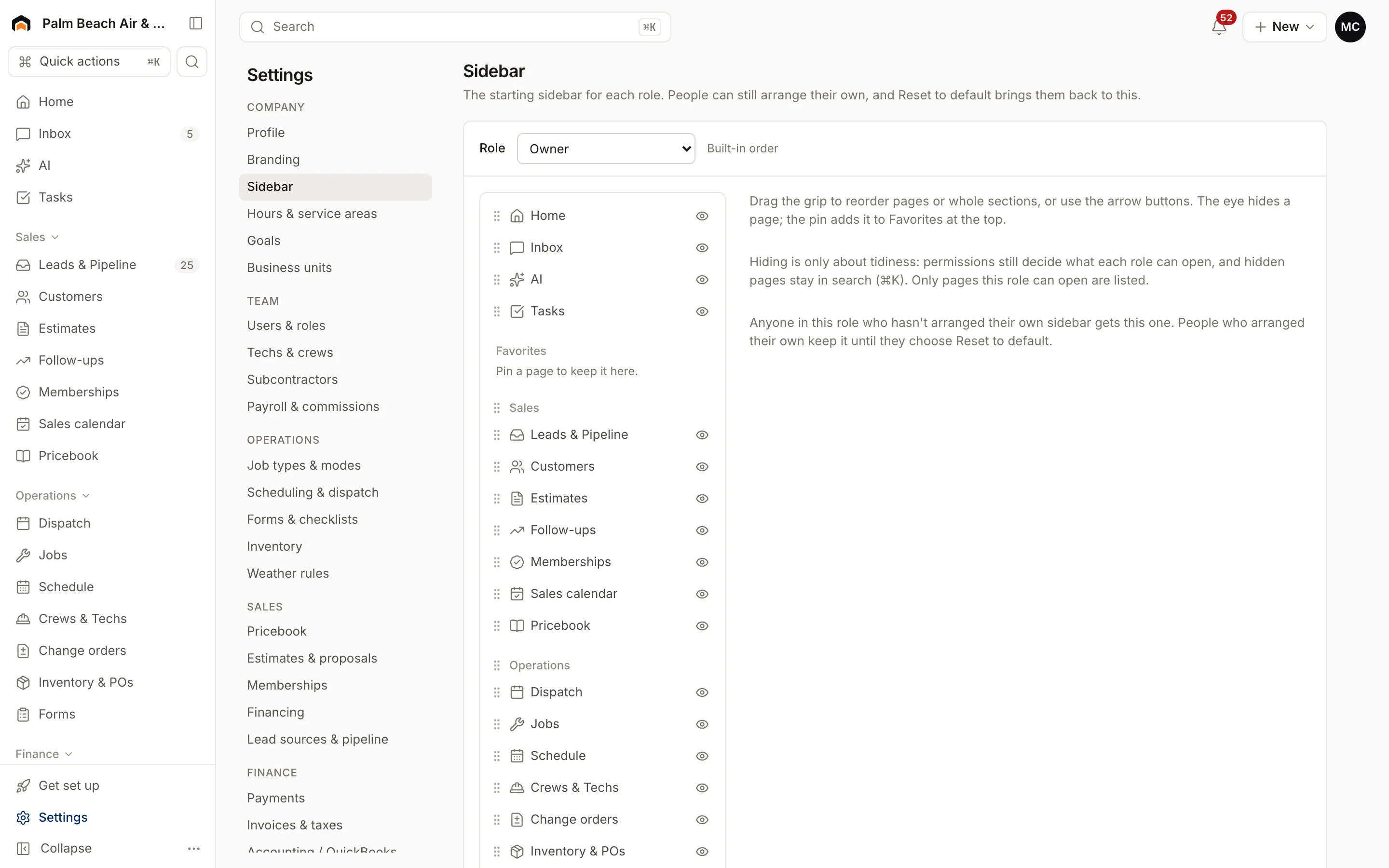
Only pages that role can open are listed, so you can't accidentally show a tech the money pages. Subcontractors aren't listed because they only use the field app.
A few things to know:
- People in that role who haven't arranged their own sidebar get the new default right away.
- People who already arranged their own keep theirs until they choose Reset to default.
- Switching roles in the picker keeps your unsaved changes for each role. Discard changes throws away the current role's edits.
- Use built-in order puts a role back to Homeforce's standard layout.
To control what a role can actually see and do, use Users & roles.
Was this helpful?
Related articles
Settings
Users and permissions
Invite people, change their role, limit sales reps to their own pipeline, and deactivate someone who leaves.
Getting started
Welcome to Homeforce
What Homeforce does, how the app is laid out, and what you see on Home when you sign in.
Custom fields and layouts
Filter, sort and save list views
Pick columns, add filters, sort, and save views of your customers, leads, jobs, estimates and invoices lists.
Custom fields and layouts
Add custom fields
Track your own details, like gate codes, permit numbers or roof type, on customers, leads, jobs, estimates, properties and equipment.
Still stuck?
Our team answers support emails during business hours, usually within a few hours.