
Welcome to Homeforce
What Homeforce does, how the app is laid out, and what you see on Home when you sign in.
Homeforce runs a home-service business in one place: leads, customers, estimates, scheduling and dispatch, jobs and projects, invoices and payments, marketing and reports. The office works in the web app, and techs work from the field app on their phones.
How the app is organized
The sidebar on the left groups everything by the work you do:
- Home, Inbox, AI and Tasks sit at the top.
- Sales: Leads & Pipeline, Customers, Estimates, Follow-ups, Memberships, Sales calendar and Pricebook.
- Operations: Dispatch, Jobs (or Jobs & Projects), Schedule, crews, change orders, inventory and Forms.
- Finance: Invoices, Payments, Collections, Timesheets & Payroll, Job costing and P&L.
- Marketing: Campaigns, Reviews, Calls & Attribution and Referrals.
- Insights: Reports and Map.
- Get set up and Settings are at the bottom.
You only see what your role allows. If your company mostly runs long projects, the Operations group comes first and Projects leads the list. Items your plan doesn't include show a lock and open the plan page.
Home
Home is the first page owners and office staff see. It has two tabs for new companies:
- First steps (the default for your first 30 days): a recommended first action based on your setup answers, and cards for pricebook, branding, schedule, payments and importing data.
- Overview: your day, KPIs like Revenue booked, Close rate and Cash collected, your Monthly revenue goal, Open pipeline, Needs attention, today's schedule and this week's jobs.
Use View as to see Home as one team member, and the date menu to change the KPI period.
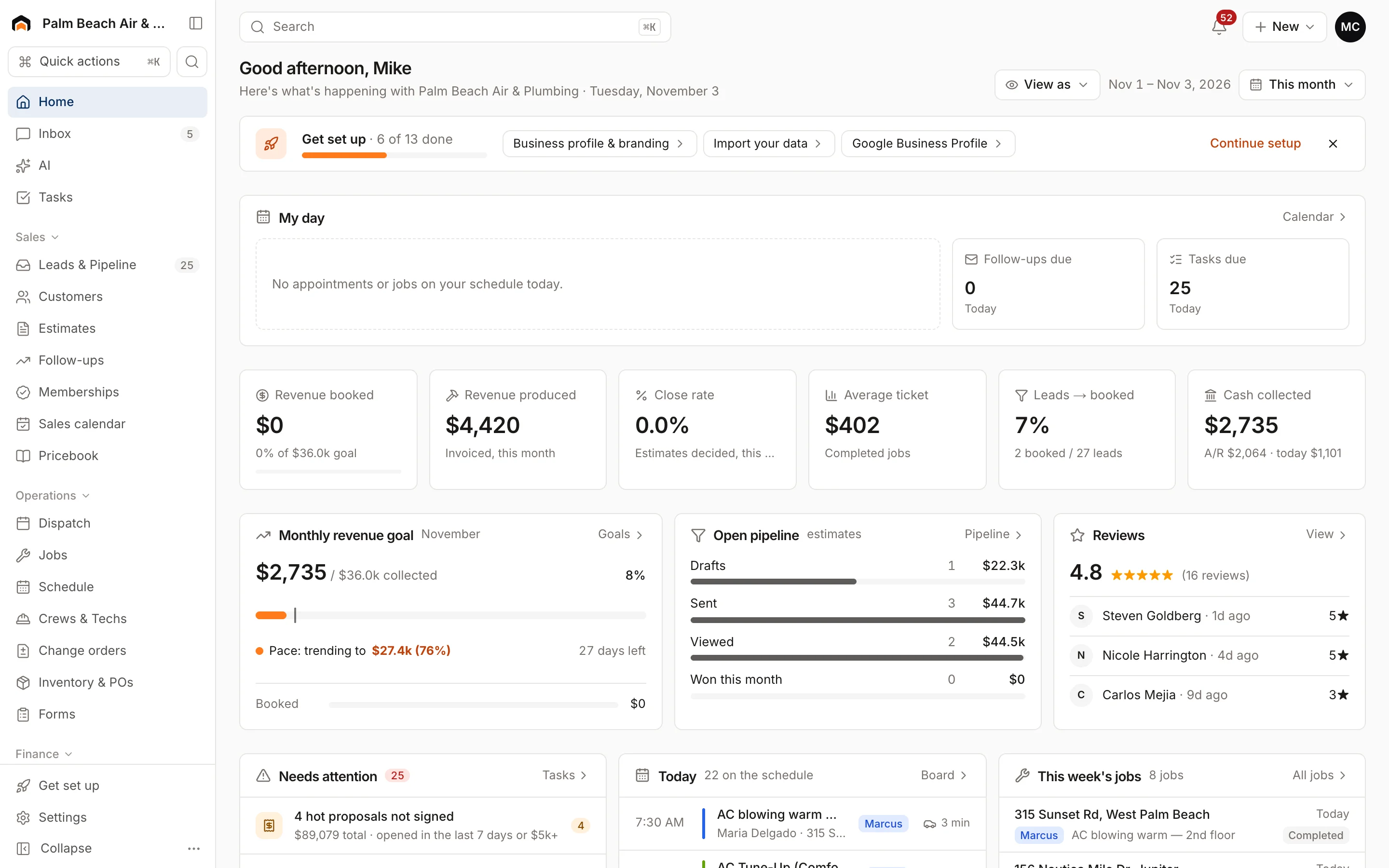
Technicians skip Home and go straight to the field app. See Get the mobile app.
Next steps
Was this helpful?
Related articles
Getting started
Set up your company
Answer five quick setup questions, then work through First steps and the Get set up checklist.
Getting started
Find your way around
Use global search, the New menu, notifications, the company switcher and your own sidebar layout.
Getting started
Run your first job from lead to paid
Follow one customer through Homeforce, from a new lead to an estimate, a scheduled job, an invoice and a payment.
Getting started
Roles at a glance
What owners, admins, dispatchers, sales reps, project managers, accounting, techs and subcontractors can see and do.
Still stuck?
Our team answers support emails during business hours, usually within a few hours.