
Import your customers and pricebook
Bring customers, jobs, estimates, invoices and your price list over from Housecall Pro, Jobber, ServiceTitan, DripJobs or a spreadsheet.
You can move your history into Homeforce from CSV files. Export them from your current software, or use any spreadsheet. Owners and admins can run imports.
Import customers and history
Open Import from Get set up, or go to Settings → Data import/export and click Start an import.
- Pick what you're importing. Do them in this order, because everything after customers is matched to a customer by ID, email, phone or name:
- Customers
- Contacts
- Properties
- Equipment
- Estimates
- Jobs
- Invoices
- Choose your CSV file. Homeforce detects whether it came from Housecall Pro, Jobber, ServiceTitan or DripJobs. Anything else is treated as Spreadsheet / other.
- Under Map columns, check each column. Pick the Homeforce field it belongs in, or — ignore — to skip it. Required fields have a star.
- Read the Preview. It shows how many rows are ready, notes to check, and rows that will be skipped and why.
- Click Import to bring in the ready rows.
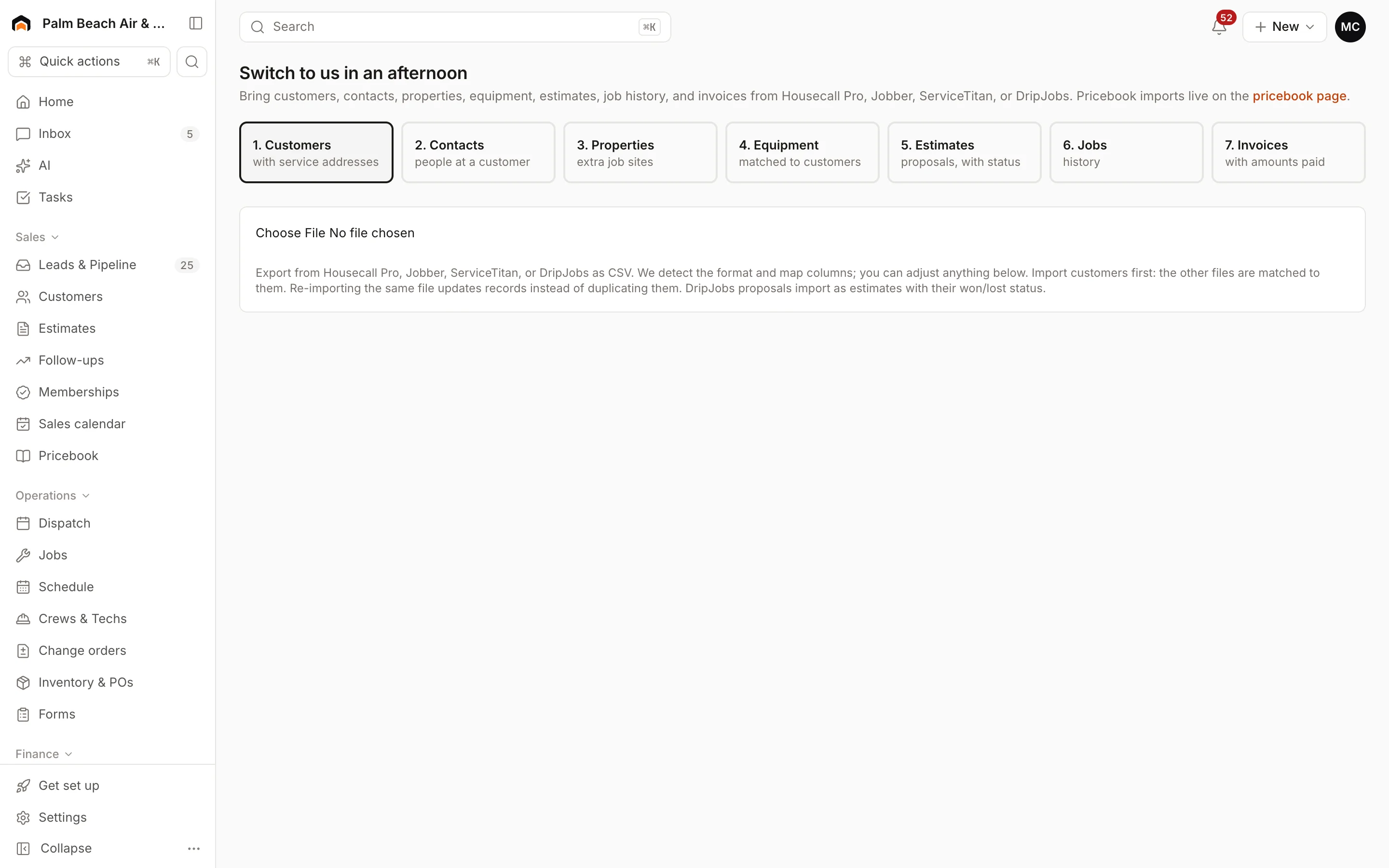
DripJobs proposals come in as estimates with their won or lost status. Past imports are listed under Import history.
Import your pricebook
Pricebook imports have their own page. Go to Pricebook and click Import CSV (also under Settings → Pricebook).
- Upload a CSV, paste one into the box, or click Load template to see the expected columns: Type, SKU, Name, Description, Category, Unit, Cost, Price, Member Price, Markup %, Taxable and Hours. Download template saves it as a file.
- Click Validate & preview and check the result.
- Click Import … items.
Re-importing updates items with matching SKUs. Only owners and admins can edit the pricebook.
After importing
Spot-check a few customers and their history. Then set your tax rate and payment terms in Invoices and taxes before you send your first invoice.
Was this helpful?
Related articles
Getting started
Set up your company
Answer five quick setup questions, then work through First steps and the Get set up checklist.
Settings
Import and export your data
See past imports, start a new one, and download your customers, jobs, estimates, invoices and payments as CSV files.
Settings
Estimate and pricebook settings
Set estimate expiry, default deposits, good/better/best, follow-up sequences, pricebook markups and member discounts.
Getting started
Welcome to Homeforce
What Homeforce does, how the app is laid out, and what you see on Home when you sign in.
Still stuck?
Our team answers support emails during business hours, usually within a few hours.