
Find your way around
Use global search, the New menu, notifications, the company switcher and your own sidebar layout.
A few tools at the top of every page get you anywhere in Homeforce fast.
Search everything
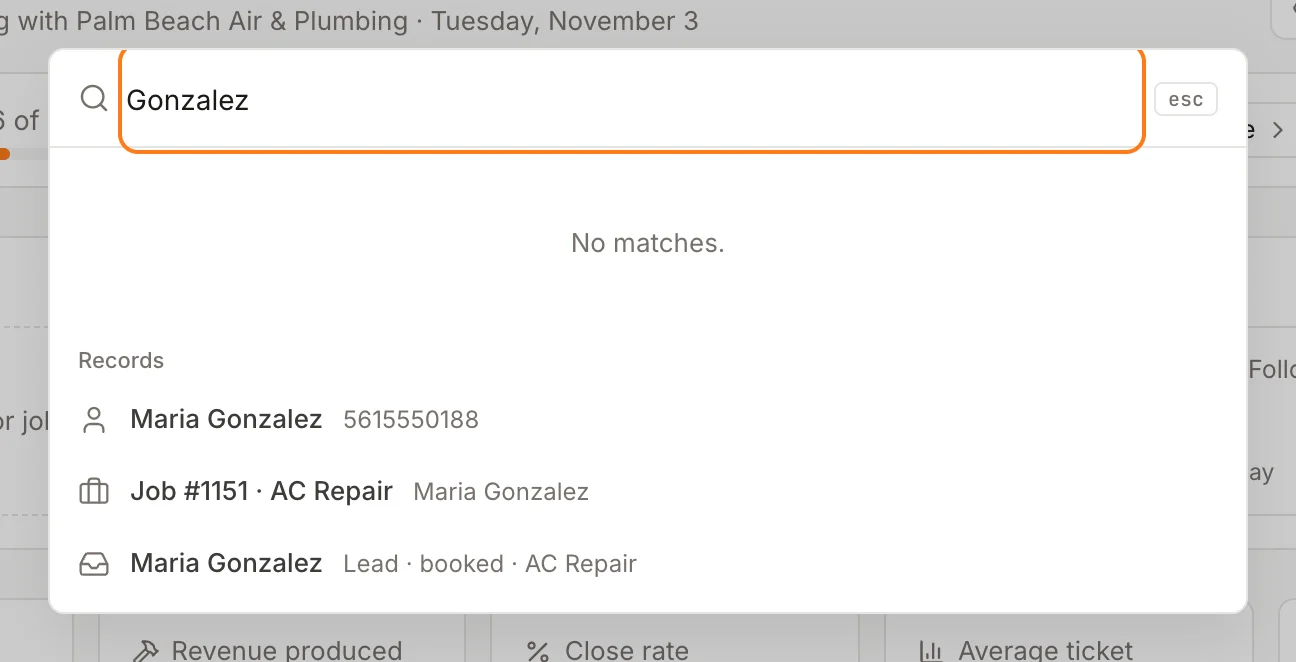
Click Search at the top of the page, or press ⌘K (Ctrl+K on Windows). Start typing:
- After two letters, Records lists matching customers, jobs, estimates, invoices and leads.
- Quick actions creates things: New lead, New customer, New appointment, New estimate, New job, New invoice, Book a call.
- Go to jumps to any page you have access to, including ones hidden from your sidebar.
Use the arrow keys and press Enter to open a result.
Create something new
The New button at the top lists what your role can create, in the order work usually flows: Lead, Customer, Appointment, Estimate, Job, Invoice.
Notifications
The bell shows counts of things waiting on the office: New leads to contact, Unread conversations, Overdue invoices and Estimates opened, not signed. Click a line to open that list.
Switch companies
If you belong to more than one company, click the company name at the top of the sidebar and pick another. Everything you see then belongs to that company.
Your account menu
Click your photo in the top right to see your role, switch the Theme (light, system or dark), open Settings or Sign out.
Arrange your sidebar
You can change your own sidebar without affecting anyone else:
- Click Sidebar options (the three dots at the bottom of the sidebar).
- Click Edit sidebar.
- Move items and sections up or down, hide what you don't use, or star items to pin them to a Favorites section.
- Click Done.
To undo your changes, open Sidebar options and click Reset to default. Collapse the sidebar to icons with Collapse or ⌘\.
Was this helpful?
Related articles
Getting started
Welcome to Homeforce
What Homeforce does, how the app is laid out, and what you see on Home when you sign in.
Getting started
Run your first job from lead to paid
Follow one customer through Homeforce, from a new lead to an estimate, a scheduled job, an invoice and a payment.
Custom fields and layouts
Add custom fields
Track your own details, like gate codes, permit numbers or roof type, on customers, leads, jobs, estimates, properties and equipment.
Getting started
Sign up and start your free trial
Create your Homeforce account, add a card for the 14-day trial, or join the waitlist if signups are closed.
Still stuck?
Our team answers support emails during business hours, usually within a few hours.