
Invite your team
Add office staff, sales reps and techs so each person signs in with their own login and role.
Everyone on your team should have their own login. That way the schedule, notes and payments show who did what, and each person sees only what their role allows. Owners and admins can invite people.
Send an invite
- Go to Settings → Users & roles.
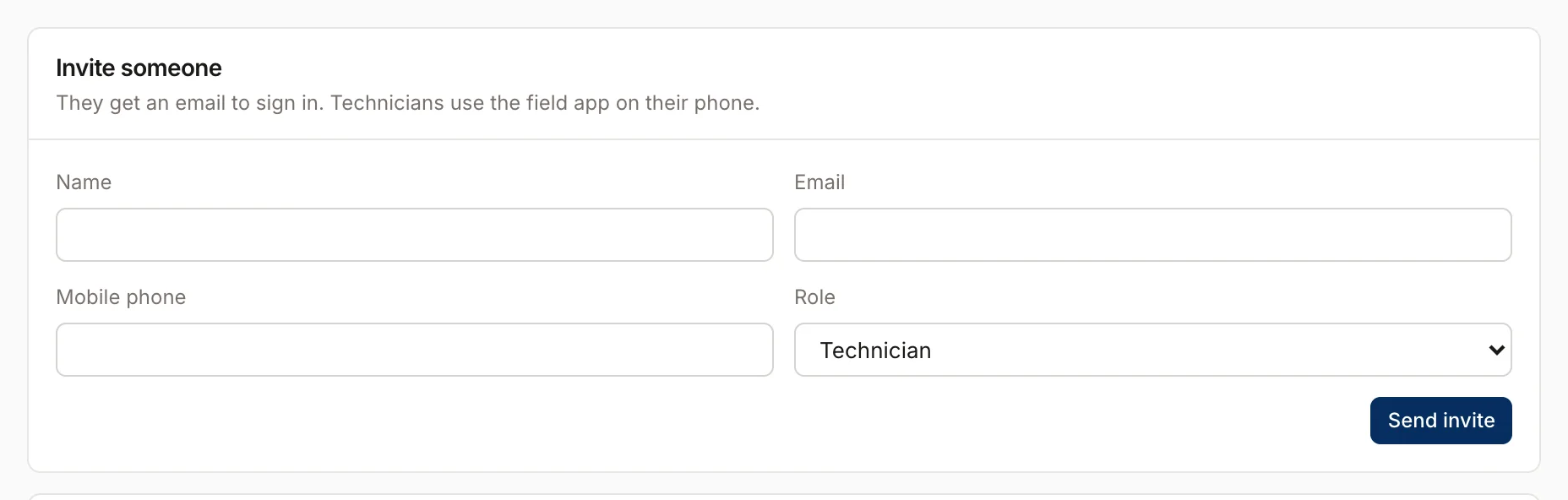
- Under Invite someone, enter Name, Email and Mobile phone.
- Pick a Role. It starts on Technician.
- Click Send invite.
The person gets an email from Homeforce with a link to the login page and their email filled in. They sign in with Email me a sign-in link (no password needed), or set a password later with Forgot password?. Techs also get the address of the field app.
Techs and your plan
Office staff are always free. Field techs count toward your plan's tech limit. During the free trial there's no cap. On a paid plan, if you're at the limit, inviting another technician asks you to upgrade first. See Plan and billing.
After they join
- New technicians, sales reps and project managers show up on the dispatch board automatically. Set their color, skills and where their day starts in Techs, crews and subcontractors.
- Techs work from the field app. See Get the mobile app.
- The team list shows when each person last signed in, or "never signed in".
Which role to pick
| Who | Role |
|---|---|
| Office manager or GM | Admin |
| CSR or dispatcher | Dispatcher / CSR |
| Comfort advisor or estimator | Sales / Comfort Advisor |
| Project manager | Project Manager |
| Bookkeeper | Accounting |
| Field tech | Technician |
| Outside crew | Subcontractor |
See Roles at a glance for what each one can do, and Users and permissions to change roles or deactivate someone.
Was this helpful?
Related articles
Settings
Users and permissions
Invite people, change their role, limit sales reps to their own pipeline, and deactivate someone who leaves.
Getting started
Roles at a glance
What owners, admins, dispatchers, sales reps, project managers, accounting, techs and subcontractors can see and do.
Settings
Techs, crews and subcontractors
Control who shows on the dispatch board, their skills and start location, build crews, and track subcontractor insurance and W-9s.
Mobile app
Get the mobile app and sign in
Install the Homeforce app on your iPhone or Android phone, accept your team invite, and sign in with a code, password or Google.
Still stuck?
Our team answers support emails during business hours, usually within a few hours.