
Techs, crews and subcontractors
Control who shows on the dispatch board, their skills and start location, build crews, and track subcontractor insurance and W-9s.
Two pages set up the people who do the work: Techs & crews for your own team and Subcontractors for outside companies. Owners and admins can change them.
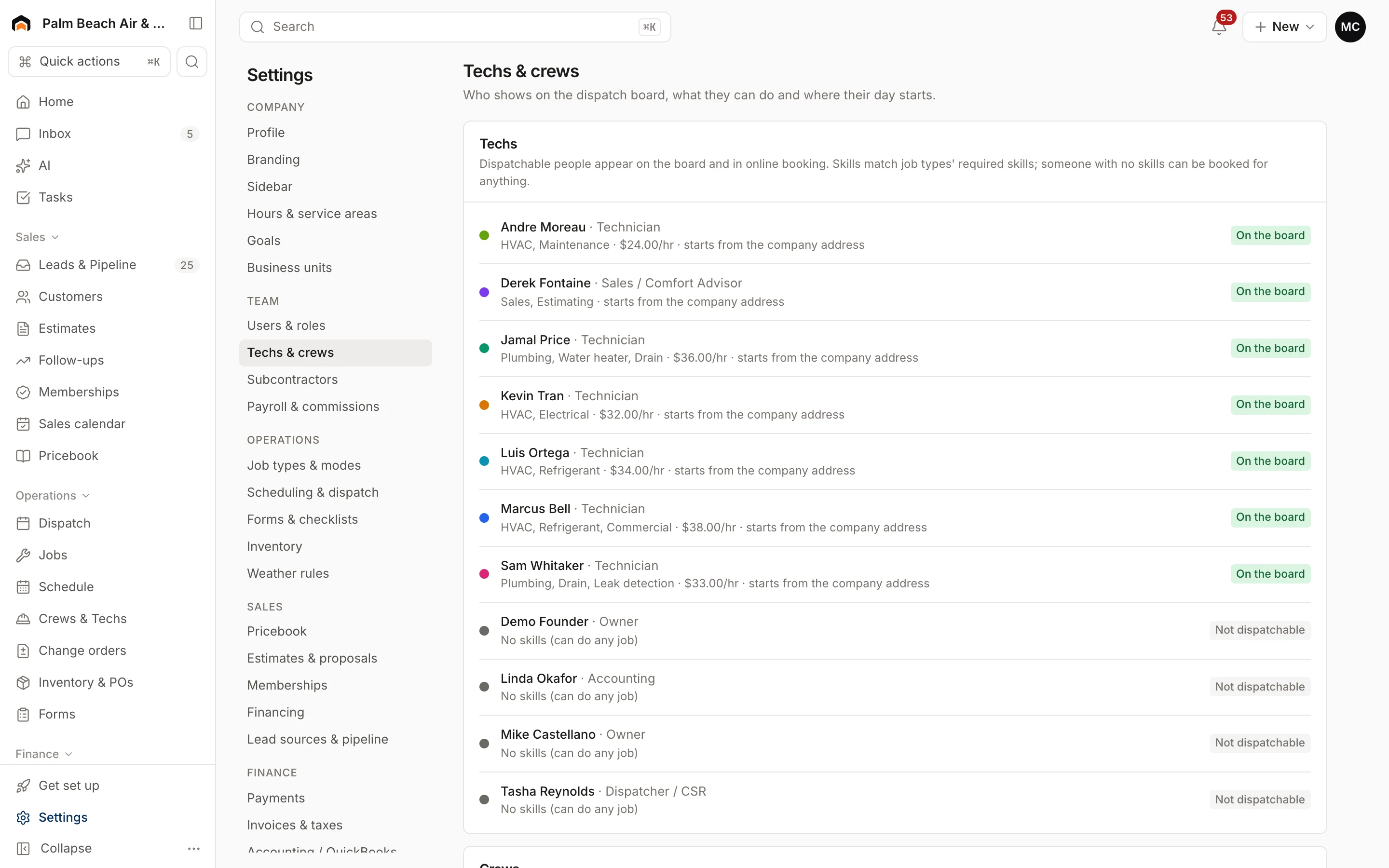
Techs
Go to Settings → Techs & crews. Every active team member is listed under Techs, with On the board or Not dispatchable. Click a person to edit:
- Board color: their color on dispatch.
- Skills: comma separated, like "hvac, plumbing". Skills are matched against the skills a job type requires.
- Hourly cost ($): their loaded labor cost, used in job costing.
- Dispatchable: shows them on the board and offers them in online booking.
Click Save.
Where their day starts
Under Day starts from (home or shop), enter a street, city and ZIP and click Save. Leave the street blank to use the company address. Drive times on the board start from here.
Crews
Crews are groups scheduled together, mostly on multi-day and project work.
- Under New crew, enter a Name, like "Paving crew A".
- Pick a Lead and a Color.
- Check the Members.
- Click Create crew.
Click a crew to change it, then click Save crew.
Subcontractors
Go to Settings → Subcontractors to keep a list of companies you hire out to.
- Click Add subcontractor.
- Fill in Company, Contact, Trade, Email, Phone and Insurance expires.
- Turn on W-9 on file once you have it. You need it before you pay them and for 1099s.
- Click Add subcontractor.
The table flags anyone who needs attention:
- Insurance: Not on file, Expired, or Expires in … days when it's within 30 days.
- W-9: On file or Needed.
Click Edit on a row to update it.
Related
- Pay rates and commissions: Payroll and commissions.
- Divisions or locations: Business units.
Was this helpful?
Related articles
Scheduling and dispatch
Use the dispatch board
See every tech's day on one timeline, drag waiting work onto the board, and keep the day on track from the office.
Settings
Users and permissions
Invite people, change their role, limit sales reps to their own pipeline, and deactivate someone who leaves.
Settings
Payroll and commissions
Set each person's hourly cost and commission plan, build commission plans, and connect Gusto or Check for payroll.
Jobs and projects
Jobs, visits and projects
How Homeforce organizes work - a job holds one or more visits, and a project is a job with phases, a budget and change orders.
Still stuck?
Our team answers support emails during business hours, usually within a few hours.