
Payments and financing
Turn on card and bank payments through Stripe, choose your payout schedule, and connect a financing lender.
Customers pay invoices, deposits and pay links through your own Stripe account. Set it up once and your team can take cards in the office and in the field. Owners and admins can change these settings.
Set up payments
- Go to Settings → Payments.
- Under Payment processing, click Set up payments.
- Stripe opens. Fill in your business details, bank account and an owner's details. It takes about 10 minutes. Have your EIN handy.
- When you finish, Stripe sends you back to Homeforce.
The status next to Stripe account shows where you stand:
- Not set up: you haven't started.
- Setup incomplete: Stripe still needs something. Click Finish setup to continue where you left off.
- Accepting payments: you're live.
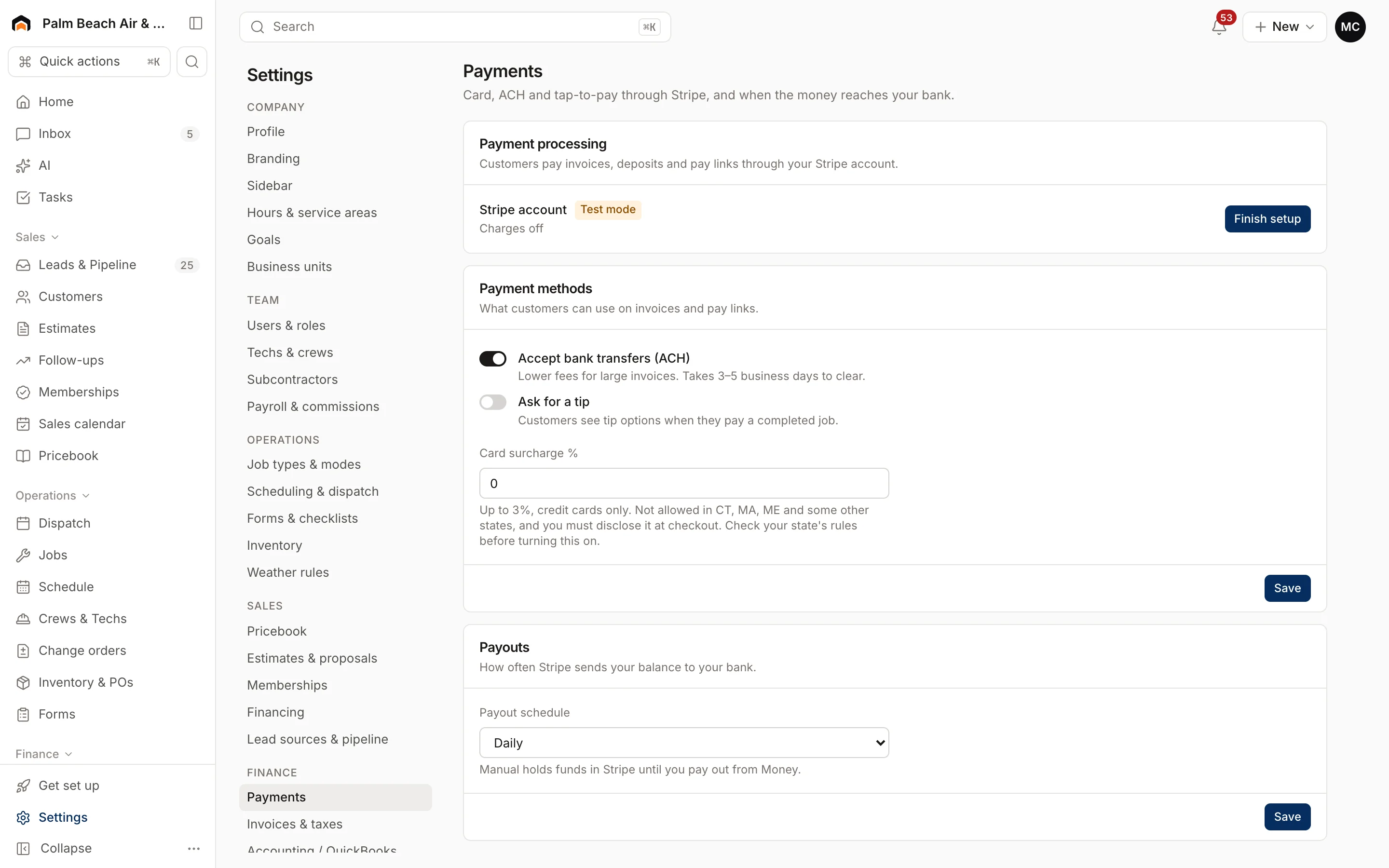
The line under it shows whether charges and payouts are on and how many items Stripe still needs. If Stripe pauses your account, a red note explains why. Click Finish setup to fix it. To change your bank or business details later, click Update details.
Payment methods and payouts
Payment methods lists Accept bank transfers (ACH), Ask for a tip and a Card surcharge %. Before charging a surcharge, check your state's rules: it's capped at 3%, credit cards only, must be disclosed at checkout, and isn't allowed in some states, including CT, MA and ME.
Under Payouts, pick a Payout schedule: Daily, Weekly or Manual. Manual holds funds in Stripe until you pay out from the Payments page.
Financing
Go to Settings → Financing to offer pay-over-time on bigger jobs.
- Under Providers, find a lender and click Connect.
- Follow the steps for that lender.
Each lender shows its status: Connected, Setup in progress, Error or Reconnect needed. Click Manage on a connected lender. Dealer fees post to job cost.
Under Offers, set a Minimum job amount ($) and a Promo line, such as "As low as 0% APR for 12 months on approved credit". The footer shows whether financing on proposals is on, with a link to change it on the estimates settings.
Related
- Sending invoices: Create and send an invoice.
- Deposits on estimates: Collect a deposit.
Was this helpful?
Related articles
Invoices and payments
Create and send an invoice
Build an invoice from your pricebook, save it as a draft or send it with a pay link by text and email.
Invoices and payments
Collect a deposit
Require a deposit on an estimate, collect it when the customer approves, and have it credited on the final invoice.
Settings
Estimate and pricebook settings
Set estimate expiry, default deposits, good/better/best, follow-up sequences, pricebook markups and member discounts.
Settings
Invoices and taxes
Set your default sales tax rate and how many days customers have to pay.
Still stuck?
Our team answers support emails during business hours, usually within a few hours.