
Collect a deposit
Require a deposit on an estimate, collect it when the customer approves, and have it credited on the final invoice.
A deposit is money you collect when the customer approves an estimate, before the work starts. In Homeforce, you set the deposit on the estimate. When the customer signs, Homeforce creates a deposit invoice they can pay right away, and later credits what they paid against the final bill.
Set a default deposit
Owners and admins can set a deposit that every new estimate starts with.
- Go to Settings → Estimates & proposals.
- Enter a Default deposit %. Leave it blank for no deposit.
- Save.
Set the deposit on an estimate
- Open the estimate.
- Enter the Deposit %. Use 0 or leave it blank for no deposit.
- Save the estimate.
The estimate's Summary shows the deposit amount for each option. Customers see "deposit today" next to the option they pick. See Create an estimate.
When the customer approves
As soon as the customer signs, whether in the customer-facing presentation or from the estimate link, Homeforce:
- Creates a Deposit invoice for the deposit percentage of the option they chose. Deposits aren't taxed.
- Shows the customer a Pay button for the deposit amount right after they sign, so they can pay by card or bank on the spot.
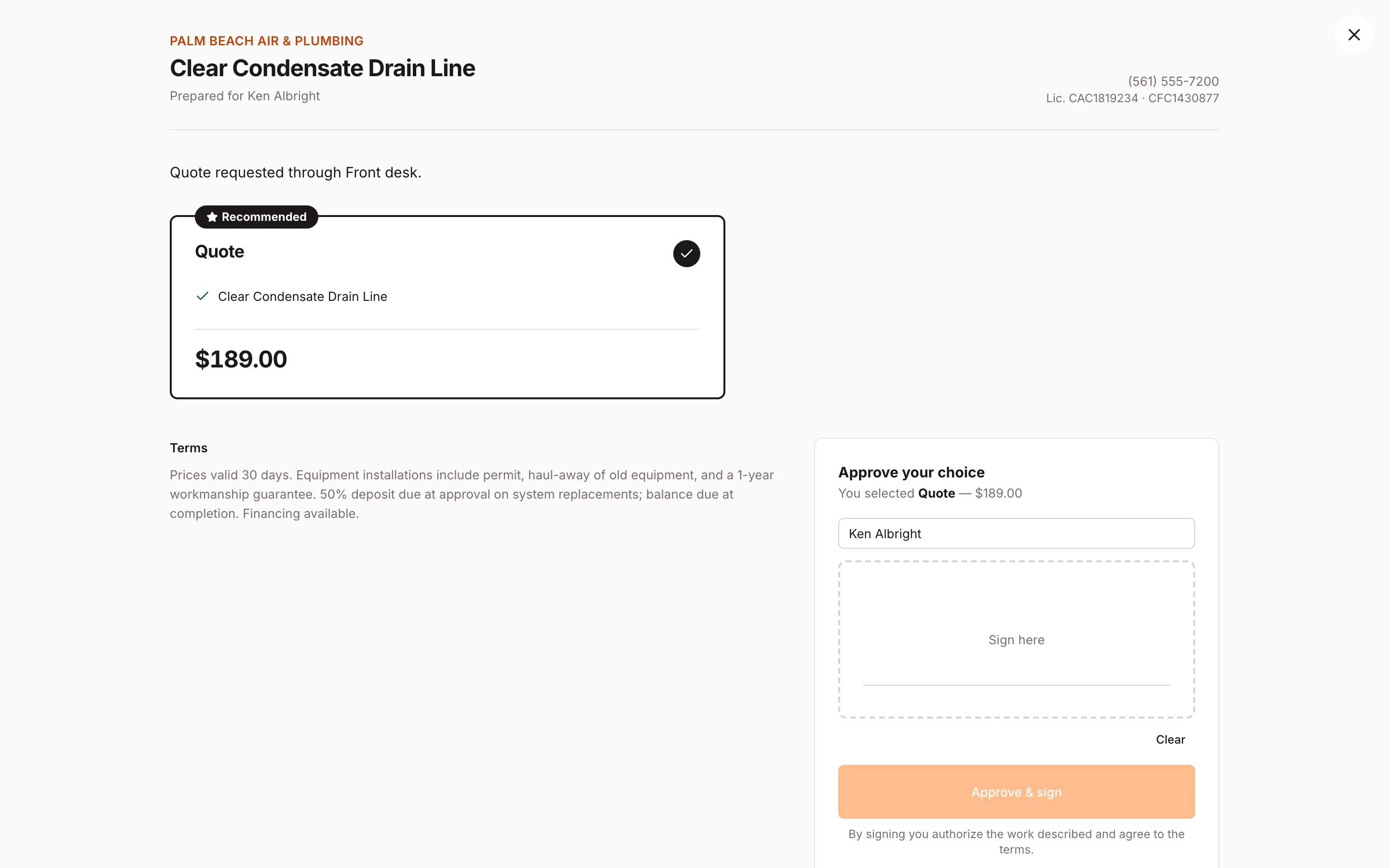
If they don't pay then, the deposit invoice appears in Invoices with a Deposit badge. Collect it like any other invoice: click Collect payment, or send the customer the Pay link. See Collect a payment.
How the deposit is credited
When you click Create invoice on the approved estimate, the final invoice includes every line at full price, then subtracts what the customer paid on the deposit as Deposit applied. The balance due is what's left. The customer's pay link shows the same Deposit applied line.
- Only deposit money that's actually been paid is credited.
- If the customer pays the deposit after you've created the final invoice, Homeforce applies the credit to the final invoice automatically.
- For projects billed in stages, paid deposits are credited on progress invoices instead. See Bill a project in progress.
Refunding a deposit
If the job is canceled, refund the deposit from the deposit invoice. See Refund a payment or void an invoice.
Was this helpful?
Related articles
Sales
Create an estimate
Start an estimate for a customer, add line items from your pricebook, and save it ready to present or send.
Sales
Present an estimate
Walk the customer through their options on a tablet or laptop, then have them choose, sign and pay the deposit on the spot.
Invoices and payments
Invoice a job or an approved estimate
Bill a finished job, or turn an approved estimate into the final invoice with any deposit already credited.
Invoices and payments
Bill a project in progress
Invoice a project by percent complete, with approved change orders, deposit credits and retainage handled for you.
Still stuck?
Our team answers support emails during business hours, usually within a few hours.