
Follow up on unpaid invoices
Find past-due invoices, resend pay links, and work your collections list.
Homeforce keeps a running list of who owes you money and how late they are, so the office can follow up every day.
See what's owed
Go to Invoices. The cards at the top show:
- Outstanding: the total balance on all sent and partially paid invoices, and how many there are.
- Past due: the part of that balance that's past its due date.
The Unpaid tab lists every sent or partially paid invoice. An invoice turns Past due as soon as its due date and time pass. You set how long customers have to pay in Settings → Invoices & taxes under Due (days after sending).
Work the collections list
Click Collections in the sidebar (or the Past due tab on Invoices). The page shows only past-due invoices, oldest first, so you can start with the ones that have waited longest.
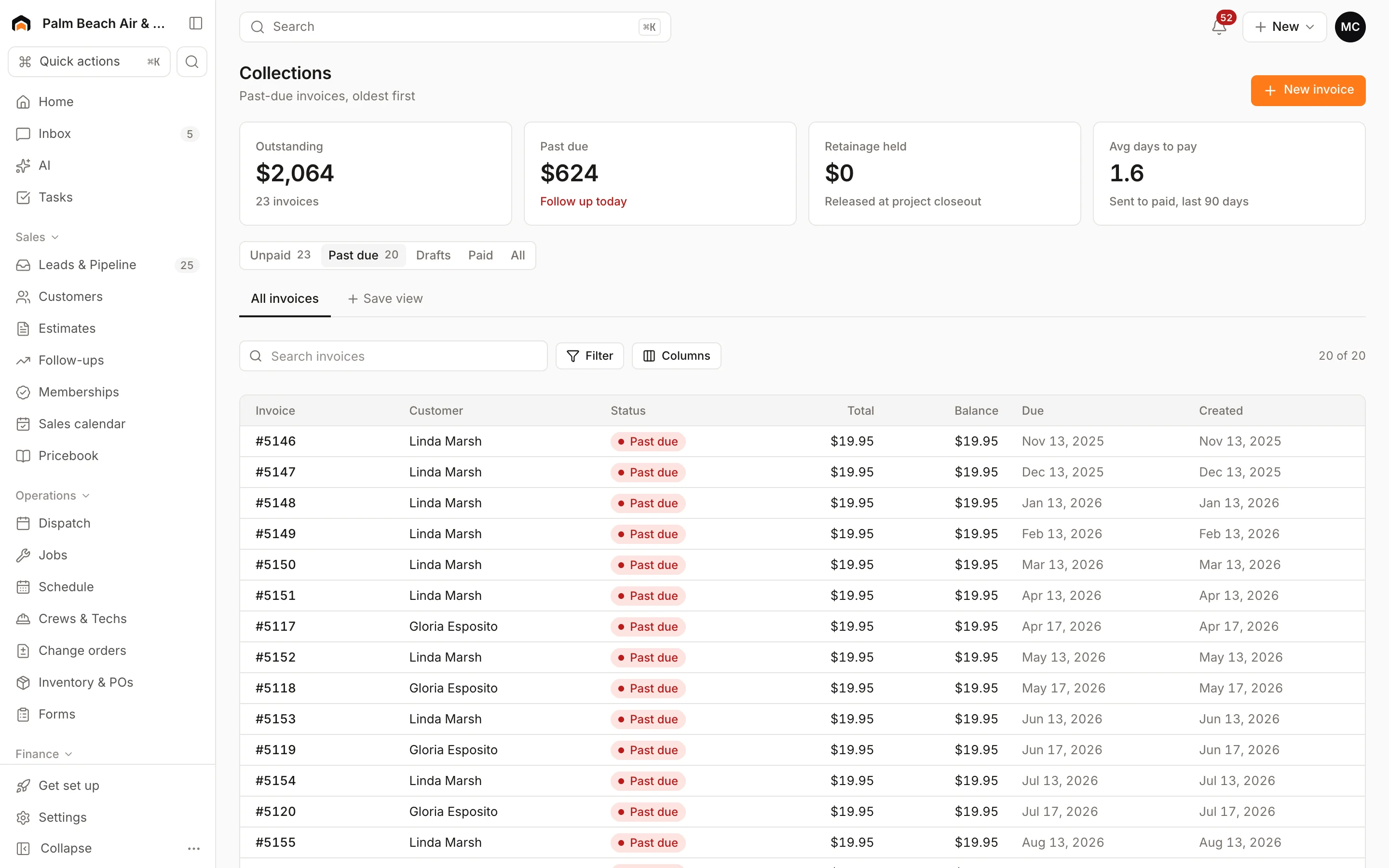
For each one:
- Open the invoice.
- Click Resend to text and email the customer the invoice with its pay link again.
- Or call the customer and take payment over the phone with Collect payment. See Collect a payment.
If a customer has several open invoices, send them their customer portal link instead. It lists every balance with a Pay button.
The Home page also flags overdue invoices under Needs attention, grouped by customer.
Reminders and late fees
Homeforce doesn't send overdue reminders or add late fees automatically today. Settings → Invoices & taxes has fields for Late fee % per month and Reminder days, but they aren't applied yet. Use Resend to remind customers, and add a late fee as a line on a new invoice if your terms allow it.
Get help from AI
If AI agents are turned on, you can set one up to list unpaid invoices by how overdue and how large they are, suggest who to call first, and draft a friendly reminder for each. See AI overview.
Track receivables over time
The Reports page shows A/R outstanding and past due next to your daily revenue. See Reports overview.
Was this helpful?
Related articles
Invoices and payments
Get paid with pay links
What a pay link is, what your customer sees when they open it, and how to share one.
Invoices and payments
Use the customer portal
Give customers one link to see their balance, pay invoices, review estimates, check appointments and manage their membership.
Reports
Reports overview
See revenue, invoicing, average ticket, close rate, team performance and lead source ROI for any recent period.
AI agents
AI in Homeforce
Every AI feature in Homeforce, what each one does, who can use it, and what the AI can and can't do on its own.
Still stuck?
Our team answers support emails during business hours, usually within a few hours.