
Expense cards and capital
Issue spending cards to your team, code purchases to jobs, and review capital offers based on your card sales.
The Payments page (titled Payouts & cards) also handles money going out: expense cards for your team, and capital offers for your business. Owners, admins and accounting users see these sections.
Expense cards
Give techs and crew leads a company card with a monthly limit, then tie each purchase to the job it was for so your job costs stay accurate.
Issue a card
Owners and admins can issue cards.
- In the sidebar, click Payments and scroll to Expense cards.
- Under Issue a card to, choose the team member. Each person can have one active card.
- Set the Monthly limit (at least $100).
- Click Issue card.
The card list shows each cardholder, the card's last four digits, its status, this month's spend and the limit. Click Freeze to stop a card from working (for example, if it's lost). Click Unfreeze to turn it back on.
Code purchases to jobs
New card purchases come in automatically about once an hour. Click Sync transactions to pull them in now.
When a purchase comes in, Homeforce looks for a job the cardholder was scheduled on around that time and codes the purchase to it. Fuel and meals go to Overhead automatically.
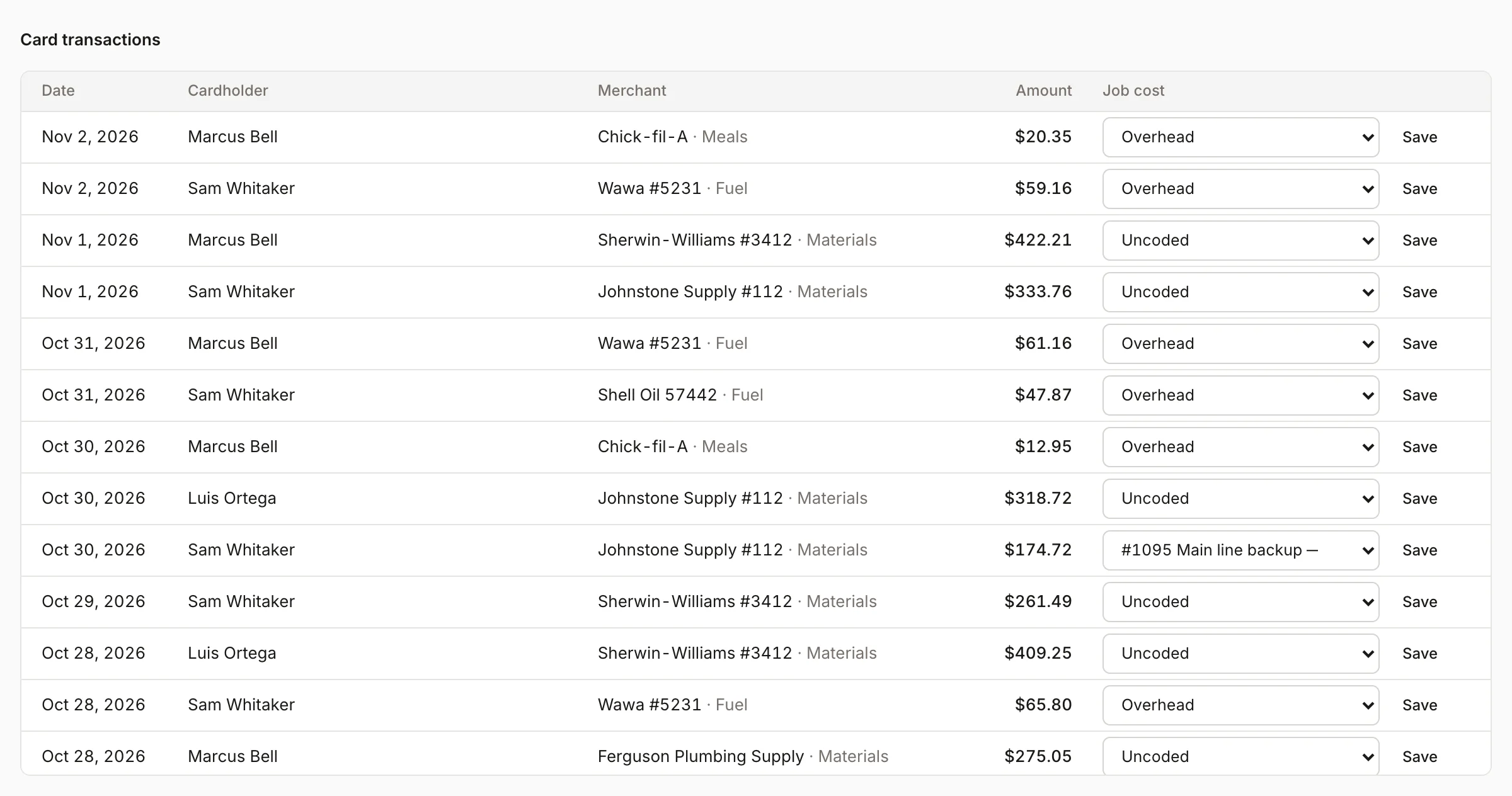
To check or change one:
- Find it under Card transactions.
- In the Job cost column, choose the job or Overhead.
- Click Save.
A purchase coded to a job is added to that job's costs as a material or other cost, with the merchant and card digits in the description. Moving it to Overhead removes it from the job. See Job costing summary.
Capital
Capital is business funding based on your card sales through Homeforce. You get a lump sum for one flat fee, then repay it with a fixed share of each day's card sales. There are no fixed due dates.
- No offer yet: offers need at least 3 months of card processing through Homeforce. The section shows your trailing 12-month volume.
- Offer available: you'll see the amount you're pre-qualified for, the flat fee, the share of daily card sales that goes to repayment, and when the offer expires. Only the account owner can click Accept offer.
- Active advance: you'll see the advance, flat fee, amount repaid and amount remaining, with a progress bar.
While an advance is being repaid, the repayment comes out of your payout balance and shows as Capital withheld at the top of the page. See Get paid out.
Was this helpful?
Related articles
Invoices and payments
Get paid out
See your available balance, send money to your bank, and choose standard or instant payouts.
Reports
Job costing summary
Compare revenue, cost and margin across your recent jobs and projects to spot the ones losing money.
Settings
Users and permissions
Invite people, change their role, limit sales reps to their own pipeline, and deactivate someone who leaves.
Invoices and payments
Set up online payments and invoice defaults
Connect Stripe so customers can pay by card or bank, and set your sales tax, due dates and invoice terms.
Still stuck?
Our team answers support emails during business hours, usually within a few hours.