
Use the customer portal
Give customers one link to see their balance, pay invoices, review estimates, check appointments and manage their membership.
The customer portal is a single page where a customer can see everything they have with you: what they owe, upcoming appointments, their membership, open estimates and past payments. Customers don't need a password. They open it from a private link.
Open or share a customer's portal
- Open the customer's record.
- Click Customer portal. The portal opens in a new tab, exactly as the customer sees it.
- To share it, copy the address from your browser and text or email it to the customer.
Portal links work for 90 days. After that, open the portal from the customer's record again to get a fresh link.
What customers see
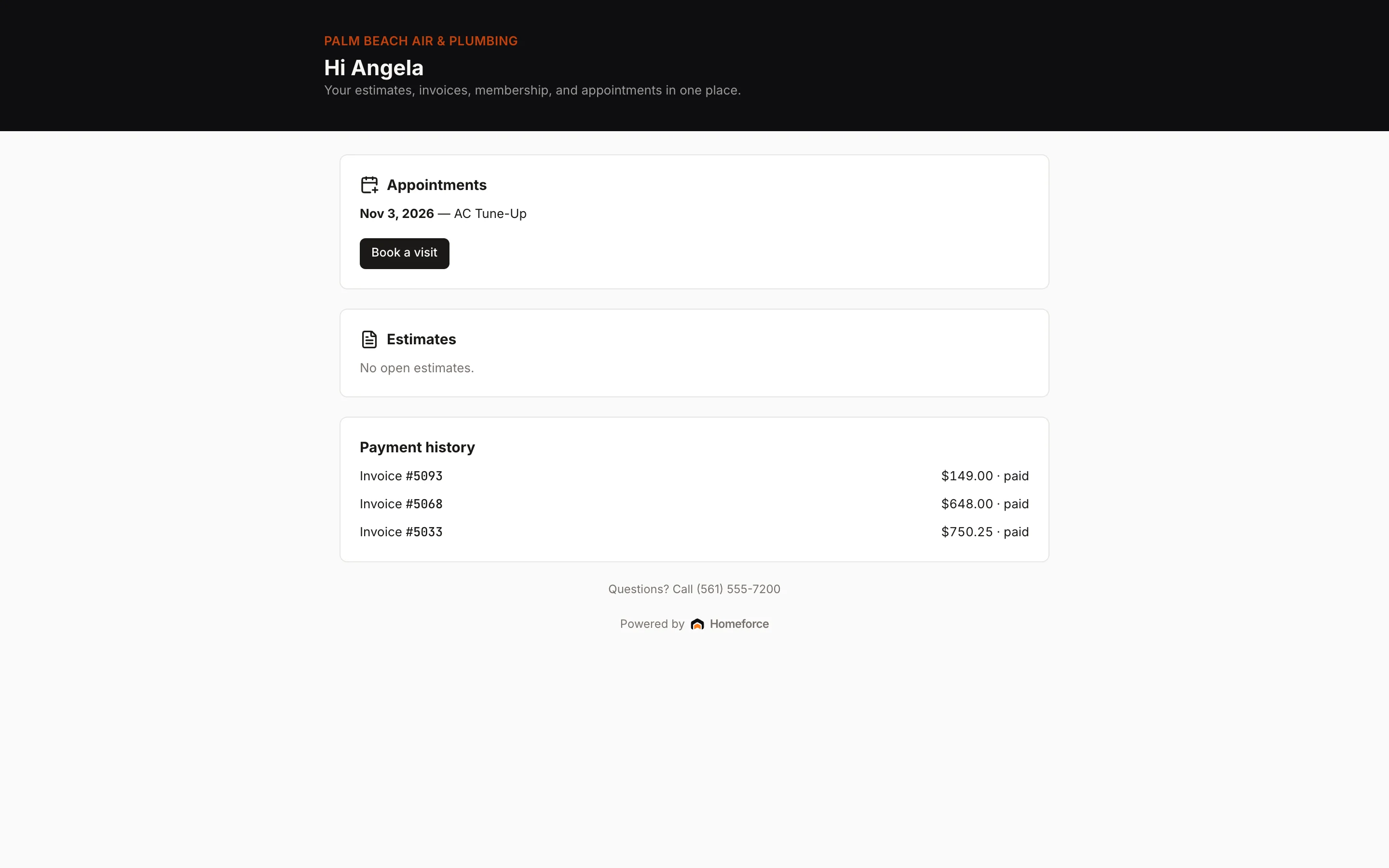
The portal leads with your company logo or name and greets the customer by first name. Then:
- Balance due: each unpaid invoice with its number, date and a Pay button for the remaining balance. Paying opens the invoice's pay link.
- Appointments: up to five upcoming visits with their dates. A Book a visit button opens your online booking page.
- Membership: for each active or past-due membership, the plan name, price, term end date and perks, plus a button to Turn off auto-renew or Turn on auto-renew. Past-due memberships say "payment past due".
- Estimates: estimates you've sent and ones they've approved, with their status. Customers tap one to review and approve it.
- Payment history: recent paid invoices.
Your phone number appears at the bottom so customers can call with questions.
Draft and voided invoices, and draft or declined estimates, don't appear in the portal.
Common uses
- Collections: text the portal link to a customer with several open invoices so they can pay them all in one place.
- Membership questions: customers can see their plan, perks and renewal date without calling. If they ask you to stop auto-renew, open their portal and click Turn off auto-renew for them. See Renew or cancel a membership.
- Approvals: customers can find any estimate you've sent them.
Was this helpful?
Related articles
Invoices and payments
Get paid with pay links
What a pay link is, what your customer sees when they open it, and how to share one.
Recurring
Renew or cancel a membership
How agreements renew at the end of their term, how customers turn off auto-renew, and how to cancel.
Sales
Present an estimate
Walk the customer through their options on a tablet or laptop, then have them choose, sign and pay the deposit on the spot.
Recurring
Set up membership plans
Create maintenance plans and service agreements with recurring billing, included visits and member pricing.
Still stuck?
Our team answers support emails during business hours, usually within a few hours.