
Present an estimate
Walk the customer through their options on a tablet or laptop, then have them choose, sign and pay the deposit on the spot.
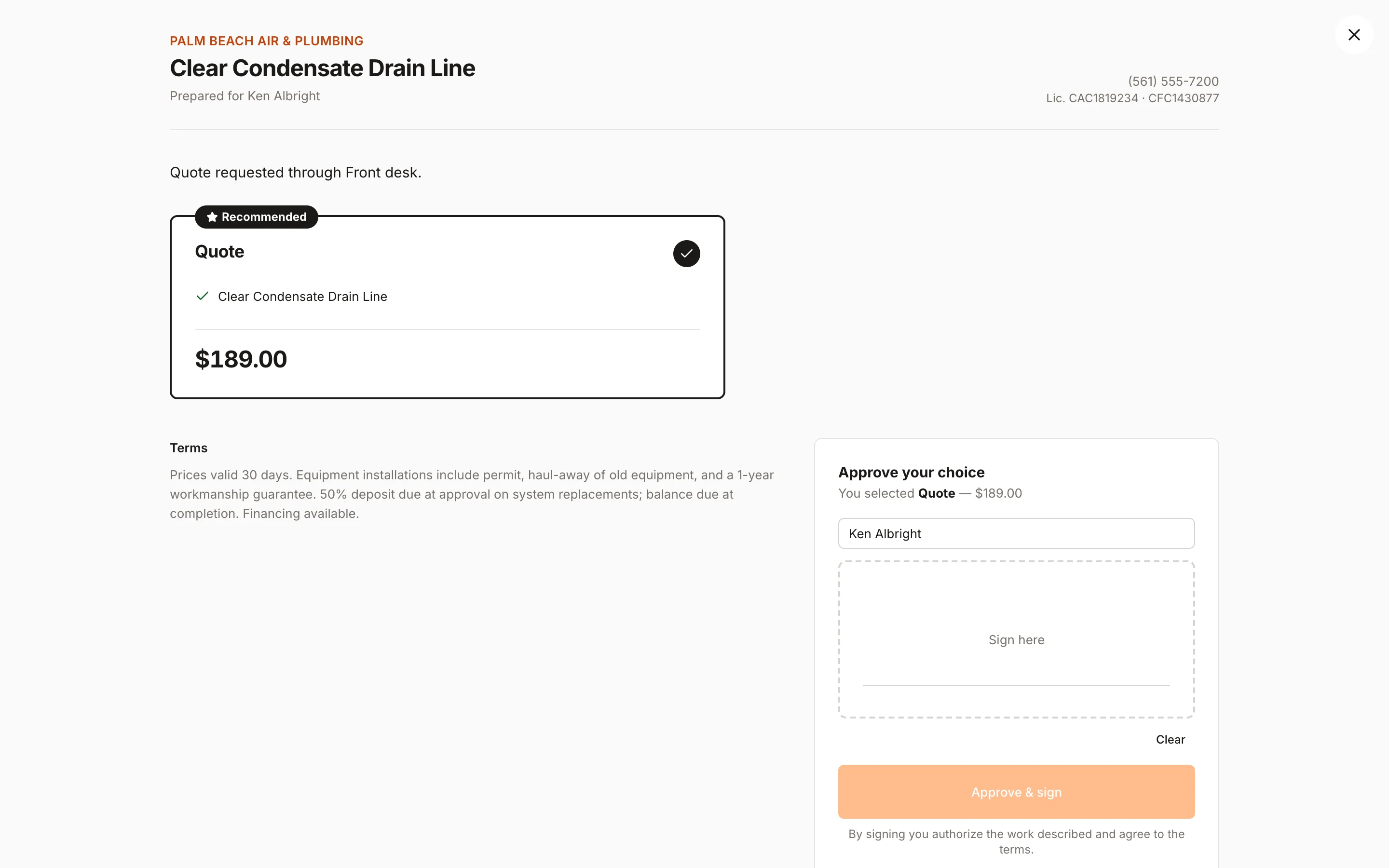
Present mode turns an estimate into a clean, full-screen proposal you can hand to the customer at the kitchen table. It hides your costs, margins and the rest of Homeforce.
Start presenting
- Open the estimate and click Save changes if you've edited anything.
- Click Present to customer. From the estimates list you can also use Present on any open estimate.
- Hand over the screen.
What the customer sees
- Your logo, company name, phone and license number.
- The estimate title, "Prepared for" their name, and your intro.
- Each option side by side with its description and line items. The recommended option has a Recommended badge.
- Each option's total, any discount ("You save …"), and for options of $500 or more an "as low as …/mo with financing" estimate.
- Your terms.
Approve and sign
- The customer taps the option they want. The recommended option is pre-selected.
- Under Approve your choice, they check their name (it's filled in with the customer's name) and sign in the signature box.
- They tap Approve & sign.
The screen shows Approved — thank you! with the option and total. If the estimate has a deposit, a Pay … deposit button appears so they can pay right then. See Collect a deposit.
When the customer approves:
- The estimate is marked Approved and locked.
- Their signature, name and the time are saved with the estimate.
- Any follow-up texts and emails stop.
- A deposit invoice is created if a deposit is required.
Leave present mode
Tap the X in the top-right corner to go back to the estimate.
What to do after the sale: After an estimate is sold.
Was this helpful?
Related articles
Sales
Create an estimate
Start an estimate for a customer, add line items from your pricebook, and save it ready to present or send.
Sales
Build estimate options and pricing
Set up good, better and best options, apply discounts, understand tax, and require a deposit on approval.
Sales
After an estimate is sold
What happens when a customer approves, how deposits work, and how to schedule and invoice the sold work.
Mobile app
Get the mobile app and sign in
Install the Homeforce app on your iPhone or Android phone, accept your team invite, and sign in with a code, password or Google.
Still stuck?
Our team answers support emails during business hours, usually within a few hours.