
Add a lead
Enter a new inquiry, send an instant thank-you text, and book the appointment in the same step.
Add a lead when someone calls, writes or walks in and you want to track them before they're booked. You can text them right away and even book the appointment from the same form.
Open the form
Click New lead on the Leads page. The form opens in a side panel, so you don't lose your place.
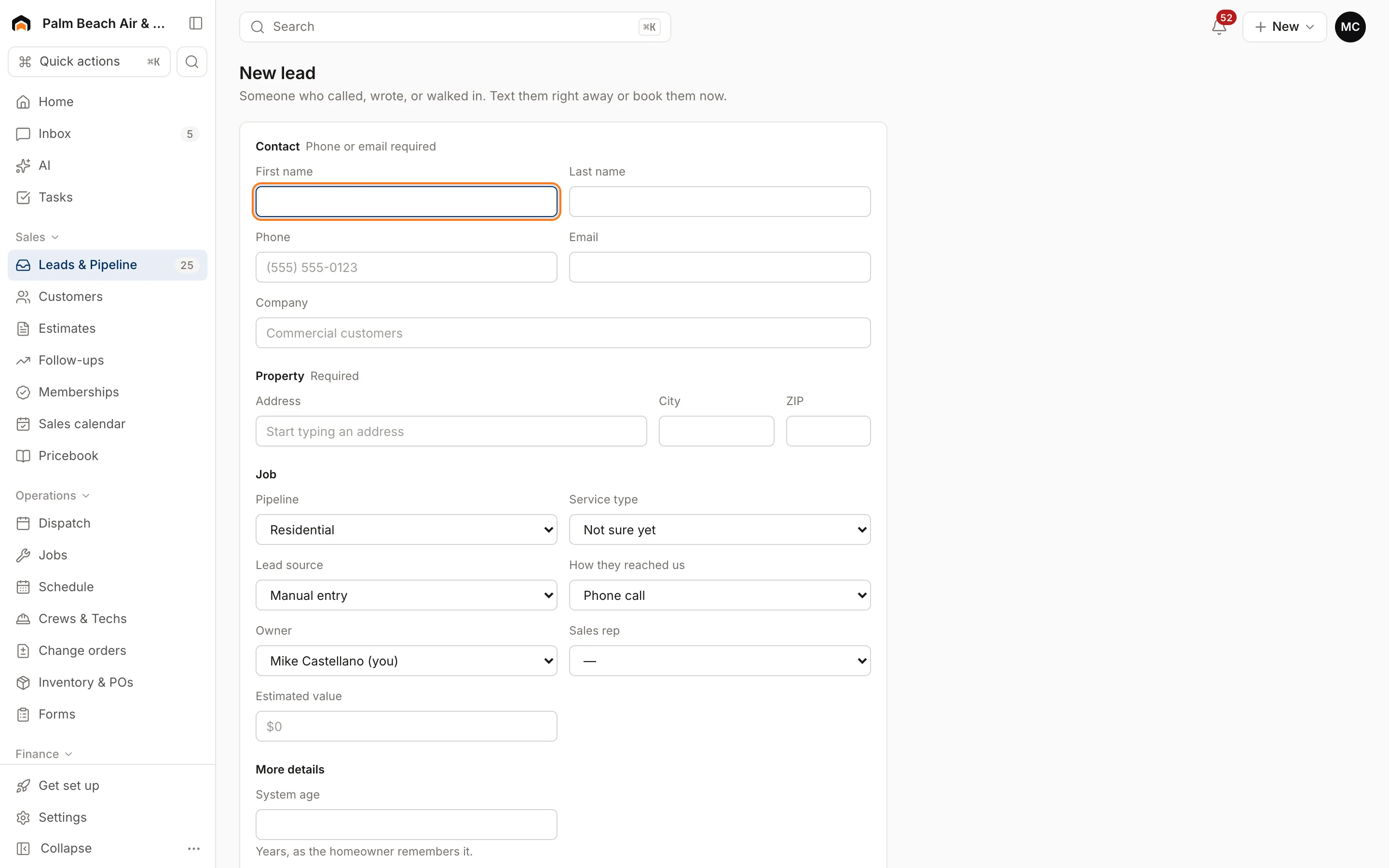
Fill it in
- Under Contact, enter a First name (or a Company), plus a Phone or Email. You need at least one of the two.
- Under Property, start typing the Address and pick it from the suggestions. City and ZIP are required for leads.
- Under Job, choose the Pipeline (Residential or Commercial) and the Service type, or leave it as Not sure yet.
- Pick the Lead source and How they reached us (for example Phone call, Website form or Referral).
- Set the Owner (who's working the lead; it defaults to you) and, if someone else will run the estimate, the Sales rep.
- Add an Estimated value if you have a rough idea of the job size.
- Fill in any More details fields your company added, and jot down Notes (what they need, best time to call).
If anything is missing, the footer shows Still needed with a list.
Send an instant text
Turn on Lead agent / instant text to text them right away: "Thanks for reaching out — someone will be in touch shortly." The text shows up in your inbox thread and moves the lead to Contacted. This needs a mobile number.
Book it now
Turn on Schedule appointment now to book while you're on the phone. A scheduler appears. It's shaped by the service type: estimates book a sales rep at an exact time, service calls an arrival window, and crew jobs book crew days. See Book an appointment for how each one works.
Booking turns the lead into a customer and moves it to Booked.
Save
Click Create lead, or Create lead & book if you're scheduling. If a customer with the same phone number already exists, the lead is linked to them.
Was this helpful?
Related articles
Sales
Manage leads
Work every new inquiry on the Leads board, from New to Contacted to Booked, and see where your leads come from.
Scheduling and dispatch
Book an appointment
Book a service call, estimate visit or multi-day crew job in one form, with a live view of who's free, or book a phone caller in under a minute.
Custom fields and layouts
Add custom fields
Track your own details, like gate codes, permit numbers or roof type, on customers, leads, jobs, estimates, properties and equipment.
Sales
Follow up with the sales pipeline
Track every estimate from building to won or lost, run automatic follow-ups, and see upcoming sales appointments.
Still stuck?
Our team answers support emails during business hours, usually within a few hours.