
Run campaigns and manage reviews
Text or email groups of customers, see and answer Google reviews, track referrals, and see which lead sources pay off.
The Marketing page brings together customer campaigns, reviews, referrals and lead source tracking. It's included on the Pro and Scale plans.
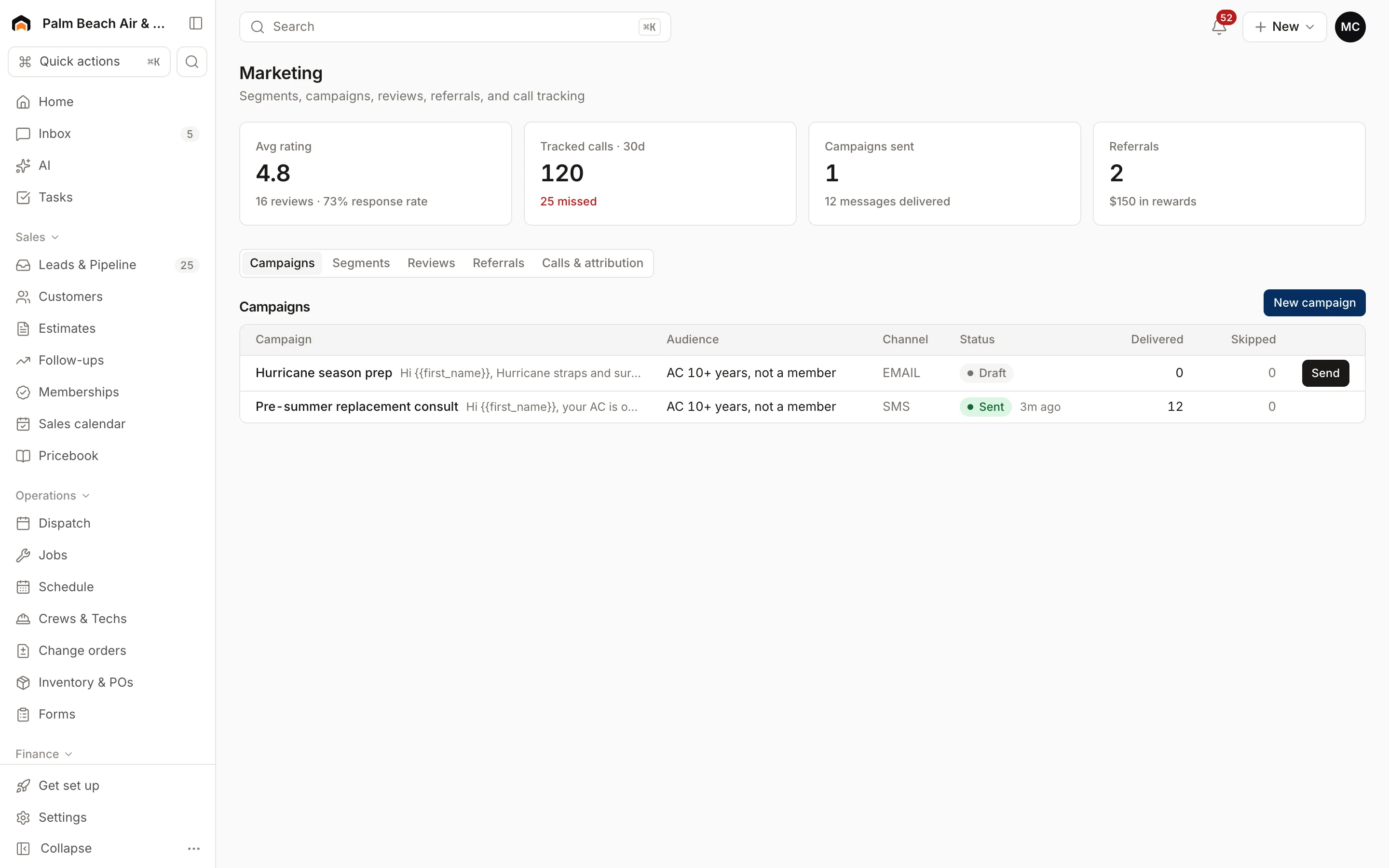
The top of the page shows your Avg rating, Tracked calls · 30d, Campaigns sent and Referrals. The tabs below are Campaigns, Segments, Reviews, Referrals and Calls & attribution.
Build a segment
A segment is a saved group of customers that match up to three rules.
- Open the Segments tab.
- Under New segment, give it a Name, like "AC older than 10 years".
- For each rule, pick a field (such as Equipment age (yrs), Equipment type, Is member (true/false), Days since last service, City, Tag, Has open estimate (true/false) or Customer type), an operator (≥, ≤, is, is not, has) and a value.
- Click Save segment.
Each segment shows how many customers match right now.
Send a campaign
- Open the Campaigns tab and click New campaign.
- Enter a Name, choose the Audience (a segment) and the Channel (Text or Email).
- For email, add an Email subject.
- Write the Message. Use {{first_name}} and {{company}} to personalize it.
- Click Save draft.
- When you're ready, click Send on the campaign and confirm.
The list shows how many messages were Delivered and Skipped. Customers marked Do not text are skipped for text campaigns.
Owners, admins, office/CSR staff, sales reps and project managers can write and send campaigns.
Reviews
On the Reviews tab, connect Google Business Profile to pull your reviews in. They sync every 6 hours, or click Sync now. Type a Reply under any review to answer it from Homeforce.
To ask for reviews automatically after an invoice is paid in full, turn on Ask for a review automatically in Settings → Reviews and add your Review link.
Referrals
The Referrals tab lists referrals and the rewards you've given.
Calls & attribution
Calls & attribution shows each lead source over the last 30 days: tracking number, calls, missed calls, leads, jobs, revenue, spend, cost per lead and return on ad spend. You'll also see synced ad campaigns and a call log. Set each source's monthly cost and tracking number in Settings → Lead sources & pipeline.
Was this helpful?
Related articles
Sales
Manage leads
Work every new inquiry on the Leads board, from New to Contacted to Booked, and see where your leads come from.
Reports
Reports overview
See revenue, invoicing, average ticket, close rate, team performance and lead source ROI for any recent period.
Sales
Manage customers and properties
Add customers, keep contacts and service locations up to date, and see a customer's full history on one page.
Sales
Add a lead
Enter a new inquiry, send an instant thank-you text, and book the appointment in the same step.
Still stuck?
Our team answers support emails during business hours, usually within a few hours.