
Let customers book online
Turn on online booking so customers can pick a service and an open arrival window themselves, any time of day.
Online booking lets customers book a visit without calling. They pick a service, a day and an open arrival window, and the job lands on your board with a tech already assigned when one is free.
What customers see
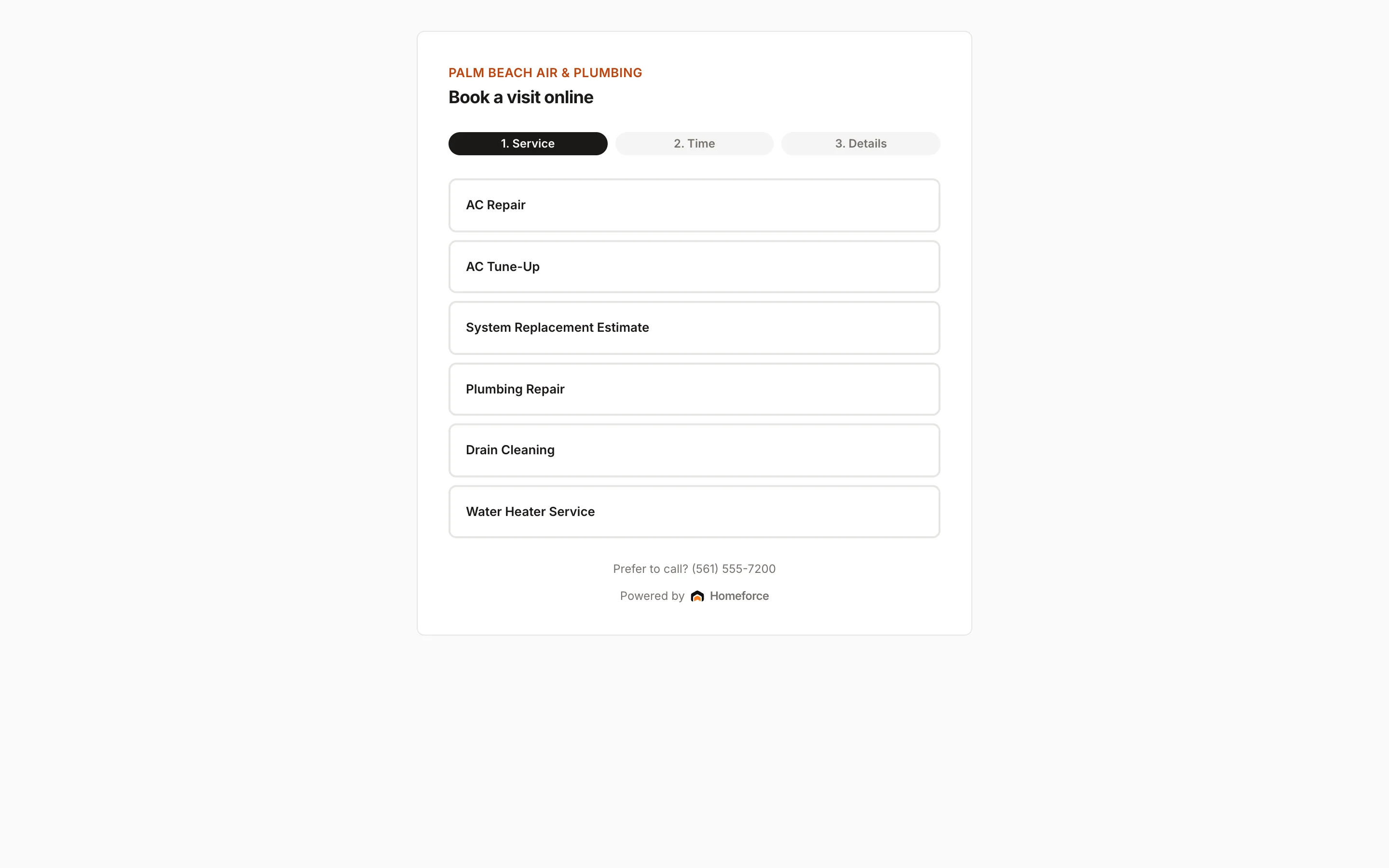
The booking page shows your company name and logo under the heading Book a visit online, in three steps:
- Service: they tap one of the job types you've made bookable.
- Time: they pick a day in the next 10 days (starting tomorrow), then an open window. Full windows are crossed out.
- Details: they enter their Full name, Mobile phone, Email, Street address, City, ZIP and What's going on?, then tap Confirm booking.
They see You're booked! with their arrival window and get a confirmation text. The page also shows your phone number for people who'd rather call.
Where customers find it
- Your Homeforce website: turn on Online booking on the Website page.
- The customer portal: the Book a visit button.
- Google: when Google Business Profile is connected, your profile's Book button can point to online booking.
Set it up
Owners and admins control online booking in settings:
- In Settings → Hours & service areas, make sure Online booking is on. Set your Business hours (online booking only offers windows inside them) and the Arrival window length (2, 3 or 4 hours).
- Under Service area, list the ZIP codes you serve. Bookings from other ZIPs are turned away. Leave it empty to accept every ZIP.
- In Settings → Job types & modes, turn on Bookable online for each job type customers should be able to pick.
What happens when someone books
- A lead is created from Online booking and marked Booked.
- The customer is matched by phone number, or a new customer and property are created.
- A job is created, tagged Online booking, in the window they picked.
- The best available tech with the right skills is assigned. If nobody is free, the job waits in the unscheduled queue.
To limit abuse, the page allows only a few bookings from the same connection in a short time.
Was this helpful?
Related articles
Sales
Book a call
Book an incoming caller into a real open arrival window in under a minute, with the best-fit tech assigned for you.
Sales
Manage leads
Work every new inquiry on the Leads board, from New to Contacted to Booked, and see where your leads come from.
Getting started
Set up your company
Answer five quick setup questions, then work through First steps and the Get set up checklist.
Sales
Add a lead
Enter a new inquiry, send an instant thank-you text, and book the appointment in the same step.
Still stuck?
Our team answers support emails during business hours, usually within a few hours.