
Follow up with the sales pipeline
Track every estimate from building to won or lost, run automatic follow-ups, and see upcoming sales appointments.
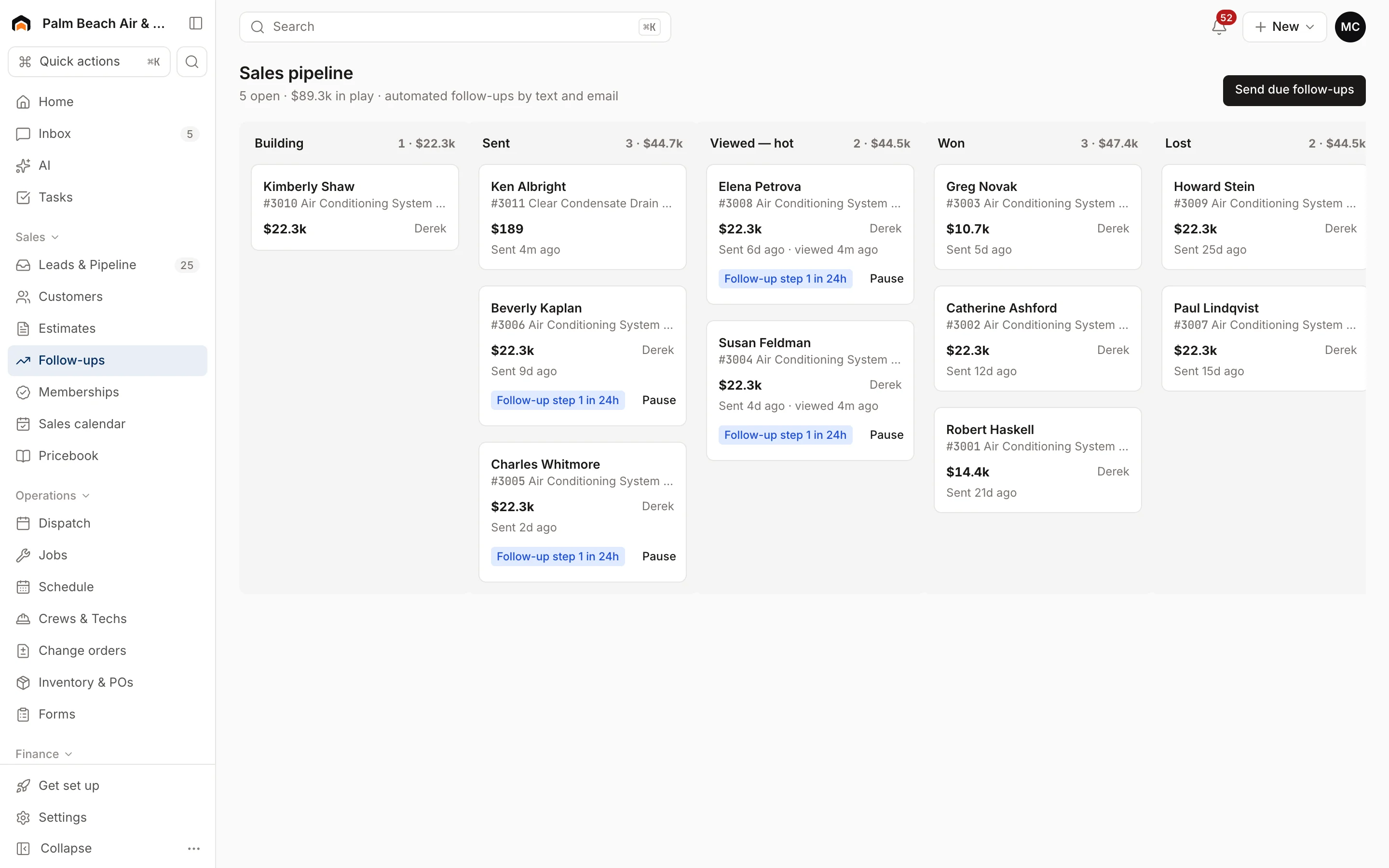
The Sales pipeline shows every estimate by stage, with automatic text and email follow-ups for the ones still waiting on a decision. The Sales calendar lists estimate appointments for the next two weeks.
Pipeline columns
- Building: draft estimates you haven't sent.
- Sent: sent, not opened yet.
- Viewed — hot: the customer opened the link. Call these first.
- Won: approved.
- Lost: declined.
Each column shows a count and total value. A card shows the customer, estimate number and title, the value, the rep, and when it was sent and viewed. Click a card to open the estimate. The header shows how many estimates are open and the dollars in play.
If you've turned on Sales reps see only their own pipeline, reps see only estimates they wrote or sold.
Automatic follow-ups
When you send an estimate, Homeforce starts the default follow-up sequence. Out of the box it's:
- Day 1: a text checking whether they have questions.
- Day 3: an email with the link and a financing mention.
- Day 7: a text offering to hold an install spot.
- Day 14: a last check-in text.
Steps go out automatically. They stop as soon as the estimate is approved or declined. Cards with an active sequence show a badge like Follow-up step 2 in 2 days.
- To stop follow-ups for one estimate, click Pause on its card.
- To send any steps that are due right now, click Send due follow-ups.
Customers marked Do not text don't get the text steps.
Manage sequences
Owners and admins manage sequences in Settings → Estimates & proposals under Follow-up sequences. The default sequence is created when you send your first estimate, or you can click Create it now. Use Pause and Resume to turn a sequence off and on, and Make default to pick which one new estimates use.
Sales calendar
Sales calendar shows estimate appointments and sales visits for the next 14 days, day by day. A visit appears here when its job type is marked Sales opportunity (in Settings → Job types & modes) or when the person assigned has the Sales role. Booking a sales appointment takes you straight here.
Was this helpful?
Related articles
Sales
Send an estimate for online approval
Text and email the estimate link so the customer can review options, sign and pay a deposit from their phone.
Sales
Create an estimate
Start an estimate for a customer, add line items from your pricebook, and save it ready to present or send.
Sales
Manage leads
Work every new inquiry on the Leads board, from New to Contacted to Booked, and see where your leads come from.
Reports
Reports overview
See revenue, invoicing, average ticket, close rate, team performance and lead source ROI for any recent period.
Still stuck?
Our team answers support emails during business hours, usually within a few hours.