
Create an estimate
Start an estimate for a customer, add line items from your pricebook, and save it ready to present or send.
An estimate is the price you put in front of a customer before the work is sold. You build it from your pricebook, with one or more options for the customer to choose from.
Owners, admins, office/CSR staff, sales reps, project managers and techs can create estimates.
Start a new estimate
- Click New estimate on the Estimates page. You can also start one from a customer page, or from a job with Estimate (the estimate is then linked to that job).
- Search for the Customer. If they have more than one property, choose the Location. You can't create a new customer from here, so add them first if they're new.
- Enter a Title, like "AC System Replacement".
- Leave Start with Good / Better / Best options ticked for three options, or untick it for a single option called "Proposal".
- Click Create & open builder.
Build it
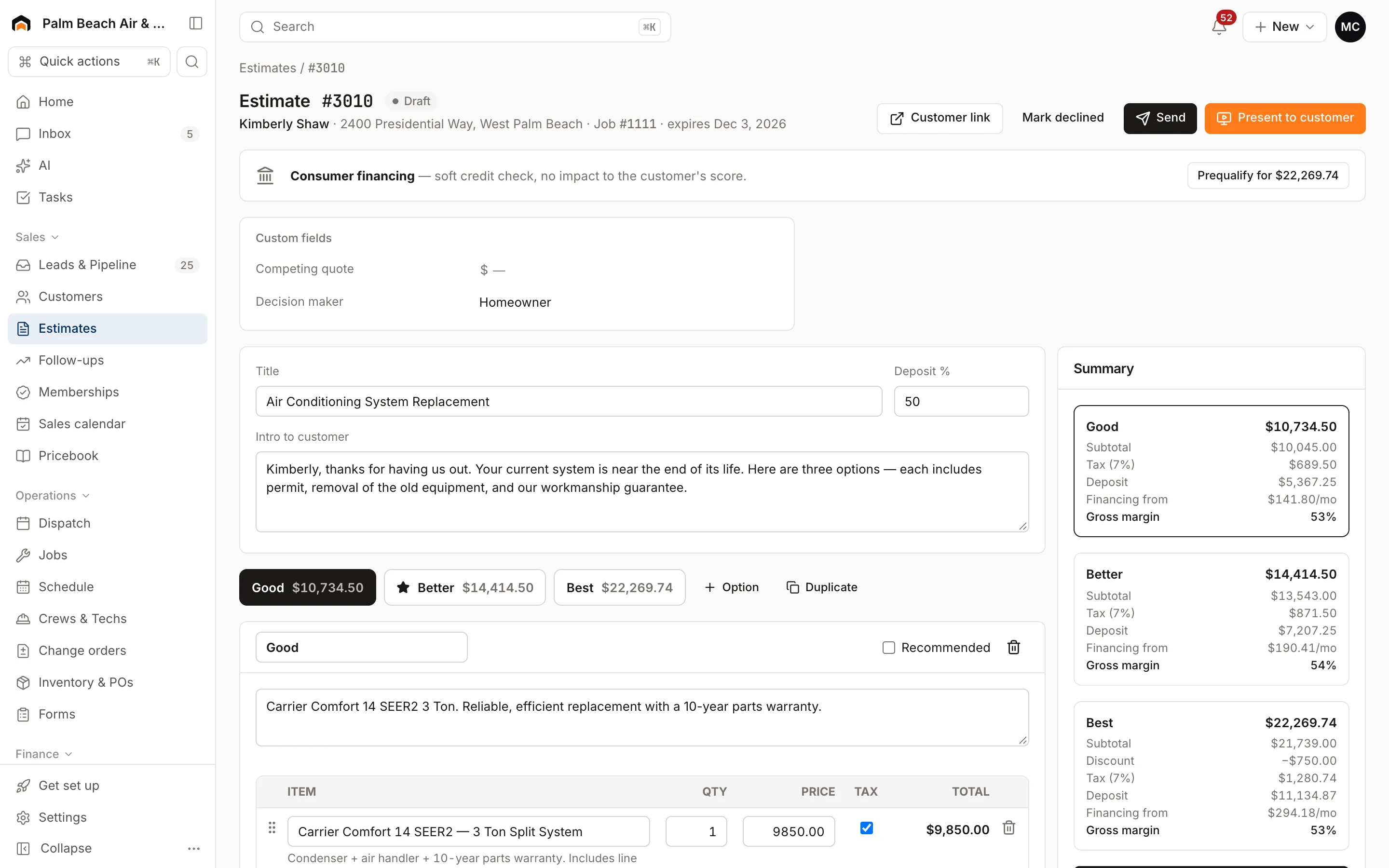
- Fill in the Intro to customer. It appears at the top of the proposal.
- Pick an option tab, then type in Add from pricebook — search services, parts, equipment and click an item to add it.
- Change the Qty or Price on any line. Untick Tax for lines that shouldn't be taxed.
- Use Custom line for anything that isn't in your pricebook.
- Write a short customer-friendly description for each option.
- Review the Terms at the bottom.
- Click Save changes.
Homeforce warns you if you try to leave with unsaved changes.
If the customer is a member, their member prices are used and the summary shows Member pricing. People who can see costs also see Gross margin for each option.
For options, discounts, tax and deposits, see Build estimate options and pricing.
The estimates list
The Estimates page shows Sold, Open pipeline, Close rate and Avg sold ticket at the top. Use the tabs to filter:
- Open: drafts, sent and viewed.
- Unsold follow-up: sent or viewed, waiting on the customer.
- Sold: approved.
- Declined / expired
- All
Open estimates have a Present shortcut in their row.
Estimate statuses
- Draft: you're still building it.
- Sent: emailed or texted to the customer.
- Viewed: the customer opened the link.
- Approved: the customer picked an option and signed. It's locked.
- Declined: you clicked Mark declined, or the customer passed.
Editing a declined estimate turns it back into a draft. Approved estimates can't be edited.
Each estimate gets an expiry date (30 days unless you change it in Settings → Estimates & proposals), shown in the header.
Next steps
- Present an estimate in person.
- Send an estimate for the customer to approve online.
Was this helpful?
Related articles
Sales
Build estimate options and pricing
Set up good, better and best options, apply discounts, understand tax, and require a deposit on approval.
Sales
Present an estimate
Walk the customer through their options on a tablet or laptop, then have them choose, sign and pay the deposit on the spot.
Sales
Send an estimate for online approval
Text and email the estimate link so the customer can review options, sign and pay a deposit from their phone.
Sales
Set up your pricebook
Add services, materials and equipment with flat-rate, markup and member prices, or import them from a spreadsheet.
Still stuck?
Our team answers support emails during business hours, usually within a few hours.