
Manage leads
Work every new inquiry on the Leads board, from New to Contacted to Booked, and see where your leads come from.
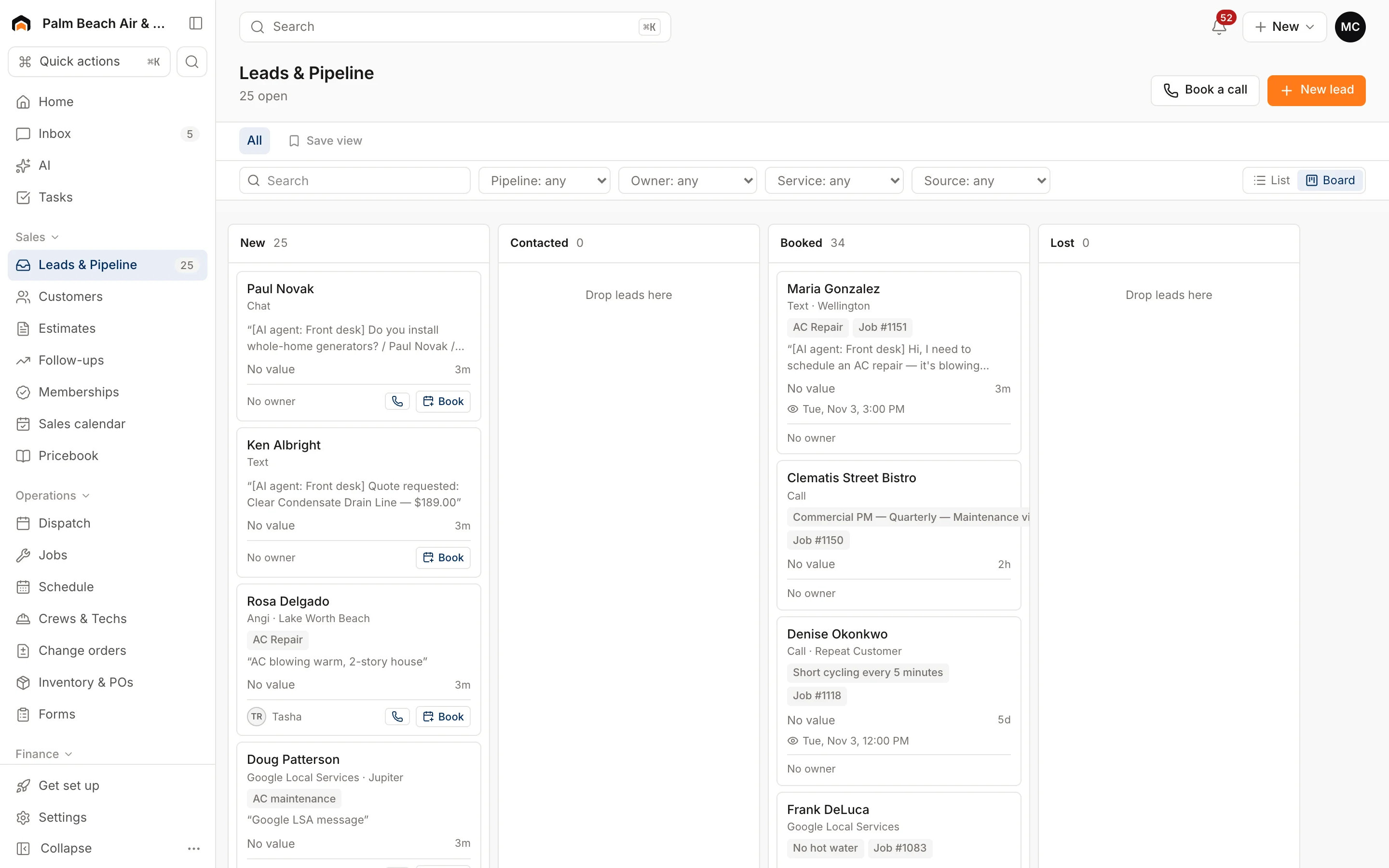
A lead is someone who called, wrote, booked online or walked in but hasn't been booked yet. The Leads & Pipeline page shows every lead so nobody slips through the cracks.
Where leads come from
Leads land on the board from phone bookings, your website form and chat, online bookings, and lead services. You can also add one by hand with New lead (see Add a lead).
Lead stages
Every lead sits in one of four stages. The stages are fixed so your reports stay comparable.
- New: just came in, nobody has reached out yet.
- Contacted: someone has texted or talked to them.
- Booked: an appointment or job is on the schedule.
- Lost: not going anywhere.
The header shows how many leads are open (New plus Contacted) and their total estimated value.
Read a lead card
Each card shows the name, how they reached you, the lead source and city, plus the service they asked about. You'll also see:
- Commercial if it's on the commercial pipeline.
- Texted if the instant thank-you text went out.
- Job # once it's booked, and the next visit time.
- A timer like "12m no touch" on New leads nobody has contacted. It turns amber after 5 minutes and red after an hour.
- The owner's initials, or the sales rep's name.
Move a lead
- Drag the card to New, Contacted or Lost.
- To book it, click Book on the card. This opens Book a call with their details filled in.
You can't drag a card into Booked. Leads move there when they're booked. Leads you drag to Lost are saved with the reason "Not a fit".
Clicking a card opens the job if it's booked, the customer if they're already in Homeforce, or Book a call otherwise.
Filter, search and save views
Use the toolbar to search by name, phone, email or service. You can filter by Pipeline (Residential or Commercial), Owner, Service and Source. Switch between the board and a list. The list adds columns such as Stage, Value and Created, plus any custom fields you've added. Save a filter combination as a view to reuse it.
Lead sources
Owners and admins set up sources in Settings → Lead sources & pipeline. Each source has a Name, Channel, Monthly cost (for cost per lead and ROI) and an optional Tracking number. Calls to that number are credited to the source. Deactivated sources stay on past records.
Who sees what
Owners, admins, office/CSR staff and sales reps can view and edit leads. If Sales reps see only their own pipeline is turned on in Settings → Users & roles, reps see only the leads they own or where they're the sales rep.
Was this helpful?
Related articles
Sales
Add a lead
Enter a new inquiry, send an instant thank-you text, and book the appointment in the same step.
Sales
Book a call
Book an incoming caller into a real open arrival window in under a minute, with the best-fit tech assigned for you.
Sales
Follow up with the sales pipeline
Track every estimate from building to won or lost, run automatic follow-ups, and see upcoming sales appointments.
Settings
Users and permissions
Invite people, change their role, limit sales reps to their own pipeline, and deactivate someone who leaves.
Still stuck?
Our team answers support emails during business hours, usually within a few hours.