
Manage customers and properties
Add customers, keep contacts and service locations up to date, and see a customer's full history on one page.
Every job, estimate and invoice belongs to a customer. The customer page pulls together their contacts, properties, equipment and history.
The customer list
Customers lists everyone with their phone, email, address, tags, number of jobs, lifetime spend and balance. Double-click a phone, email or tags cell to edit it in place. Use search, filters and saved views like other lists. Each row's actions include New estimate.
Add a customer
- Click New customer.
- Under Contact, enter a name (or Company) and a Phone or Email.
- Under Property, add the service address and any Access notes (gate code, pets, parking). This part is optional.
- Under Details, pick a Lead source and add Tags, separated by commas.
- Add Notes. To book their first visit now, turn on Schedule appointment now.
- Click Create customer (or Create & book).
The customer page
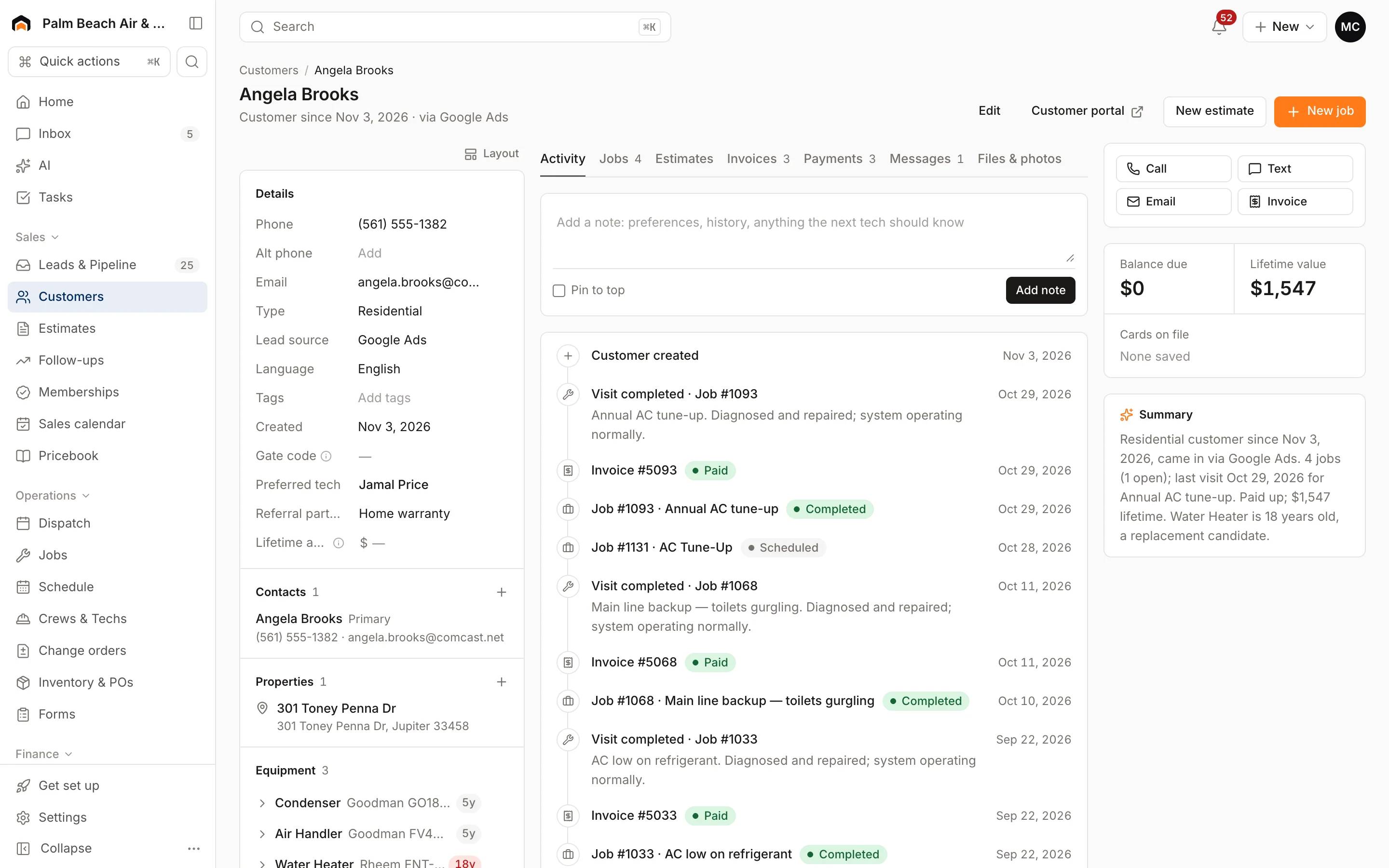
The header has Edit, Customer portal (opens the customer's own portal), New estimate and New job. Badges show Commercial and Do not text when they apply.
On the left you'll find:
- Call, Text, Email and Invoice buttons. Text is turned off for customers marked Do not text.
- Balance due, Lifetime value, Cards on file and any Membership.
- Details: click any value (phone, email, type, lead source, language, tags) to change it. You can also mark a customer Do not text and set their language for customer notes from Edit.
- Contacts: click Add contact to add a spouse, tenant or property manager with a Role, phone and email.
- Properties: click Add service location for each address. Give it a Label (Rental, Beach house, Suite 200), the address and Access notes, then click Add location.
- Equipment: add units to a property with type, brand, model, serial, capacity, install date and warranty. Each unit shows its age, and you can attach a data-plate photo with the camera button.
Customer history
The tabs in the middle hold the history:
- Activity: a timeline of jobs, completed visits, estimates, invoices and notes. Add a note at the top and tick Pin to top to keep it visible.
- Jobs, Estimates and Invoices, each with status and amount.
- Payments, Messages, and Files & photos (job photos and equipment photos).
Some roles can't see payments or messages, and those tabs say so.
Was this helpful?
Related articles
Sales
Add a lead
Enter a new inquiry, send an instant thank-you text, and book the appointment in the same step.
Sales
Create an estimate
Start an estimate for a customer, add line items from your pricebook, and save it ready to present or send.
Recurring
Set up membership plans
Create maintenance plans and service agreements with recurring billing, included visits and member pricing.
Custom fields and layouts
Add custom fields
Track your own details, like gate codes, permit numbers or roof type, on customers, leads, jobs, estimates, properties and equipment.
Still stuck?
Our team answers support emails during business hours, usually within a few hours.