
Set up membership plans
Create maintenance plans and service agreements with recurring billing, included visits and member pricing.
A membership plan is a service agreement you sell to customers: they pay on a schedule, get a set number of maintenance visits a year, and get member pricing on repairs. Homeforce bills the plan, creates the maintenance jobs, and tracks renewals for you.
Memberships are included on the Pro and Scale plans. You'll find them under Memberships in the sidebar.
Create a plan
Owners and admins can create plans.
- Go to Memberships.
- Next to Plans, click New plan.
- Enter a Name (for example, "Comfort Club") and a Description your team will recognize.
- Enter the Price per billing period.
- Choose Billing: Monthly, Quarterly or Annual.
- Set Visits per year. This is how many maintenance visits the plan includes (0–12).
- Set Repair discount % and list any Perks, separated by commas (for example, "Priority scheduling, No overtime fees").
- Click Create plan.
Every plan runs on a 12-month term. When the term ends, the agreement renews or expires. See Renew or cancel a membership.
What the plan card shows
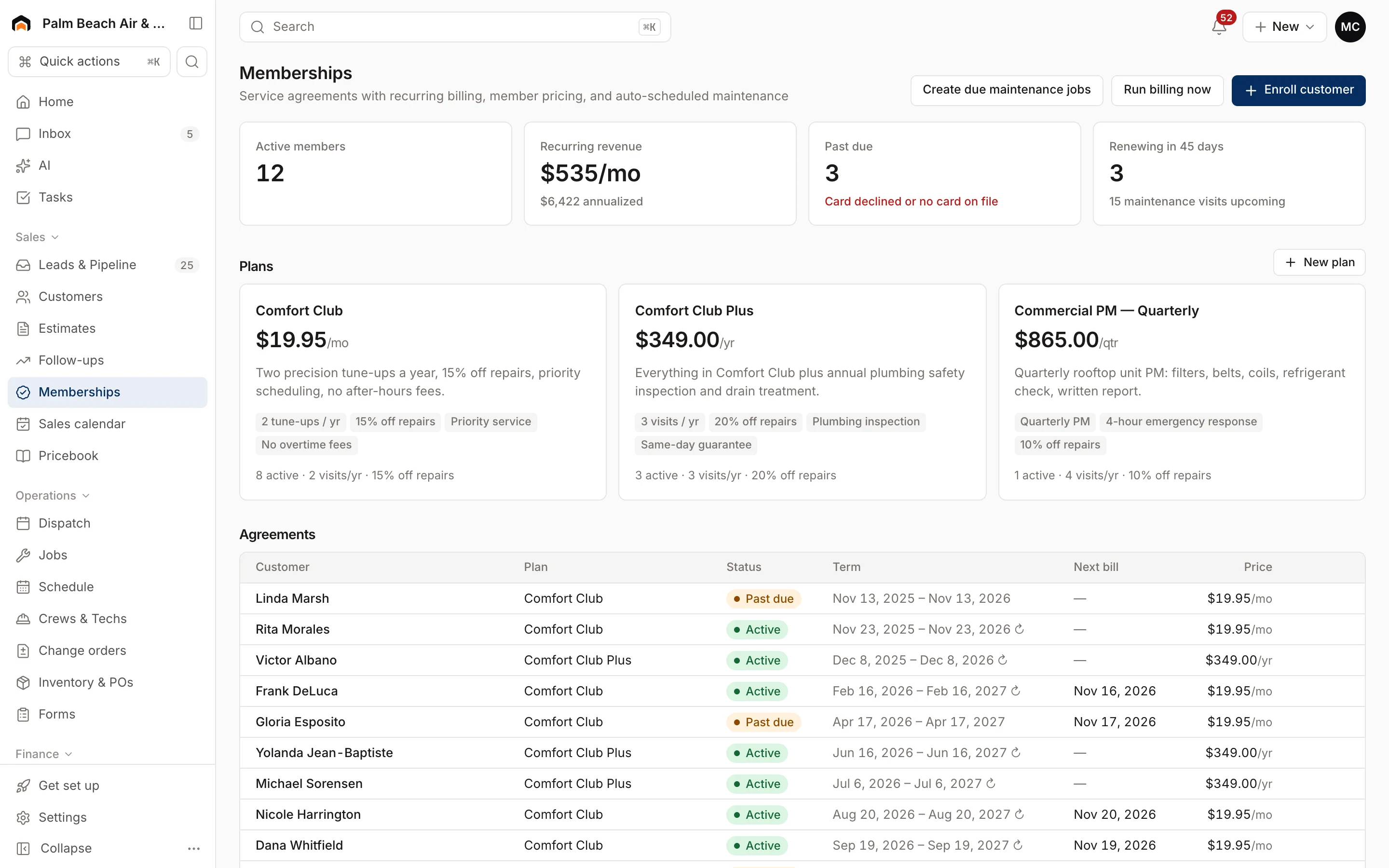
Each plan appears as a card with its price, description and perks. The line at the bottom shows how many customers are active on it, the visits per year and the repair discount. Customers see the plan name and perks in their customer portal.
The numbers at the top
- Active members: agreements that are active or past due.
- Recurring revenue: what your memberships bring in per month, with the yearly figure underneath. Quarterly and annual plans are converted to a monthly amount.
- Past due: agreements whose last bill didn't go through.
- Renewing in 45 days: agreements whose term ends soon, plus how many maintenance visits are still upcoming.
Settings → Memberships
Settings → Memberships lists your plans with their term length and active count. Click Manage plans to jump back to the Memberships page.
Next steps
Was this helpful?
Related articles
Recurring
Enroll a customer in a membership
Sign a customer up for a membership plan, bill the first period and turn on member pricing.
Recurring
How membership billing works
When Homeforce charges members, what happens when a card fails, and how to handle past-due agreements.
Recurring
Schedule included maintenance visits
How membership visits become jobs, when they're created, and how to get them on the schedule.
Recurring
Give members special pricing
How member prices are calculated on estimates and invoices, and where to set the member discount.
Still stuck?
Our team answers support emails during business hours, usually within a few hours.