
Book a call
Book an incoming caller into a real open arrival window in under a minute, with the best-fit tech assigned for you.
Book a call is the fast path for a CSR on the phone. You look up the caller, pick what's wrong, pick an open arrival window, and Homeforce creates the job and assigns the tech.
Owners, admins, office/CSR staff and sales reps can book calls. Open it from Book a call on the Leads page, or from Book on a lead card (which fills in the lead's details).
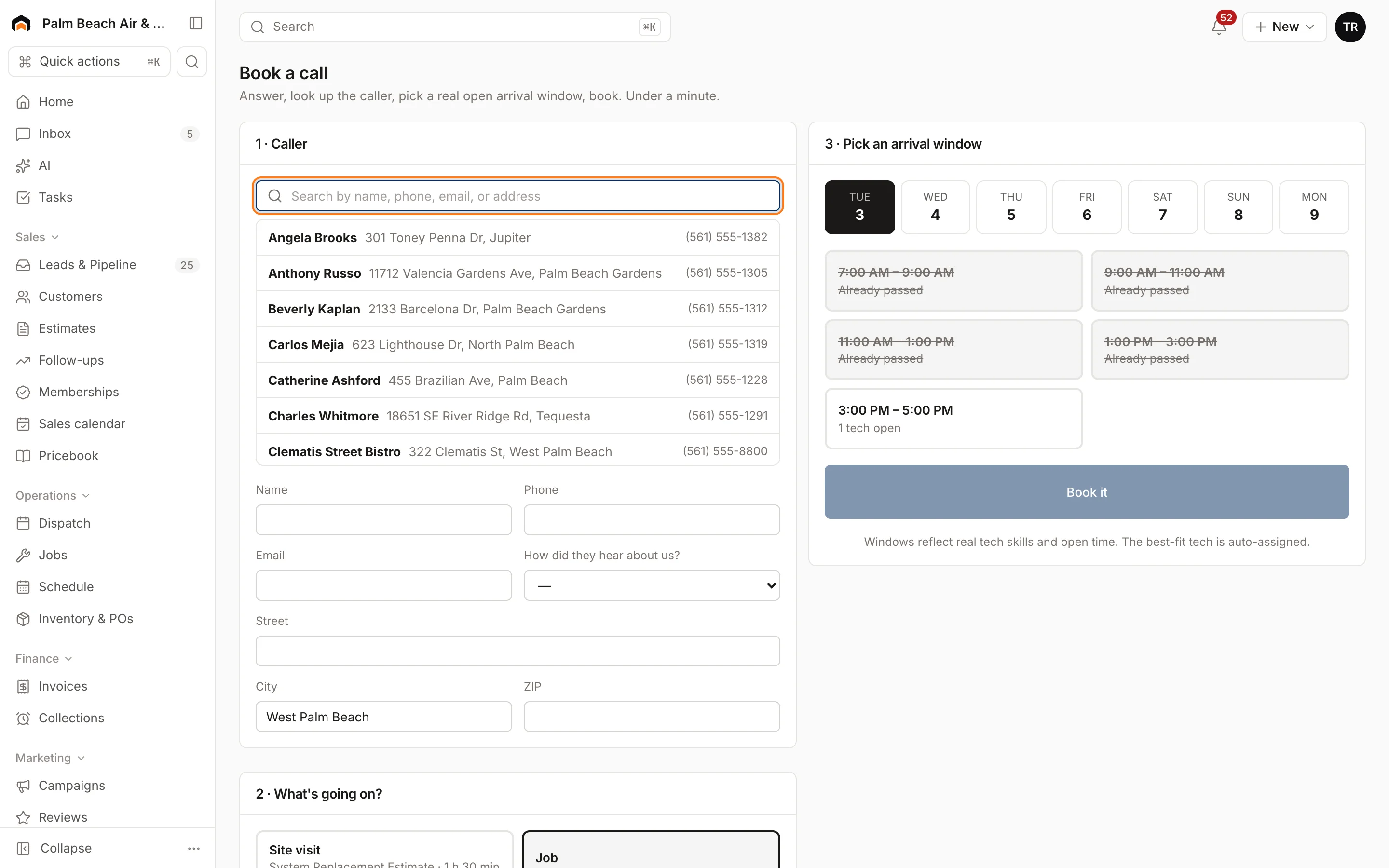
Book the caller
- In 1 · Caller, search for an existing customer. Picking one fills in their name, phone and email, and shows their addresses as buttons you can tap.
- For a new caller, type their Name, Phone and Email.
- Choose How did they hear about us? so the booking is credited to the right lead source.
- Enter the Street (pick from the suggestions), City and ZIP.
- In 2 · What's going on?, tap the job type that fits. Add notes: symptoms, age of equipment, pets, gate codes.
- In 3 · Pick an arrival window, pick a day in the next week, then an open window. Each window shows how many techs are open. Full windows are crossed out.
- Click Book it.
You need a name, a 10-digit phone number, a street and a ZIP before you can book.
What happens next
The confirmation screen shows Booked — Job # with the window and who it's assigned to. The customer gets a confirmation text. Click Open job to see it, or Next call to clear the form.
Behind the scenes, Homeforce:
- Creates a lead marked as a phone call and sets it to Booked.
- Matches the caller to an existing customer by phone number, or creates a new customer and property.
- Creates the job, tagged Phone booking, with a visit in the window you picked.
- Assigns the best available tech who has the skills for that job type. If nobody can be assigned, the job goes to the unscheduled queue on the dispatch board.
Where the windows come from
Windows are built from your business hours and arrival window length in Settings → Hours & service areas, the job type's length, and each tech's skills and open time that day. Only job types that are bookable online or are service calls appear here.
Was this helpful?
Related articles
Sales
Manage leads
Work every new inquiry on the Leads board, from New to Contacted to Booked, and see where your leads come from.
Scheduling and dispatch
Book an appointment
Book a service call, estimate visit or multi-day crew job in one form, with a live view of who's free, or book a phone caller in under a minute.
Scheduling and dispatch
Use the dispatch board
See every tech's day on one timeline, drag waiting work onto the board, and keep the day on track from the office.
Sales
Add a lead
Enter a new inquiry, send an instant thank-you text, and book the appointment in the same step.
Still stuck?
Our team answers support emails during business hours, usually within a few hours.