
Use the dispatch board
See every tech's day on one timeline, drag waiting work onto the board, and keep the day on track from the office.
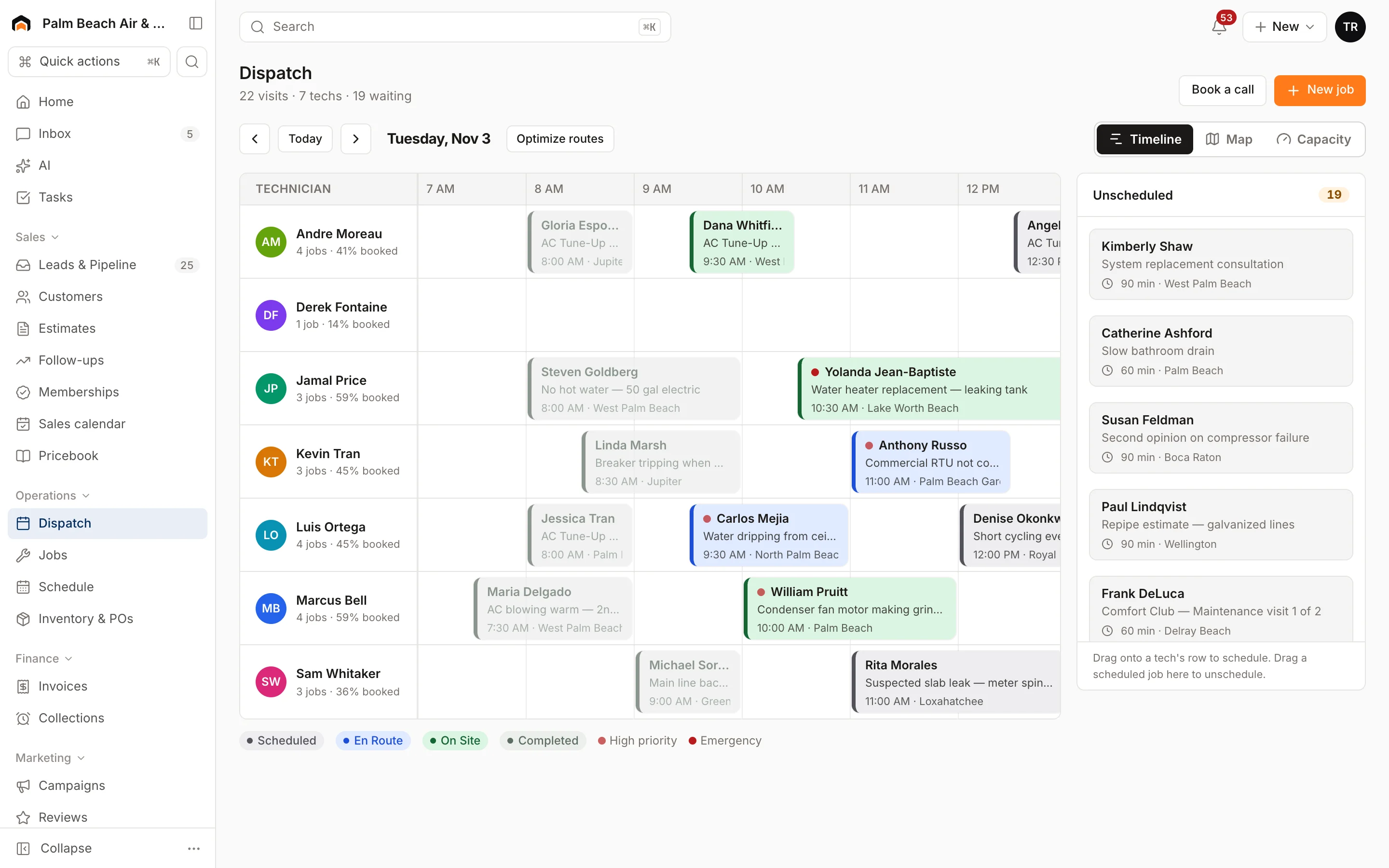
The dispatch board is where the office plans and runs the day. Each technician gets a row, each visit is a block on that row, and work that still needs a time waits in the Unscheduled list on the right.
Open it from Dispatch in the sidebar. If your company mostly runs multi-week projects, the same page is titled Schedule.
What's on the board
- The header shows how many visits, techs and waiting visits there are for the day, plus Book a call and New job buttons.
- Day controls: use the arrows to go back or forward a day, and Today to jump back. A red line marks the current time when you're looking at today.
- Tech rows: everyone marked Dispatchable in Settings → Techs & crews gets a row, in their board color. Under each name you'll see how many jobs they have and how much of their workday is booked.
- Visit blocks show the customer, job summary, start time and city. A red dot means High or Emergency priority. When a tech is on the way, the block shows their ETA.
- Unscheduled lists every visit that doesn't have a time yet, most urgent first, with its length and city.
- The legend under the board shows the status colors: Scheduled, En Route, On Site and Completed.
The timeline always covers at least 7 AM to 6 PM, and stretches further if your workday in Settings → Hours & service areas starts earlier or ends later.
Open a visit
Click any block, or any card in Unscheduled, to open its details beside the board. You'll see the job number, job type, address, time, who's assigned, status and priority. From there you can:
- Click Open job to go to the full job.
- Move the visit to its next status (Mark en route, Mark on site or Mark completed). See Visit statuses.
- Click AI Suggest on unscheduled or scheduled visits to get the best-fit techs for that day.
- Click Close to hide the panel.
Switch views
Use Timeline, Map and Capacity at the top right to look at the same day different ways. See Map and capacity views.
Was this helpful?
Related articles
Scheduling and dispatch
Schedule, reschedule and reassign visits
Drag visits onto a tech and time, move them between techs, send them back to the queue, or let AI Suggest pick the best tech.
Scheduling and dispatch
Map and capacity views
See the day's visits and live tech locations on a map, check how booked your team is, and re-order routes to cut drive time.
Scheduling and dispatch
Visit statuses
What Unscheduled, Scheduled, En Route, On Site and Completed mean, who moves a visit along, and how it changes the job's status.
Jobs and projects
Jobs, visits and projects
How Homeforce organizes work - a job holds one or more visits, and a project is a job with phases, a budget and change orders.
Still stuck?
Our team answers support emails during business hours, usually within a few hours.