
See the week on the Schedule page
A day-by-day list of every visit booked for the next seven days, with times, customers and who's going.
Schedule in the sidebar is a simple agenda of the next seven days. Use it to scan the week at a glance, spot visits nobody is assigned to, or jump to a job. To move things around, use the dispatch board.
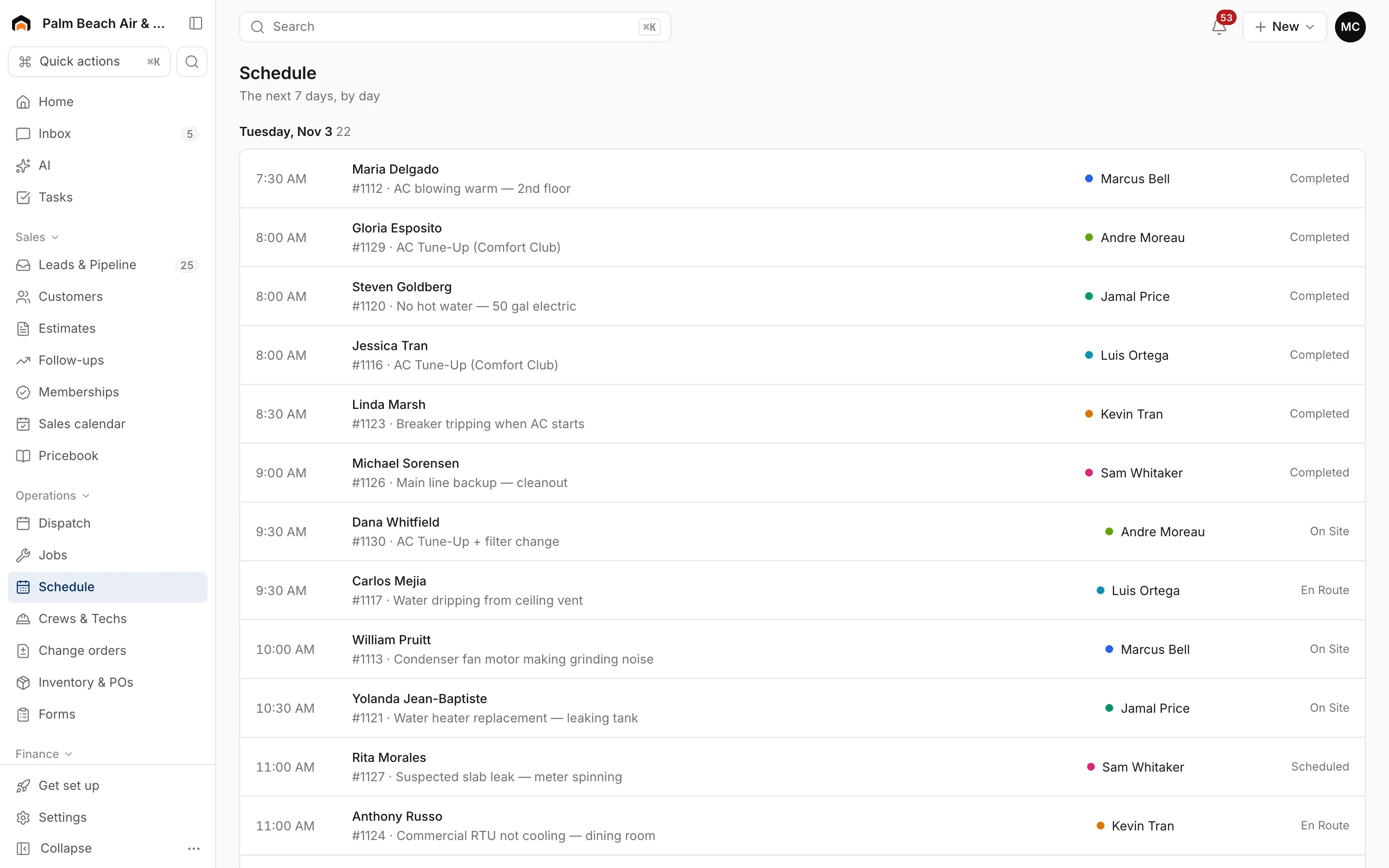
What you see
Visits are grouped by day, with the number of visits next to each date. Days with nothing booked are left out. Each row shows:
- Time the visit starts.
- Customer, with the job number and summary underneath.
- Who's going, with their board color. Visits with no one on them say Unassigned in amber.
- Status, such as scheduled, en route or completed.
Click any row to open the job.
The list includes every kind of visit: service calls, estimate appointments and crew days. Canceled visits are left out.
When nothing is booked
If there are no visits in the next seven days, you'll see "Nothing scheduled this week." with two shortcuts:
- Book an appointment opens New appointment. See Book an appointment.
- Open dispatch opens the dispatch board.
Other schedule views
- Dispatch shows one day at a time, tech by tech, with drag and drop, a map and capacity.
- Crew & equipment shows a week of crews and equipment. See Schedule crews and equipment.
- Sales calendar shows estimate appointments for the next two weeks.
Was this helpful?
Related articles
Scheduling and dispatch
Use the dispatch board
See every tech's day on one timeline, drag waiting work onto the board, and keep the day on track from the office.
Scheduling and dispatch
Book an appointment
Book a service call, estimate visit or multi-day crew job in one form, with a live view of who's free, or book a phone caller in under a minute.
Scheduling and dispatch
Schedule crews and equipment
Set up crews, book a whole crew and your equipment onto a job, and see who's where all week on the crew board.
Scheduling and dispatch
Schedule, reschedule and reassign visits
Drag visits onto a tech and time, move them between techs, send them back to the queue, or let AI Suggest pick the best tech.
Still stuck?
Our team answers support emails during business hours, usually within a few hours.