
Schedule crews and equipment
Set up crews, book a whole crew and your equipment onto a job, and see who's where all week on the crew board.
When a job needs a team for a day or more, you schedule a crew instead of one tech. Booking a crew puts every member on the visit at once. The crew board shows a week of crews and equipment side by side, so nothing gets double-booked.
Set up a crew
- Go to Settings → Techs & crews.
- Under New crew, enter a Name, pick a Lead and a Color.
- Check the Members.
- Click Create crew.
To change a crew later, click it in the Crews list, edit it, and click Save crew.
The crew board
Open Crew & equipment in the sidebar.
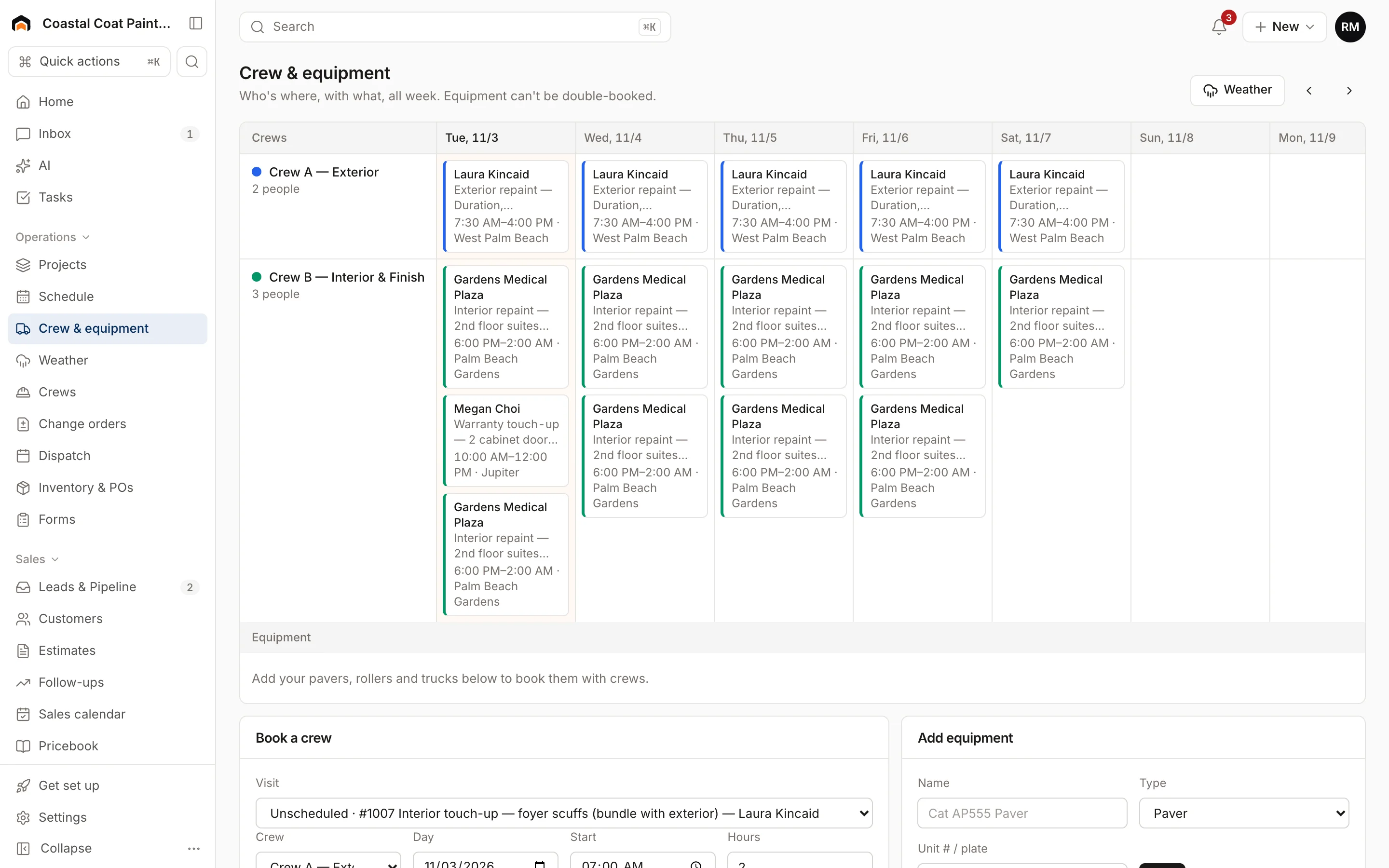
- One row per crew and one per piece of equipment, one column per day. Today is highlighted.
- Each card shows the customer, job, hours and city. Click it to open the job.
- Cards that were pushed for weather say rain-delayed.
- Use the arrows to move a week at a time, Today to come back, and Weather to open the weather outlook.
A visit shows in a crew's row if it was booked for that crew, or if crew members are on it.
Book a crew
Under Book a crew:
- Pick the Visit. The list has every unscheduled visit plus this week's visits, so you can also move or re-crew one.
- Pick the Crew, Day, Start time and Hours.
- Check any Equipment you need. Crossed-out equipment is already booked or blocked that day.
- Click Book crew.
Equipment can never be double-booked. People can: if a crew member is already on something, the booking still goes through.
Add and block out equipment
- Add equipment: enter a Name, Type (paver, roller, dump truck, skid steer and more) and Unit # / plate, then click Add.
- Block out equipment: pick the Equipment, a Reason (service, rental return…), From and Through dates, then click Block out.
Crews & subcontractors page
Crews & Techs in the sidebar opens a summary of each crew's lead, members and head count, plus your subcontractors and their bills. See Subcontractors on projects.
Was this helpful?
Related articles
Scheduling and dispatch
Book an appointment
Book a service call, estimate visit or multi-day crew job in one form, with a live view of who's free, or book a phone caller in under a minute.
Scheduling and dispatch
Handle weather delays
Check upcoming outdoor work against the forecast, move at-risk visits to the next workable day, and text customers in one click.
Jobs and projects
Manage a project
Break a project into phases, see them on a Gantt schedule, update percent complete, tie visits to phases, and bill progress.
Jobs and projects
Subcontractors on projects
Keep your subs' insurance and W-9 on file, enter their bills against a project, and approve and pay them so the cost lands in job costing.
Still stuck?
Our team answers support emails during business hours, usually within a few hours.