
Book an appointment
Book a service call, estimate visit or multi-day crew job in one form, with a live view of who's free, or book a phone caller in under a minute.
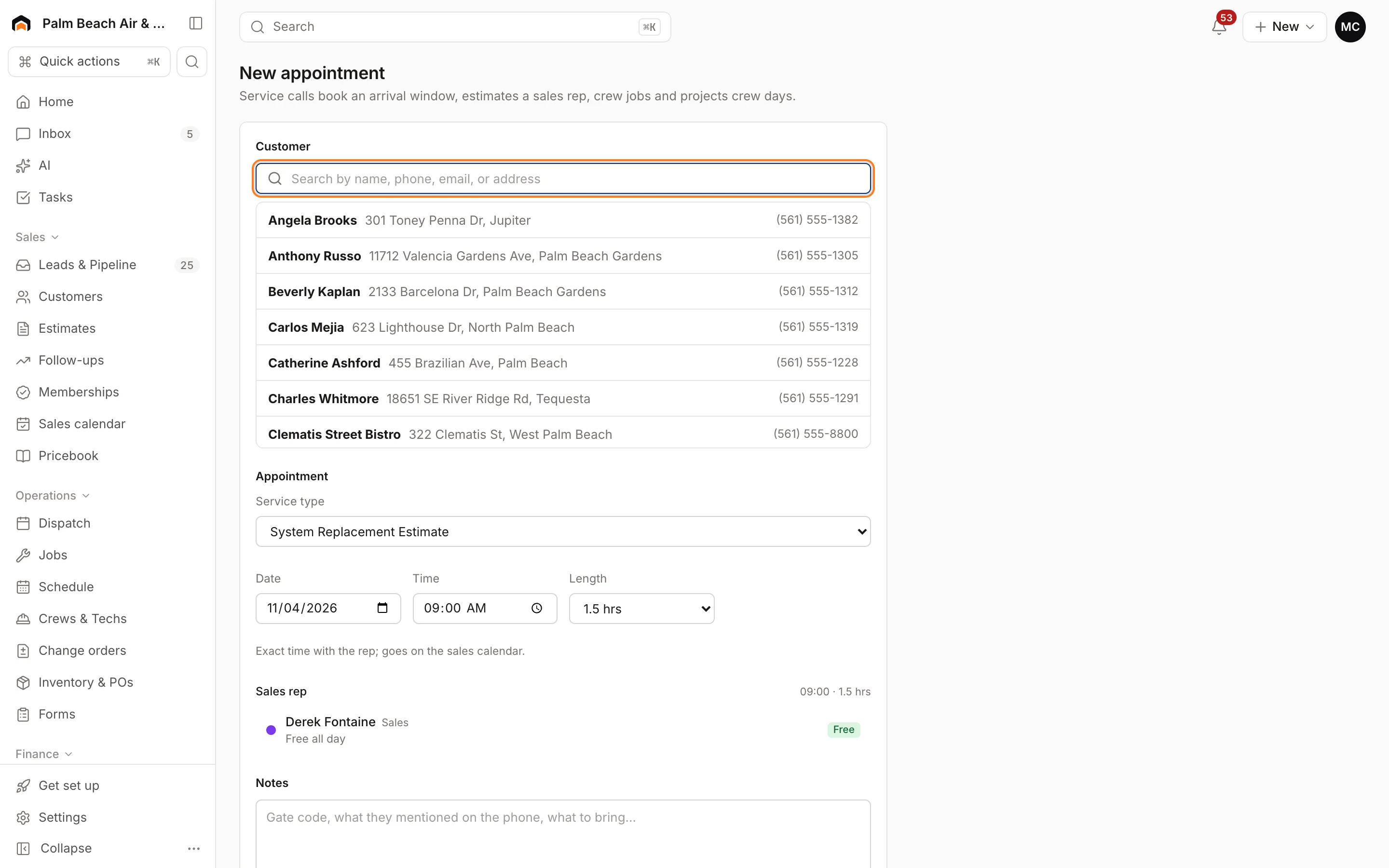
New appointment creates the customer (if needed), the job and its scheduled visit in one step. The job type you pick decides how it books, so the form changes to fit the work.
Book an appointment
- Click + New in the top bar and choose Appointment (or search "New appointment").
- Under Customer, search for the customer, or add a new one with a name and a mobile number or email.
- Under Appointment, pick the Service type. Types are grouped by how they book:
- Estimates · sales appointment
- Service calls · arrival window
- Crew jobs & projects · crew days
- Other → Follow-up visit
- Fill in the time (see below) and pick who's going.
- Add Notes like gate codes or what the customer said on the phone.
- Click Book.
The customer gets a confirmation by text and email. You land on the dispatch board for that day, the sales calendar for estimate visits, or the crew board for crew days.
Service calls
Pick the Date, Window starts, Length and Arrival window (Exact time, or a 1- to 4-hour window). A line underneath shows what the customer will see, for example "Customer sees arrival 09:00–11:00."
Under Who's going, field techs are listed with Free or Busy for that time. Busy people show what they're booked on.
Estimates
Sales appointments are at an exact Time with no window. Pick from the Sales rep list, which shows people with the Sales role or Runs estimates turned on.
Crew jobs and projects
Pick a Start date, number of Days, when the Crew starts and Hours / day, then a Crew. Each crew shows Free or how many of those days it's already out, plus a two-week strip. Sundays are skipped. Homeforce creates one job with a crew visit for each day.
If the type is usually quoted first, you'll see a prompt to book your estimate type instead.
Double-booking
If the person or crew is busy, check Book anyway to book over it. Otherwise Book stays off.
Book a phone caller
Book a call, at the top of the dispatch board, is built for answering the phone:
- 1 · Caller: name, phone, email, address and how they heard about you.
- 2 · What's going on?: tap the job type and type their notes.
- 3 · Pick an arrival window: pick a day, then an open window. Each shows how many techs are open, or Full.
- Click Book it.
Windows come from your business hours, arrival window length, tech skills and open time. The best-fit tech is assigned for you.
Was this helpful?
Related articles
Scheduling and dispatch
Arrival windows and business hours
How long the arrival windows you promise customers are, where each booking method gets its window, and how business hours limit online booking.
Scheduling and dispatch
Schedule crews and equipment
Set up crews, book a whole crew and your equipment onto a job, and see who's where all week on the crew board.
Jobs and projects
Create a job or project
Add a job or project for a new or existing customer, schedule its first visit or send it to the unscheduled queue.
Sales
Manage leads
Work every new inquiry on the Leads board, from New to Contacted to Booked, and see where your leads come from.
Still stuck?
Our team answers support emails during business hours, usually within a few hours.