
Handle weather delays
Check upcoming outdoor work against the forecast, move at-risk visits to the next workable day, and text customers in one click.
The Weather page checks the next seven days of weather-sensitive work against the forecast for each job site. When a day looks bad, it suggests a make-up day and moves the visit for you. Nothing moves until you click.
Which work is checked
Only visits that are Scheduled and either:
- use a job type with Weather sensitive turned on (Settings → Job types & modes), or
- are on a job tagged Weather.
Jobs booked in crew days on a weather-sensitive type get the Weather tag automatically.
The Weather page
Open Weather in the sidebar (shown for painting, roofing and paving companies), or click Weather on the crew board.
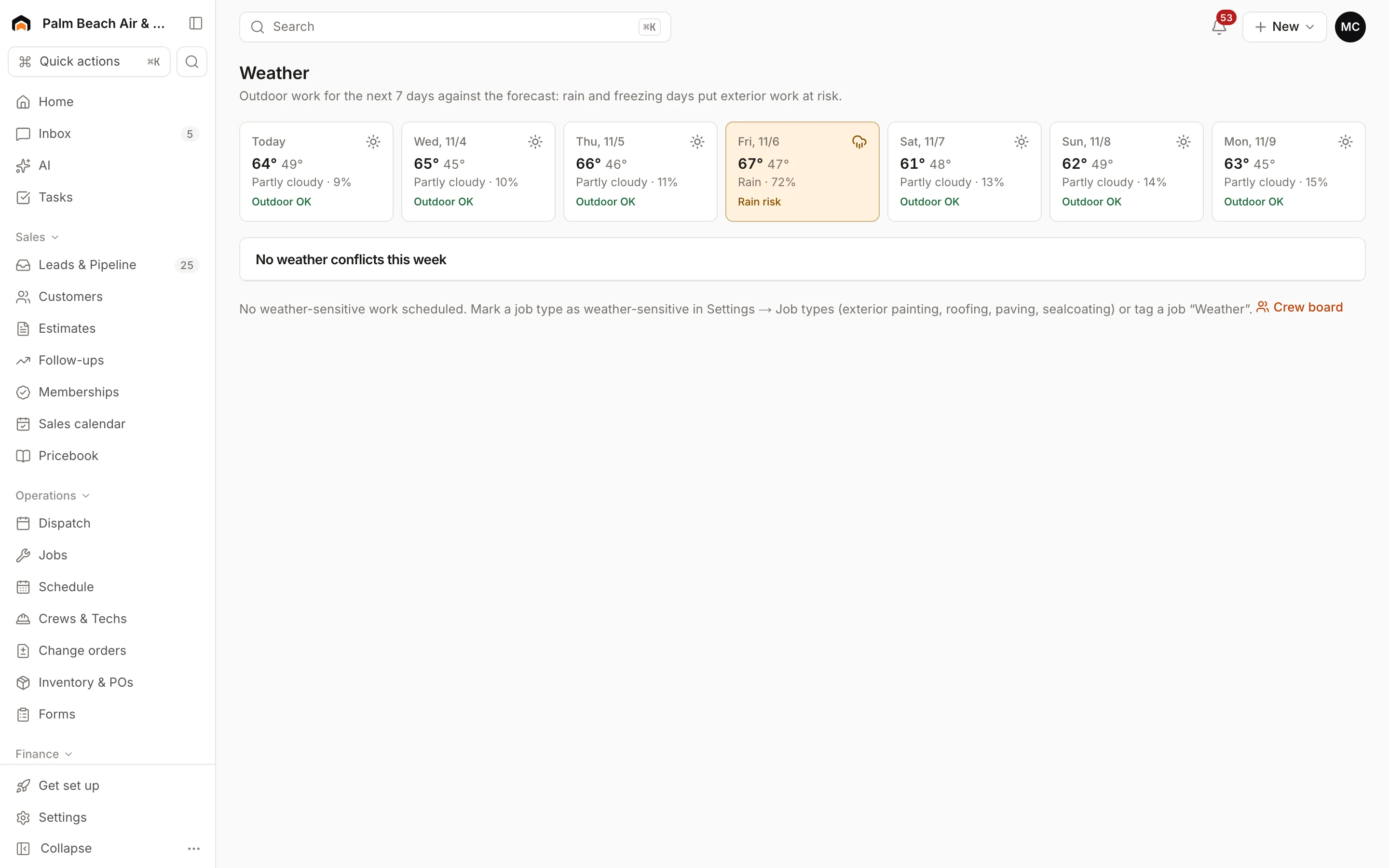
- The forecast strip shows the high, low, conditions and chance of rain for each day.
- At risk lists each visit the forecast fails, with the reason, such as "High of 44°F — below 50°F" or "60% chance of rain".
- On track lists the rest, with that day's high and chance of rain.
Move one visit
- Find the visit under at risk.
- Check the date. It's filled in with the suggested day: the first day the forecast passes, skipping Sundays and days the crew or equipment is already booked.
- Leave Text customer checked to let them know, or uncheck it.
- Click Move to (the button shows the day).
If no workable day is found in the forecast, pick one yourself and click Move.
Move everything at once
Click Push all at-risk at the top to move every at-risk visit that has a suggested day. Leave Text customers checked to text each one.
What a move does
- Keeps the time of day, length, crew and equipment.
- Shifts later visits on the same job by the same number of days, so a multi-day job stays in order.
- Stops if a piece of equipment is already booked on the new day.
- Adds a note to the job and counts the delay on the visit.
- Texts the customer that the forecast isn't workable and gives the new day, if you left texting on.
Set your limits
In Settings → Weather rules, set the minimum temperatures for paving, sealcoat and crack fill, the Rain cutoff (% chance), and whether Sealcoat needs a dry next day. Blank fields use the industry defaults shown.
Which rules apply depends on the job type and summary: anything mentioning sealcoat, striping, crack fill or paving uses those rules. Other weather-sensitive work (roofing, exterior painting) is flagged when the high is below 32°F or the chance of rain is 70% or more.
Was this helpful?
Related articles
Scheduling and dispatch
Schedule crews and equipment
Set up crews, book a whole crew and your equipment onto a job, and see who's where all week on the crew board.
Scheduling and dispatch
On my way texts and appointment messages
The booking confirmation, day-before reminder, on-my-way ETA text and visit-completed text your customers get, and how to change or turn them off.
Scheduling and dispatch
Scheduling workflows by trade
How HVAC, plumbing, electrical, painting, roofing, remodeling, route-based and cleaning companies typically schedule and dispatch in Homeforce.
Scheduling and dispatch
Use the dispatch board
See every tech's day on one timeline, drag waiting work onto the board, and keep the day on track from the office.
Still stuck?
Our team answers support emails during business hours, usually within a few hours.