
Map and capacity views
See the day's visits and live tech locations on a map, check how booked your team is, and re-order routes to cut drive time.
The dispatch board has three views of the same day: Timeline, Map and Capacity. Switch between them with the buttons at the top right of Dispatch. The Unscheduled list and visit details stay on the right in every view.
Map
The map shows where the day's work is and where your techs are right now. You can also open it from Map under Insights in the sidebar.
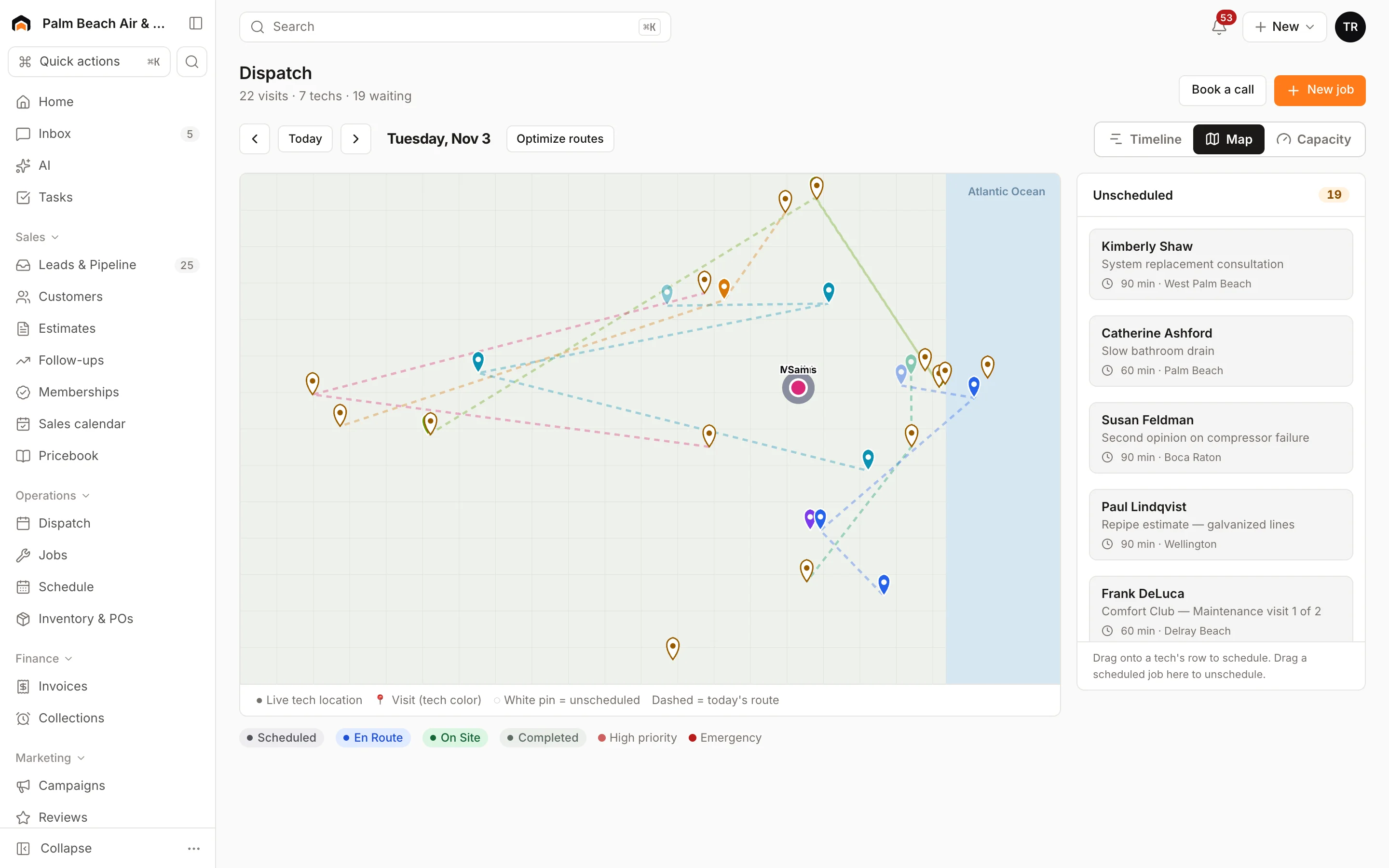
- Pins are visits, in the color of the lead tech.
- White pins are visits still waiting in Unscheduled.
- Faded pins are visits that are already completed.
- Dashed lines connect each tech's visits in start-time order, so you can see their route.
- Round dots with a name are techs' last known locations from the field app in the past 12 hours.
Click a pin to open that visit's details, the same as clicking it on the timeline.
Capacity
Capacity shows how full the day is.
- At the top: the team's percent booked, hours booked out of hours available, and hours still open.
- Below: one bar per tech with their percent booked and job count. Bars turn amber above 70% and red above 90%, and a warning icon flags anyone over 90%.
Available hours come from your workday in Settings → Hours & service areas, times the number of techs on the board. Overlapping visits for the same tech only count once.
Optimize routes
Click Optimize routes next to the date to re-order every tech's remaining visits for that day so they drive fewer miles.
- Only visits that are still Scheduled and have a mapped address are re-ordered. Visits already under way aren't touched.
- Visits with a promised arrival window stay inside that window.
- A tech's day only changes if the new order keeps every window and saves miles.
When it's done you'll see how many routes changed and how many miles were saved, or "Routes are already optimal."
Was this helpful?
Related articles
Scheduling and dispatch
Use the dispatch board
See every tech's day on one timeline, drag waiting work onto the board, and keep the day on track from the office.
Scheduling and dispatch
Schedule, reschedule and reassign visits
Drag visits onto a tech and time, move them between techs, send them back to the queue, or let AI Suggest pick the best tech.
Scheduling and dispatch
Arrival windows and business hours
How long the arrival windows you promise customers are, where each booking method gets its window, and how business hours limit online booking.
Scheduling and dispatch
Visit statuses
What Unscheduled, Scheduled, En Route, On Site and Completed mean, who moves a visit along, and how it changes the job's status.
Still stuck?
Our team answers support emails during business hours, usually within a few hours.