
Create a job or project
Add a job or project for a new or existing customer, schedule its first visit or send it to the unscheduled queue.
Create a job when you know what the work is and want it in Homeforce right away. If you're mainly booking a time with the customer on the phone, Book an appointment is faster.
Open the form with New job on the dispatch board or the Jobs page. On the Projects list, the button reads New project.
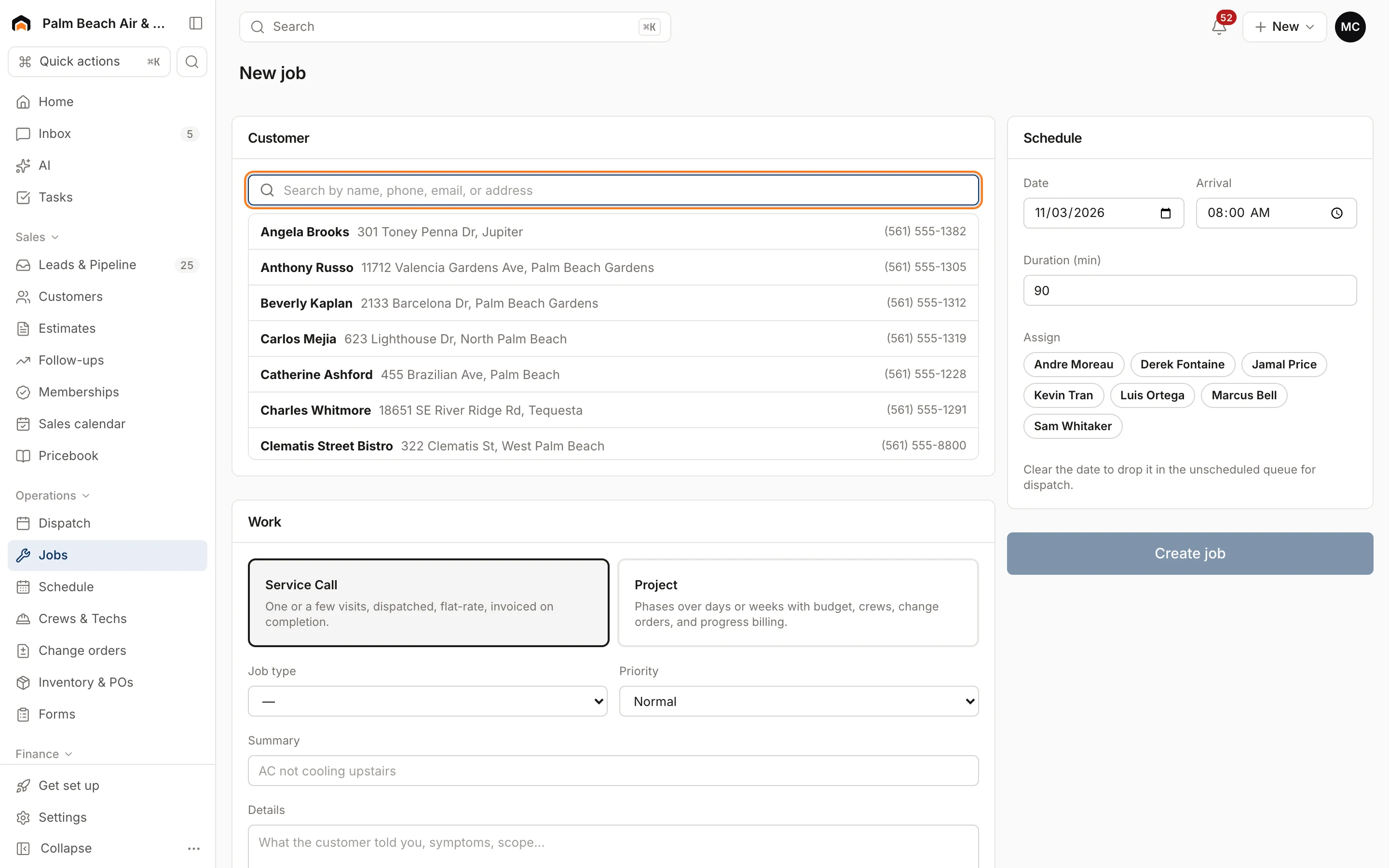
1. Customer
- Search for the customer and pick them.
- If they have more than one address, pick the Service location, or choose + Add a new location and enter the street, city and ZIP.
For a new customer, type their name and choose New customer, then fill in First name, Last name, Company (commercial), Mobile phone and Email, then the address. Use Search instead to go back.
2. Work
- Choose Service call or Project. See Jobs, visits and projects.
- Pick a Job type. This also switches between Service call and Project to match the type, and fills in the Summary and visit length.
- Set the Priority: Low, Normal, High or Emergency. High and Emergency jobs get a red dot on the dispatch board and sort to the top of Unscheduled.
- Edit the Summary and add Details (what the customer told you, symptoms, scope).
- Optionally pick a Lead source and enter a PO number.
For a project, also enter the Contract amount, Cost budget, Start and Target finish.
3. Schedule
For a service call the card is called Schedule; for a project it's First visit (optional).
- Set the Date, Arrival time and Duration (min).
- Under Assign, tap one or more techs.
- To let dispatch schedule it later, clear the Date. The visit goes to the Unscheduled list.
The date starts as today for service calls and blank for projects. A project with no date is created without any visits; add them later from the job.
4. Create it
Click Create job (or Create project). You land on the new job.
If you scheduled a visit for later today or a future day, the customer gets a booking confirmation with your default arrival window, starting at the Arrival time.
Was this helpful?
Related articles
Jobs and projects
Jobs, visits and projects
How Homeforce organizes work - a job holds one or more visits, and a project is a job with phases, a budget and change orders.
Jobs and projects
Find your way around a job
What's on the job page - the header actions, money and summary panels, job details, and the Activity, Visits, Estimates, Invoices, Costs and Files tabs.
Scheduling and dispatch
Book an appointment
Book a service call, estimate visit or multi-day crew job in one form, with a live view of who's free, or book a phone caller in under a minute.
Scheduling and dispatch
Schedule, reschedule and reassign visits
Drag visits onto a tech and time, move them between techs, send them back to the queue, or let AI Suggest pick the best tech.
Still stuck?
Our team answers support emails during business hours, usually within a few hours.