
Daily logs, punch lists and progress reports
Record what happened on site each day, track the punch list to the finish, and share a progress report and photo timeline with the customer.
On projects, the Phases tab also holds the day-to-day record of the job: daily logs and the punch list. Together with your photos, they feed the customer's progress report.
Add a daily log
- Open the project's Phases tab.
- Under Daily logs, click + Log.
- Set the Date and, if it applies, the Phase.
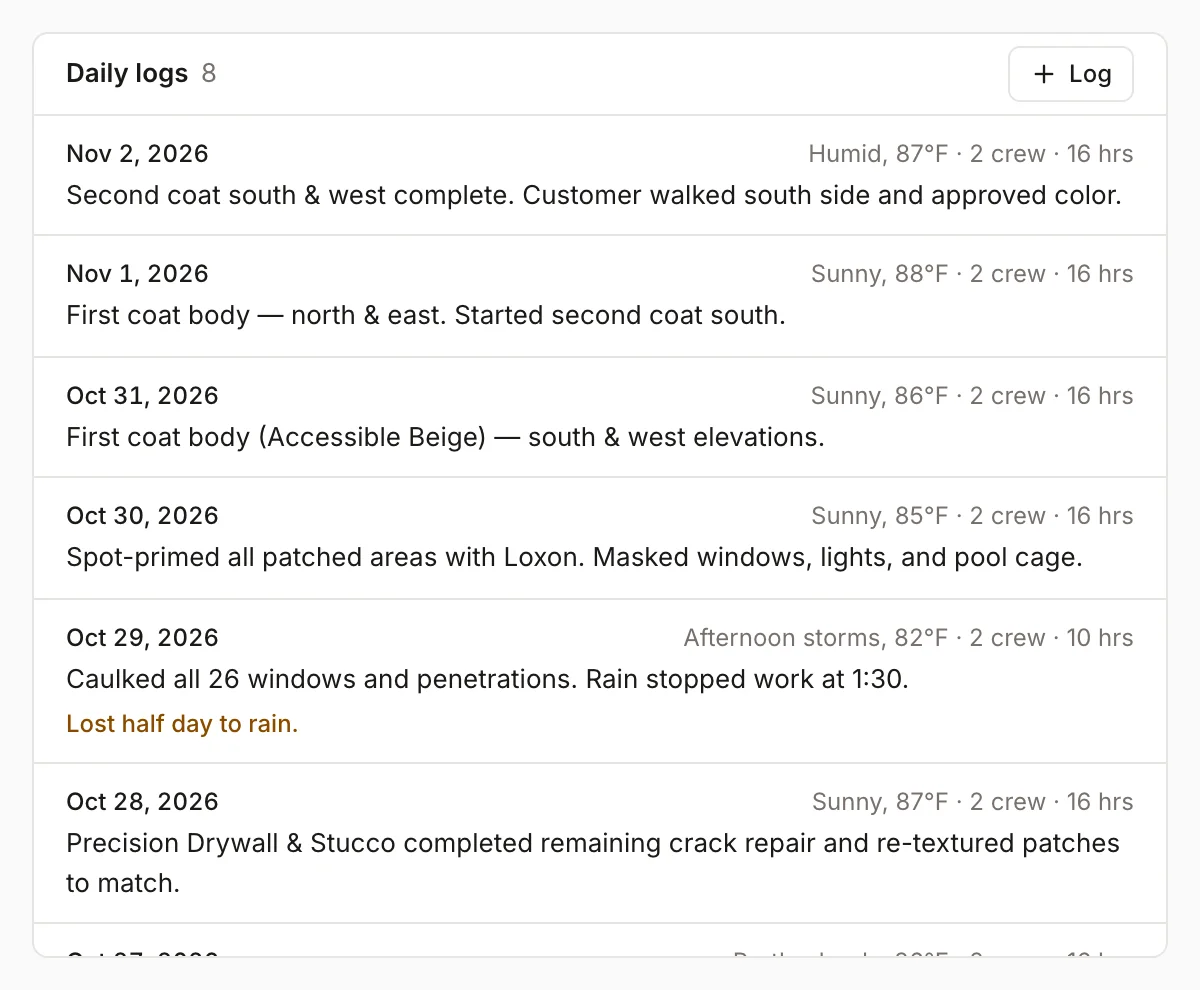
- Add the Weather (for example "Sunny, 84°F"), the Crew size and Hours.
- Describe the Work performed.
- Note any Issues / delays.
- Click Save log.
Logs show newest first, with the date, weather, crew and hours. Issues are highlighted so they stand out.
Keep a punch list
The Punch list tracks the last items before the job is done.
- Type the item in Add punch item…
- Optionally add Where (for example "Master bath").
- Click Add.
Click the box next to an item to mark it done, and again to reopen it. The heading shows how many are done, like "3/8 done", and the job's summary panel counts open items.
Photo timeline
On a project, the Files & photos tab becomes the Photo timeline. Photos are grouped by phase, with Before, During and After in order, and anything without a phase under General. Crews add photos from the field app, and you can add them with Add photos. See Notes, photos, checklists and sign-off.
Share the progress report
Click Customer report at the top of the project. It opens a progress page in a new tab, showing:
- The project and the overall percent complete
- Each phase with its percent complete and its photos
- Your daily logs
Copy the page's address from your browser and send it to the customer. Anyone with the link can view the report, and it always shows the latest progress.
Was this helpful?
Related articles
Jobs and projects
Manage a project
Break a project into phases, see them on a Gantt schedule, update percent complete, tie visits to phases, and bill progress.
Jobs and projects
Notes, photos, checklists and sign-off
Add notes for the team, upload before and after photos, fill out checklists and forms, and get the customer's signature on a visit.
Jobs and projects
Change orders
Price added or changed scope on a project, get the customer's signature, and roll it into the contract, budget and progress billing.
Jobs and projects
Jobs, visits and projects
How Homeforce organizes work - a job holds one or more visits, and a project is a job with phases, a budget and change orders.
Still stuck?
Our team answers support emails during business hours, usually within a few hours.