
Find your way around a job
What's on the job page - the header actions, money and summary panels, job details, and the Activity, Visits, Estimates, Invoices, Costs and Files tabs.
The job page pulls everything about one job into one place. Open any job from the Jobs board, the dispatch board, the Schedule page or a customer's record.
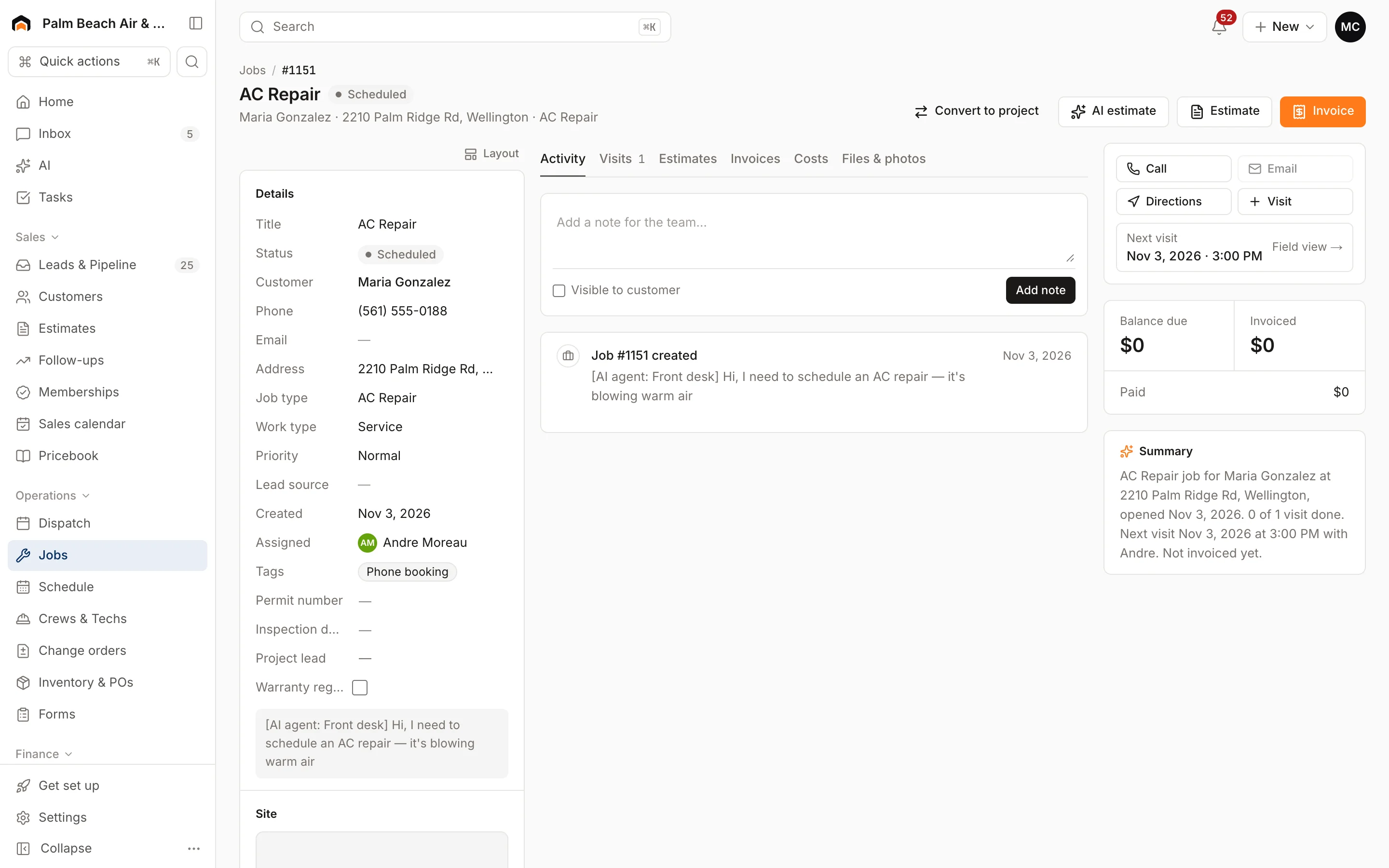
Header
The top shows the job number, summary, status, priority (Emergency or High priority) and a Project tag on projects. The buttons on the right change with the job:
- Convert to project on service jobs, or Customer report on projects. See Jobs, visits and projects.
- AI estimate drafts an estimate from the visit notes. See AI overview.
- Estimate starts a new estimate for this job.
- Add visit is the main button when a service job has no open visits. Once work is done and nothing's billed, it becomes Create invoice. Otherwise you'll see Invoice.
Side panels
- Quick actions: Call, Email, Directions and Visit (adds a visit). If a visit is coming up, Next visit links to its field view.
- Money: Balance due, Invoiced and Paid. Projects also show Contract, Left to bill and percent complete to people who can see costs.
- Summary: a short, plain-language recap of visits, estimates, invoices and, on projects, phases, change orders and punch items.
- Details: the Status (click to change it), customer, phone, email, address, job type, work type, priority, lead source, PO, dates, who's assigned and tags. The job's description shows underneath.
- Site: street view, the address and any access notes. Equipment on site lists the customer's equipment there, with its age.
- Your company's custom fields for jobs. See Add custom fields.
Tabs
- Activity: add a note, and see a timeline of the job: created, visits completed, estimates, invoices, change orders and notes.
- Visits: every visit with its time, status, who's assigned and notes. Click a visit to open its field view.
- Phases: projects only. See Manage a project.
- Estimates and Invoices: everything quoted and billed on this job, with New estimate and New invoice buttons.
- Costs: cost entries and, on projects, budget vs actual. Only people who can see costs get this tab. See Track job costs and margin.
- Files & photos: photos from the office and the field app.
Add a visit
- Click Add visit (or Visit in quick actions).
- Set the Date, Start and Minutes.
- Check the techs under Assign.
- On projects, pick the Phase.
- Add Instructions like gate codes or parts to bring.
- Click Save visit.
Leave the date empty to put the visit in the Unscheduled queue for dispatch.
Was this helpful?
Related articles
Jobs and projects
Job statuses and closing out a job
What each job status means, which ones change on their own, how to use the Jobs board, and how to finish and bill a job.
Jobs and projects
Notes, photos, checklists and sign-off
Add notes for the team, upload before and after photos, fill out checklists and forms, and get the customer's signature on a visit.
Jobs and projects
Manage a project
Break a project into phases, see them on a Gantt schedule, update percent complete, tie visits to phases, and bill progress.
Custom fields and layouts
Add custom fields
Track your own details, like gate codes, permit numbers or roof type, on customers, leads, jobs, estimates, properties and equipment.
Still stuck?
Our team answers support emails during business hours, usually within a few hours.