
Change orders
Price added or changed scope on a project, get the customer's signature, and roll it into the contract, budget and progress billing.
A change order records a change to a project's scope and price after the contract is set, like adding crown molding or swapping a material. Once the customer signs it, the price is added to the contract and progress billing picks it up.
Create a change order
- Open the project and go to the Phases tab.
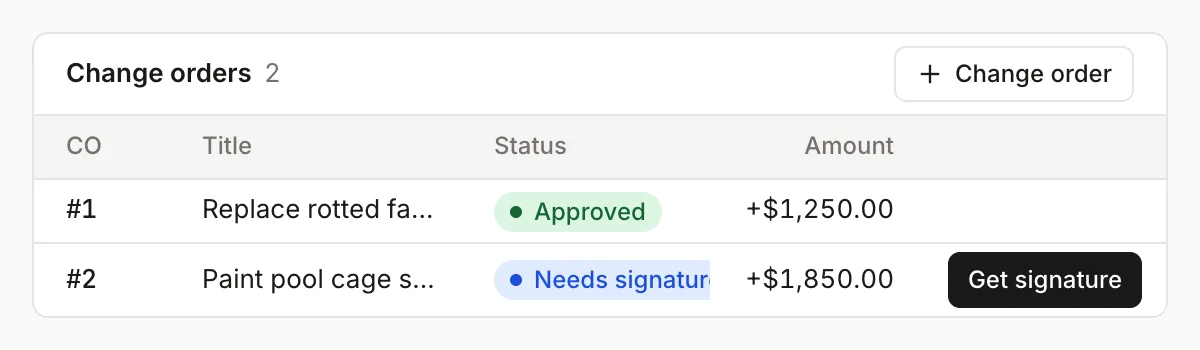
- Under Change orders, click + Change order.
- Enter a Title (for example "Add crown molding — living room") and a Description.
- Enter the Price to customer.
- Enter your Est. cost for the added work.
- If it adds time, enter Schedule +days.
- Click Create & send for approval.
The change order gets the next number on that project (#1, #2…) and the status Sent.
Get the customer's signature
- In the Change orders list, click Get signature next to the change order.
- Check the customer's name.
- Have the customer sign in the box. The dialog explains that by signing they approve the change to the contract price and schedule.
- Click Approve & sign.
The status changes to Approved, and the signature is saved with it.
What approval changes
- Contract: the price is added to the contract. On the Costs tab, the Contract figure says how much of it came from change orders.
- Budget: the Est. cost is added to the project's cost budget, so budget vs actual stays fair.
- Margin: projected margin is recalculated from the new contract and budget.
- Progress billing: the next Bill progress invoice bills against the new contract total. See Progress billing.
- Left to bill on the job's money panel goes up by the change order amount.
Change orders that aren't signed yet don't count toward any of these. The job's summary tells you how many are awaiting signature.
See every change order
Change orders in the sidebar lists change orders across all projects, newest first, with the project, customer, status and amount. The top line shows how many are awaiting approval and the dollar total pending. Click one to open its project.
Was this helpful?
Related articles
Jobs and projects
Manage a project
Break a project into phases, see them on a Gantt schedule, update percent complete, tie visits to phases, and bill progress.
Jobs and projects
Track job costs and margin
Record costs on a job, compare a project's budget to actual spend, and see margin across your recent jobs on the Job costing page.
Invoices and payments
Bill a project in progress
Invoice a project by percent complete, with approved change orders, deposit credits and retainage handled for you.
Jobs and projects
Jobs, visits and projects
How Homeforce organizes work - a job holds one or more visits, and a project is a job with phases, a budget and change orders.
Still stuck?
Our team answers support emails during business hours, usually within a few hours.