
Users and permissions
Invite people, change their role, limit sales reps to their own pipeline, and deactivate someone who leaves.
Settings → Users & roles is where you manage who can sign in and what each person can do. Only owners and admins can make changes here; everyone else sees a short note.
Invite someone
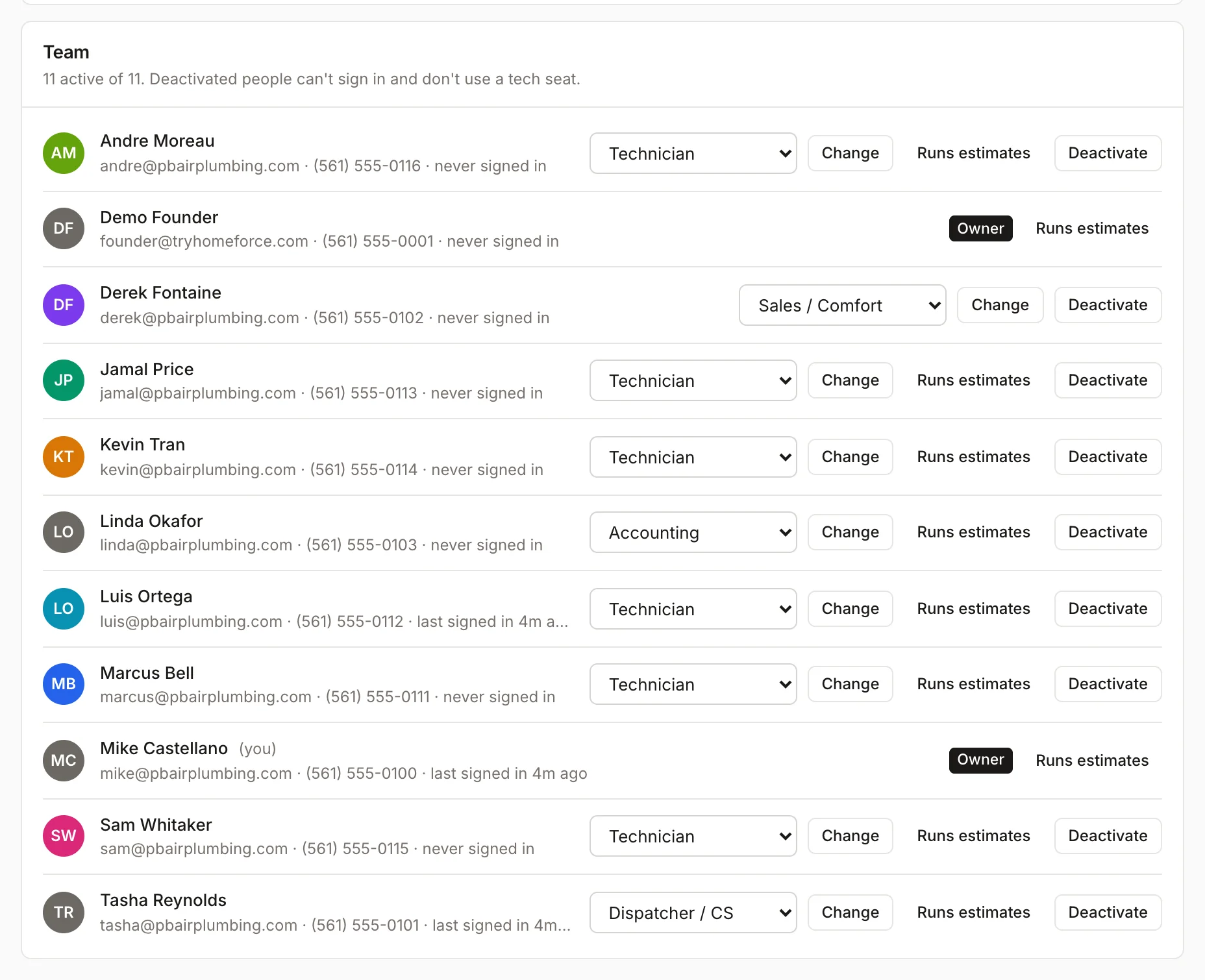
Fill in Name, Email, Mobile phone and Role under Invite someone, then click Send invite. They get an email to sign in. See Invite your team.
Change someone's role
- Find the person under Team.
- Pick the new role from the menu next to their name.
- Click Change.
The change applies the next time they open a page. You can't change your own role or the owner's role here. For what each role allows, see Roles at a glance.
Let someone run estimates
Anyone except sales reps and subcontractors has a Runs estimates button. Turn it on (it shows Runs estimates ✓) to let a tech or manager take estimate appointments without giving them the sales role.
Limit sales reps to their own pipeline
Under Sales pipeline visibility, turn on Sales reps see only their own pipeline and click Save. Sales reps then see only leads assigned to them (or where they're the sales rep) and estimates they wrote or sold. Owners, admins and dispatch still see everything.
Deactivate someone who leaves
- Click Deactivate next to their name.
- Confirm.
They're signed out of your company right away and can't sign back in. Their past jobs, notes and payments stay. A deactivated technician no longer counts toward your plan's tech seats. Click Reactivate to bring them back.
Profile photos
Click a person's avatar to upload a photo. It shows on the sidebar, boards, dispatch and the field app. Each person can also set their own photo under Settings → Profile.
Things to know
- The list shows each person's email, phone and when they last signed in.
- Ownership can't be assigned from this page.
- If your plan is at its tech limit, inviting, reactivating or switching someone to Technician asks you to upgrade. Office roles are always free.
- You can't deactivate yourself or the owner.
- Every invite and role change is recorded in the audit log. See Security and the audit log.
Was this helpful?
Related articles
Getting started
Roles at a glance
What owners, admins, dispatchers, sales reps, project managers, accounting, techs and subcontractors can see and do.
Getting started
Invite your team
Add office staff, sales reps and techs so each person signs in with their own login and role.
Settings
Security and the audit log
Limit who can join your team by email domain, sign someone out of every device, and see a record of every change.
Settings
Techs, crews and subcontractors
Control who shows on the dispatch board, their skills and start location, build crews, and track subcontractor insurance and W-9s.
Still stuck?
Our team answers support emails during business hours, usually within a few hours.