
Estimate and pricebook settings
Set estimate expiry, default deposits, good/better/best, follow-up sequences, pricebook markups and member discounts.
These settings decide how new estimates start and how prices are calculated. Owners and admins can change them. Each section has its own Save button.
Estimates & proposals
Go to Settings → Estimates & proposals.
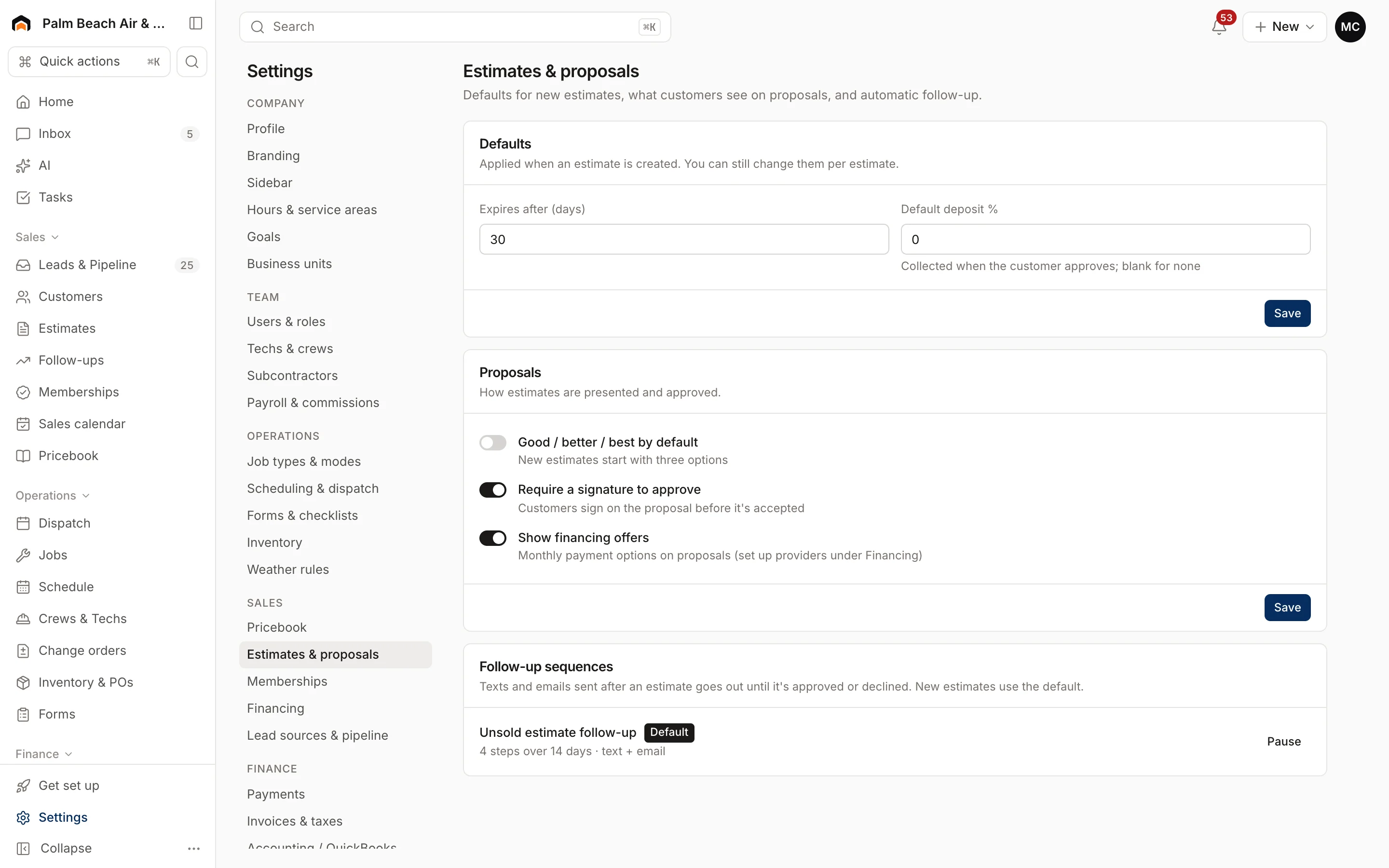
Defaults
Applied when an estimate is created. You can still change them on each estimate.
- Expires after (days): from 1 to 365. The default is 30.
- Default deposit %: the deposit collected when the customer approves. When a customer approves an estimate with a deposit, a deposit invoice is created for them to pay. Leave it blank for none.
Proposals
- Good / better / best by default: new estimates start with three options.
This section also has Require a signature to approve and Show financing offers.
Follow-up sequences
Texts and emails sent after an estimate goes out, until it's approved or declined. New estimates use the default sequence.
- If you don't have one yet, click Create it now. The standard sequence sends texts on days 1, 7 and 14 and an email on day 3. It's also created automatically when you send your first estimate.
- Click Make default to switch which sequence new estimates use.
- Click Pause to stop a sequence, and Resume to start it again. Pausing the default means new estimates get no follow-ups.
Pricebook
Go to Settings → Pricebook.
- Default markups: a markup % for Services, Materials and Equipment. It's applied to an item's cost when the item has no flat price and no markup of its own.
- Member pricing: a Member discount % that customers on a maintenance plan get, unless an item has its own member price. See Memberships.
Build your pricebook links to Import CSV, the AI starter pricebook, and Open pricebook to edit items one by one. See Import your customers and pricebook.
Related
- Terms printed on estimates: Contract terms and forms.
- Financing offers: Payments and financing.
Was this helpful?
Related articles
Sales
Create an estimate
Start an estimate for a customer, add line items from your pricebook, and save it ready to present or send.
Invoices and payments
Collect a deposit
Require a deposit on an estimate, collect it when the customer approves, and have it credited on the final invoice.
Recurring
Set up membership plans
Create maintenance plans and service agreements with recurring billing, included visits and member pricing.
Getting started
Import your customers and pricebook
Bring customers, jobs, estimates, invoices and your price list over from Housecall Pro, Jobber, ServiceTitan, DripJobs or a spreadsheet.
Still stuck?
Our team answers support emails during business hours, usually within a few hours.