
Lead sources, call tracking and ad accounts
List where your leads come from and what each source costs, give sources tracking numbers, and connect ad platforms.
Knowing where each lead came from, and what it cost, shows you which marketing pays off. Three settings pages handle this. Owners and admins can change them.
Lead sources
Go to Settings → Lead sources & pipeline.
- Click Add lead source.
- Enter a Name, like "Google Local Services".
- Pick a Channel: Phone, Web form, Booking widget, Text, Google, Yelp, Angi, Referral, Email, Chat or Manual / other.
- Enter the Monthly cost ($) you spend on it. This feeds cost per lead and ROI.
- Optionally add a Tracking number.
- Click Add source.
Your team picks these on new leads and customers. Click Edit to change one, or Deactivate to retire it. Deactivated sources stay on past records and in reports.
Pipeline stages shows how many leads sit in each stage: New, Contacted, Booked and Lost. The stages are fixed so reports compare cleanly.
Call tracking
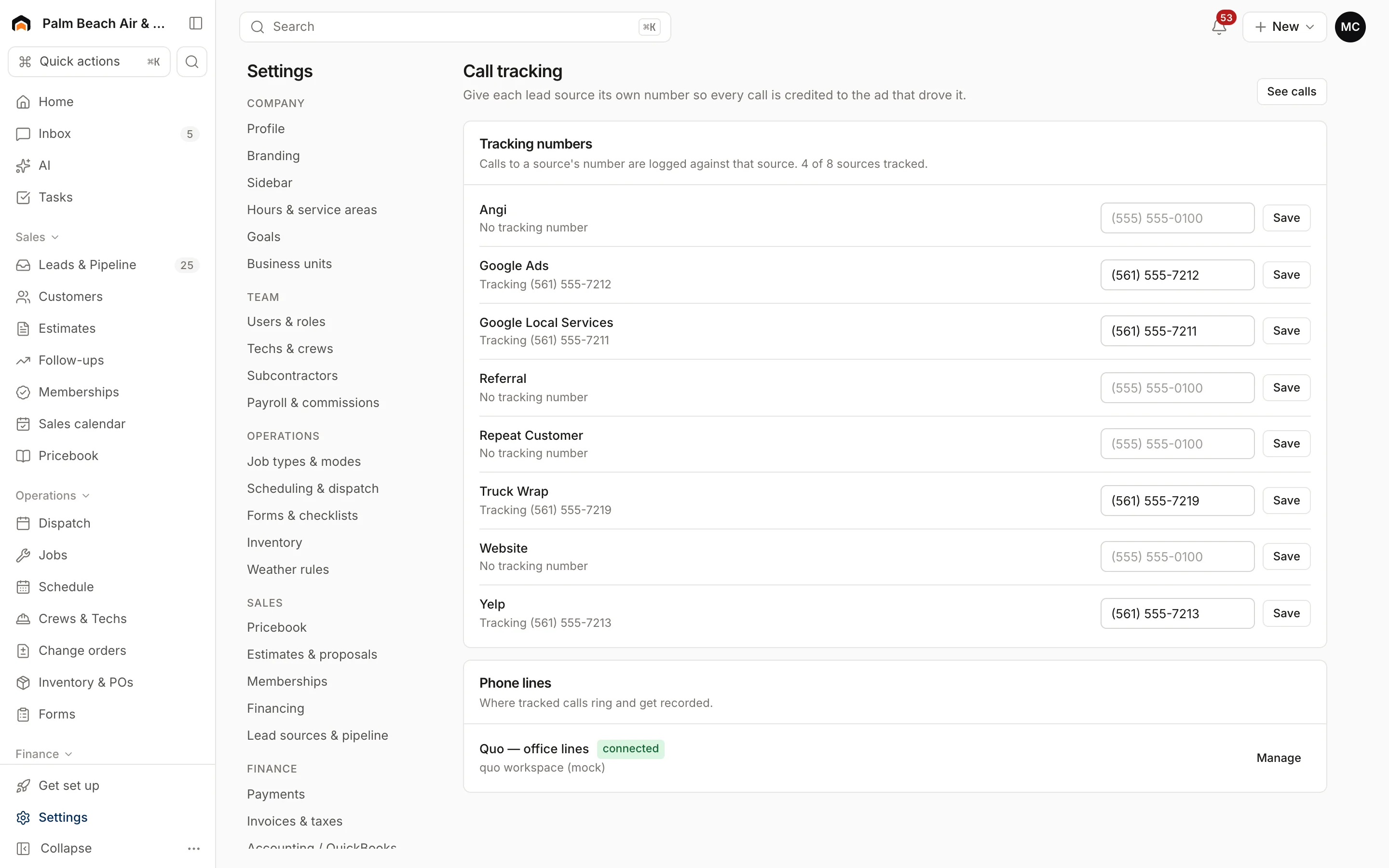
Go to Settings → Call tracking. Each lead source has a row. Type a phone number and click Save to give it its own tracking number. Calls to that number are logged against that source. Click See calls to view them.
Phone lines shows where tracked calls ring. If you don't have one, click Get a number for a Homeforce number, or Connect phone system for Quo, RingCentral, Dialpad and others.
Ad accounts
Go to Settings → Ad accounts to connect ad platforms so leads arrive on their own and every lead has a cost:
- Meta (Facebook & Instagram): lead forms arrive as leads instantly, and daily ad spend feeds cost per lead.
- Google Ads & Local Services: calls, messages and bookings from Google Guaranteed become leads.
Click Connect to set one up, or Manage for one that's connected. The page shows spend and leads for the last 30 days.
Already use Google Local Services?
Under Local Services customer ID, enter your customer ID and click Connect. Homeforce pulls new leads every 15 minutes. Click Pull now to check right away.
Was this helpful?
Related articles
Sales
Manage leads
Work every new inquiry on the Leads board, from New to Contacted to Booked, and see where your leads come from.
Settings
Set up phone and texting
Register your business, get a texting number, and pass carrier review so reminders and two-way texts go out.
Reports
Reports overview
See revenue, invoicing, average ticket, close rate, team performance and lead source ROI for any recent period.
Reports
Set monthly goals
Set a monthly revenue goal for Home, and record targets for sales, close rate, ticket size, leads and reviews.
Still stuck?
Our team answers support emails during business hours, usually within a few hours.