
Scheduling and weather rules
Set default visit lengths, arrival windows and double-booking, and the weather limits that flag outdoor work.
Two settings pages control how visits are scheduled: Scheduling & dispatch and Weather rules. Owners and admins can change them.
Scheduling & dispatch
Go to Settings → Scheduling & dispatch. Under Visits:
- Default visit length (minutes): new job types start with this length. The default is 90.
- Arrival window: the window customers are promised: Exact time, or 1 to 4 hours. This is the same setting as on Hours & service areas. Click Save. Open dispatch at the top takes you to the board.
The page also has Buffer between visits, Allow double-booking and Customer notifications fields.
Weather rules
Go to Settings → Weather rules. These limits apply to job types marked Weather sensitive. A visit is flagged when the day's high is below the minimum or rain is likely.
Under Work limits:
- Paving minimum (°F): hot mix, overlays and patching. Default 50.
- Sealcoat minimum (°F): default 50.
- Crack fill minimum (°F): hot-pour sealant. Default 40.
- Rain cutoff (% chance): at or above this, the day is at risk. Default 50%.
- Sealcoat needs a dry next day: flags sealcoating when rain is likely the following day, since sealer needs 24 hours to cure.
Leave a field blank to use the default shown. Click Save.
Which limit applies comes from the job type's name. Names with "sealcoat", "crack", "striping", or words like "paving", "asphalt", "overlay", "patch" or "driveway" use the matching limits above. Striping always needs 50°F. Any other weather-sensitive work, such as roofing or exterior painting, is flagged below freezing or at a 70% or higher chance of rain.
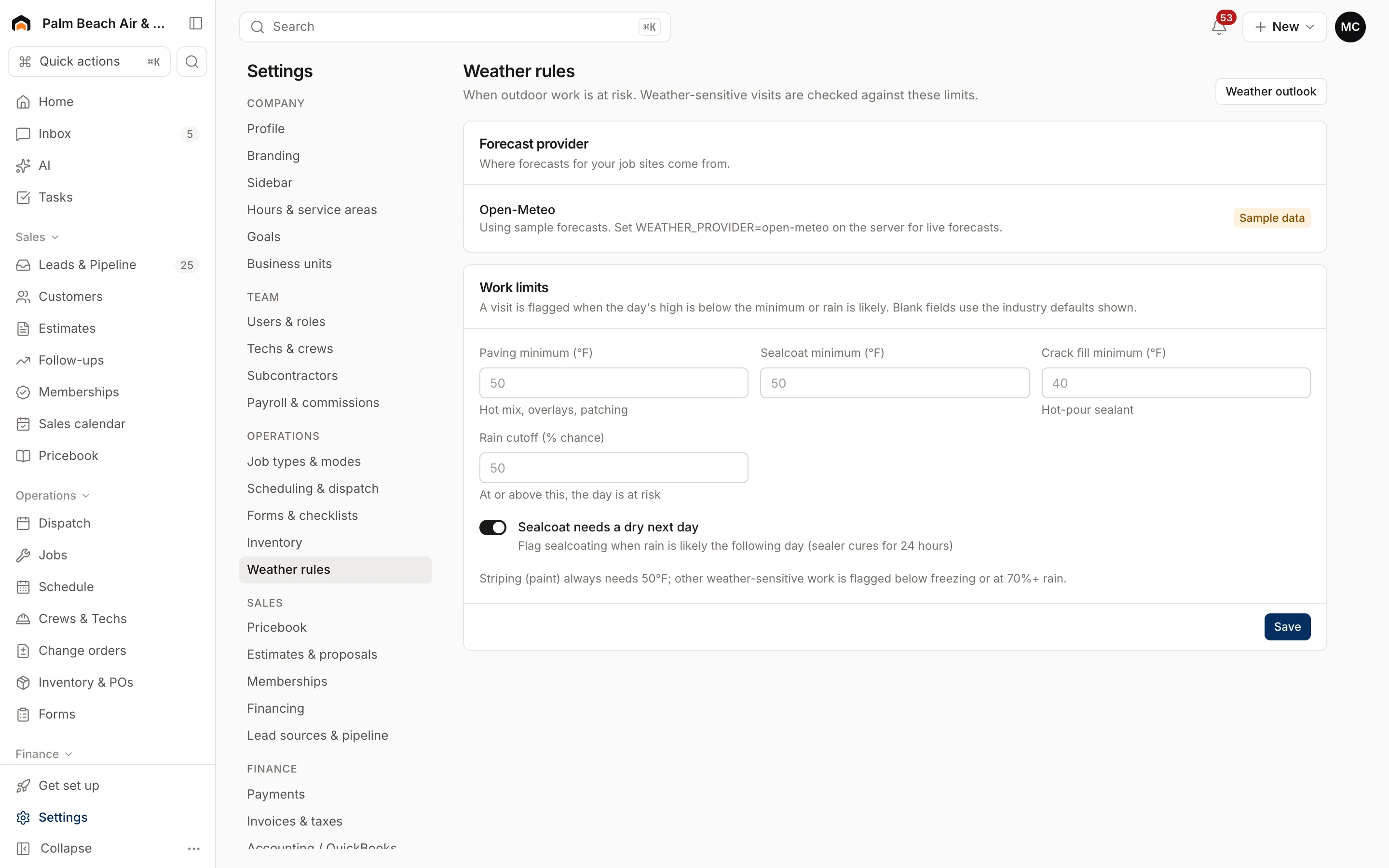
Click Weather outlook to see upcoming flagged visits. Forecasts cover each job site up to 16 days out. Roofing, painting and paving companies also get Weather in the sidebar under Operations.
Related
- Hours customers can book: Hours and service area.
- Which job types are weather sensitive: Job types and work modes.
Was this helpful?
Related articles
Scheduling and dispatch
Use the dispatch board
See every tech's day on one timeline, drag waiting work onto the board, and keep the day on track from the office.
Settings
Hours and service area
Set your business hours, workday, online booking windows and the ZIP codes you serve.
Settings
Job types and work modes
Set the kinds of work you do and create job types that control how each kind of work runs, books and shows on the board.
Settings
Email and automated messages
Set the sender name and reply-to address on customer emails, connect your mailbox, and edit the texts and emails Homeforce sends on its own.
Still stuck?
Our team answers support emails during business hours, usually within a few hours.