
Job types and work modes
Set the kinds of work you do and create job types that control how each kind of work runs, books and shows on the board.
Settings → Job types & modes decides what kind of work your company does and how each type of job behaves. Owners and admins can change it.
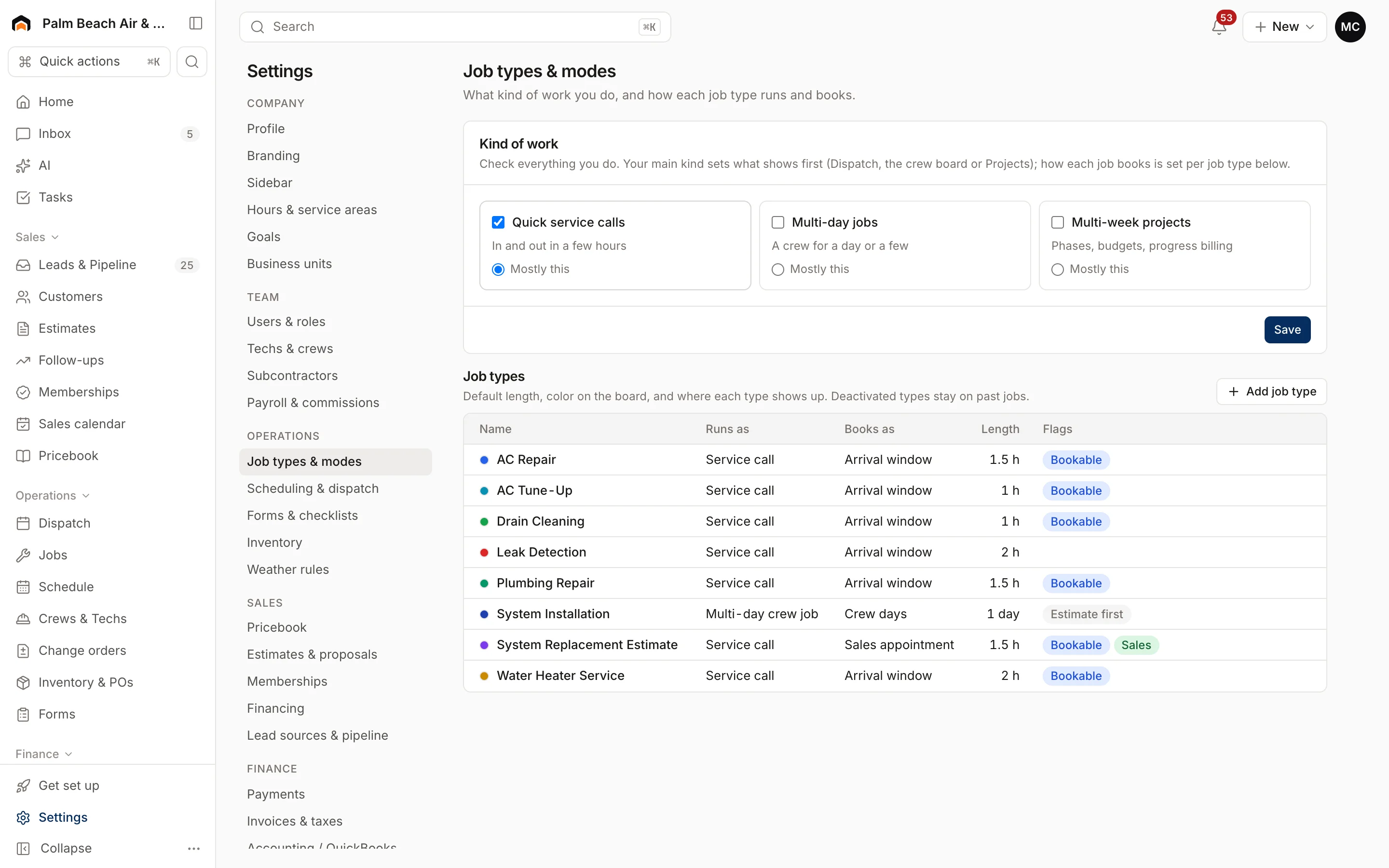
Kind of work
Check everything you do:
- Quick service calls: in and out in a few hours.
- Multi-day jobs: a crew for a day or a few.
- Multi-week projects: phases, budgets and progress billing.
Mark one as Mostly this, then click Save. Your main kind decides what leads your sidebar: Dispatch, the crew board, or Projects. These are the same answers you gave during setup.
Add a job type
- Click Add job type.
- Enter a Name, like "AC tune-up".
- Pick How the work runs:
- Service call: a tech in and out in hours, booked in an arrival window.
- Multi-day crew job: a crew for one or more full days on the crew board.
- Project with phases: weeks of work with phases, budget and progress billing. These create projects.
- Leave Booking style on Automatic, or pick Arrival window, Sales appointment or Crew days.
- Set Default days (crew jobs and projects) or Length (minutes). Blank length uses your default visit length.
- Optionally set a Color for the board.
- Turn on any of these:
- Bookable online: customers can pick it in the booking widget.
- Sales opportunity: counts toward close rate and sales follow-up. With an automatic booking style, it books as a sales appointment on the sales calendar.
- Weather sensitive: checked against your weather rules.
- Needs an estimate first: quick-book offers your estimate type before booking the work.
- Click Add job type.
Edit or retire a job type
Hover over a row and click Edit to change it, then Save job type. Click Deactivate to stop offering it on new jobs and online booking. Past jobs keep their type. Click Reactivate to bring it back.
Related
- Default visit length and arrival windows: Scheduling and weather.
- When to use a job versus a project: Jobs vs projects.
Was this helpful?
Related articles
Jobs and projects
Jobs, visits and projects
How Homeforce organizes work - a job holds one or more visits, and a project is a job with phases, a budget and change orders.
Settings
Scheduling and weather rules
Set default visit lengths, arrival windows and double-booking, and the weather limits that flag outdoor work.
Settings
Contract terms and forms
Write the terms customers accept on estimates and invoices, your warranty, and build checklists techs fill out in the field.
Settings
Hours and service area
Set your business hours, workday, online booking windows and the ZIP codes you serve.
Still stuck?
Our team answers support emails during business hours, usually within a few hours.