
Import and export your data
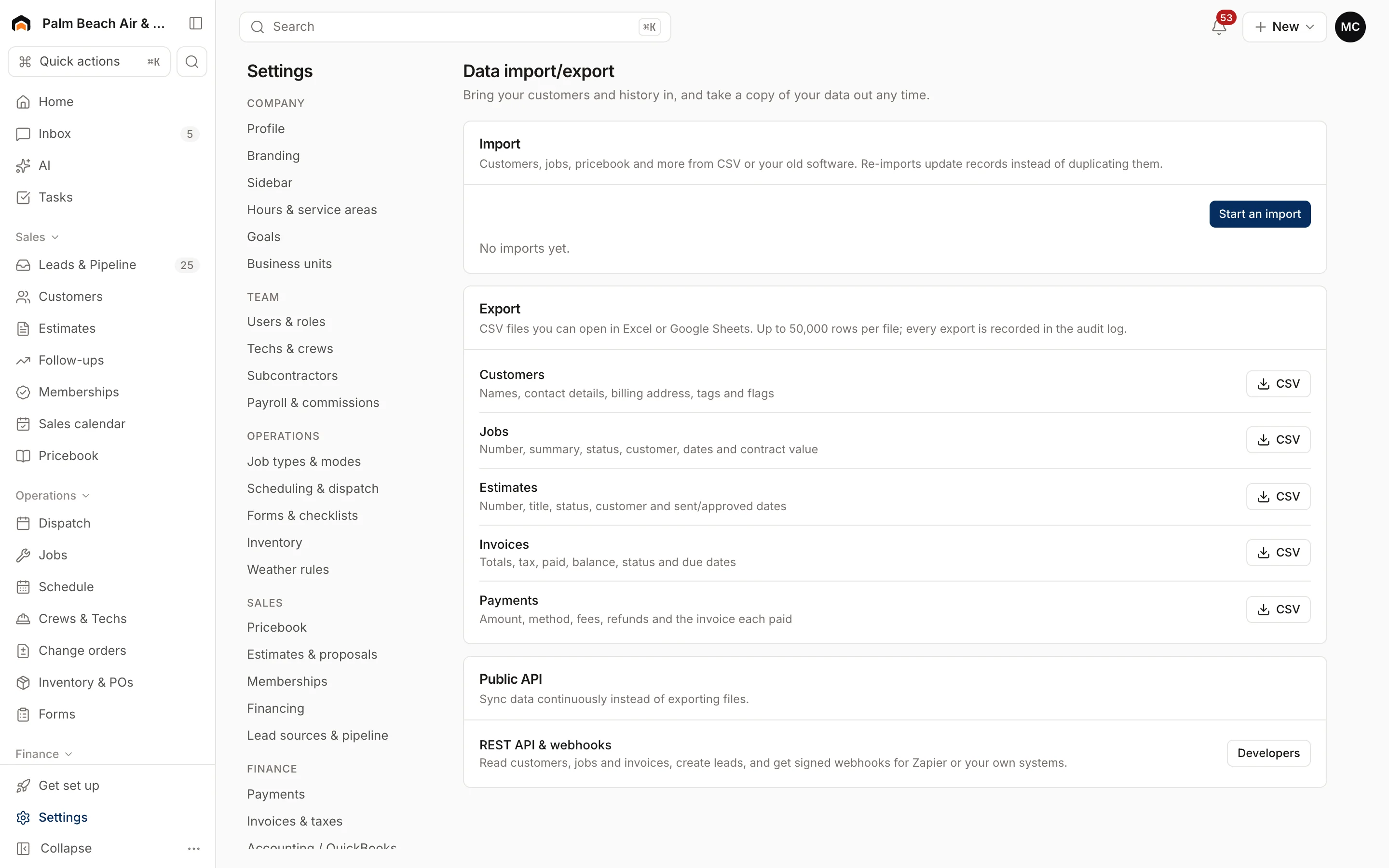
See past imports, start a new one, and download your customers, jobs, estimates, invoices and payments as CSV files.
Settings → Data import/export is where you bring data in and take a copy out. Your data is yours. You can export it any time.
Import
Click Start an import to open the import tool. The last 10 imports are listed with their status, row counts, and how many records were created, updated or skipped. For step-by-step help, see Import your customers and pricebook.
Export to CSV
Owners, admins and accounting users can download:
| File | What's in it |
|---|---|
| Customers | Names, contact details, billing address, tags and flags |
| Jobs | Number, summary, status, customer, dates and contract value |
| Estimates | Number, title, status, customer and sent/approved dates |
| Invoices | Totals, tax, paid, balance, status and due dates |
| Payments | Amount, method, fees, refunds and the invoice each paid |
Click CSV next to the one you want. The file opens in Excel or Google Sheets.
Other roles see a note asking an owner, admin or accounting user to export.
Keep data in sync instead
If you want data to flow to another system continuously instead of exporting files, see Developers. To sync with your books, see QuickBooks Online.
Was this helpful?
Related articles
Getting started
Import your customers and pricebook
Bring customers, jobs, estimates, invoices and your price list over from Housecall Pro, Jobber, ServiceTitan, DripJobs or a spreadsheet.
Settings
Security and the audit log
Limit who can join your team by email domain, sign someone out of every device, and see a record of every change.
Integrations
API and webhooks
Create API keys, use Homeforce's REST API, and get signed webhooks when things happen in your account.
Settings
Company profile and branding
Set your company name, trades, license number, contact details, time zone, logo and your own profile photo.
Still stuck?
Our team answers support emails during business hours, usually within a few hours.