
Set up your company
Answer five quick setup questions, then work through First steps and the Get set up checklist.
Setup has two parts: five short questions when you first sign in, then a checklist you can finish at your own pace. Owners and admins do this; everyone else goes straight into the app.
Answer the setup questions
Each question is one screen. Your answers save as you go, so you can refresh or come back later.
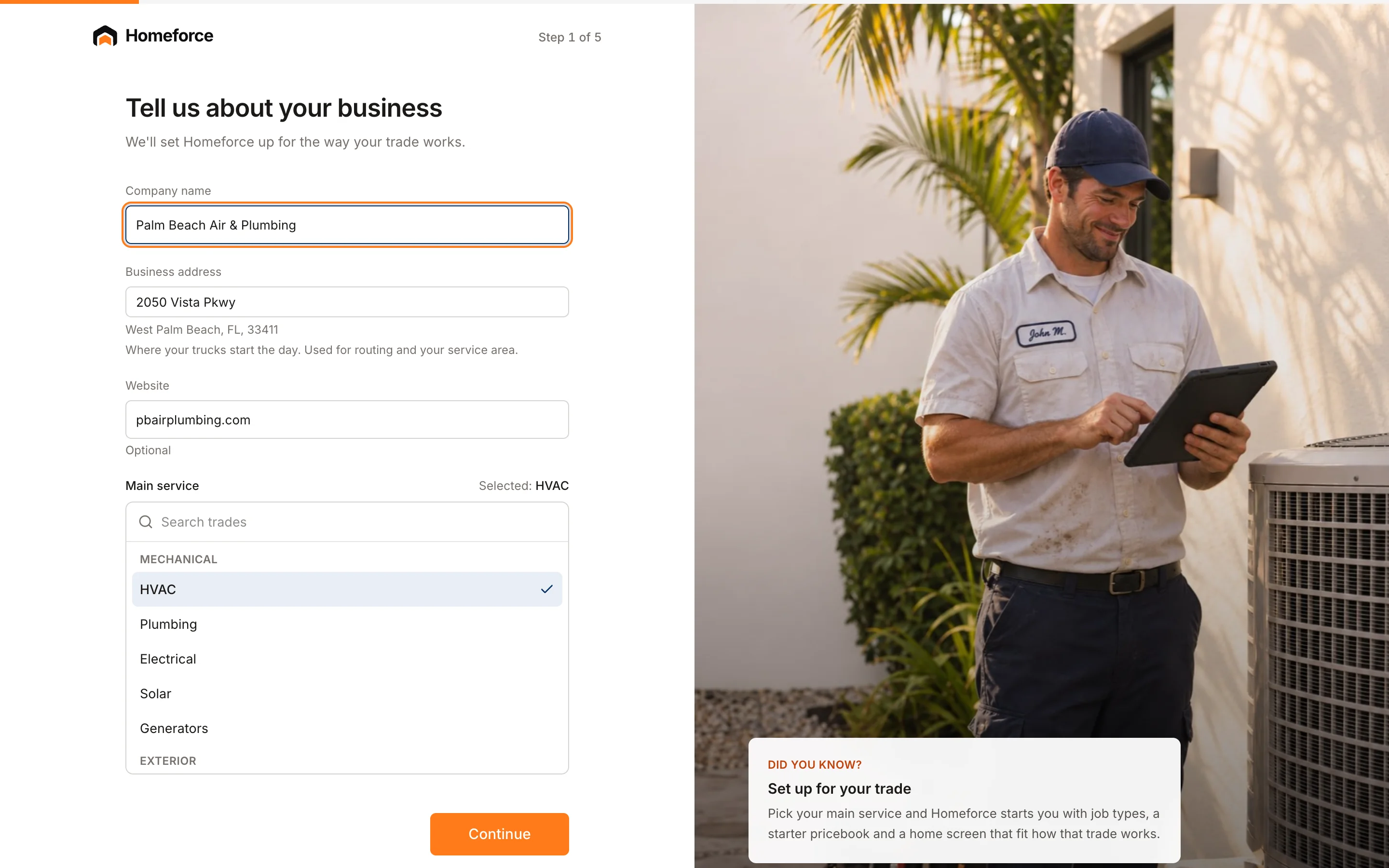
- Tell us about your business: Company name, Business address (where your trucks start the day), Website (optional) and your Main service. Search the trade list and pick the closest match.
- How big is your team?: people on your team, including you, and years in business.
- What's your annual revenue?: a rough range, or Prefer not to say.
- What kind of work do you do?: check any of Quick service calls, Multi-day jobs and Multi-week projects. If you pick more than one, choose which is most of your work.
- What brings you to Homeforce?: pick any goals, or Just exploring.
Click Finish. Your trade and kind of work set up your job types, your sidebar and your Home screen. You can change both later in Job types and work modes.
First steps on Home
After setup you land on the First steps tab of Home. It shows:
- Recommended for you: one first task picked from your answers, like building your first estimate or importing customers.
- Set up your account: cards for Pricebook, Branding, Schedule, Payments and Import data. Each card checks itself off once it's done.
The Get set up checklist
Click Get set up in the sidebar (or Full checklist on First steps) for the full list, grouped into Basics, Get paid, Talk to customers, Grow and Run the field. Steps check themselves off as the data shows up. For example, Invite your team completes when a second person joins.
Two steps can't always be detected, so they have a Mark done button: adding online booking to your website, and getting the field app on your phone.
Where to start
Most shops get the most out of these first:
Was this helpful?
Related articles
Getting started
Import your customers and pricebook
Bring customers, jobs, estimates, invoices and your price list over from Housecall Pro, Jobber, ServiceTitan, DripJobs or a spreadsheet.
Getting started
Invite your team
Add office staff, sales reps and techs so each person signs in with their own login and role.
Settings
Company profile and branding
Set your company name, trades, license number, contact details, time zone, logo and your own profile photo.
Settings
Job types and work modes
Set the kinds of work you do and create job types that control how each kind of work runs, books and shows on the board.
Still stuck?
Our team answers support emails during business hours, usually within a few hours.