
Get paid out
See your available balance, send money to your bank, and choose standard or instant payouts.
Card and bank payments your customers make through Homeforce collect in your Stripe balance. Payouts move that money to your bank. Owners, admins and accounting users can see the balance and request payouts. In the sidebar, click Payments (the page is titled Payouts & cards).
Your balance
The cards at the top show:
- Available to pay out: card, tap and bank payments, minus processing fees, refunds, earlier payouts, and anything withheld for a capital advance. Cash and checks aren't included, because that money never went through Stripe.
- Paid out to date, and your automatic payout schedule.
- Capital withheld: what's gone toward repaying a capital advance, if you have one.
Recent payments below lists the last 50 payments of every kind. Click one to open its invoice.
Request a payout
- Under Payouts, enter the Amount. It starts at the most you can take out instantly.
- Choose the Speed:
- Instant to debit card: arrives right away for a fee (1.5% by default, with a minimum fee).
- Standard to bank: free, arrives in about 2 business days.
- Click Pay out.
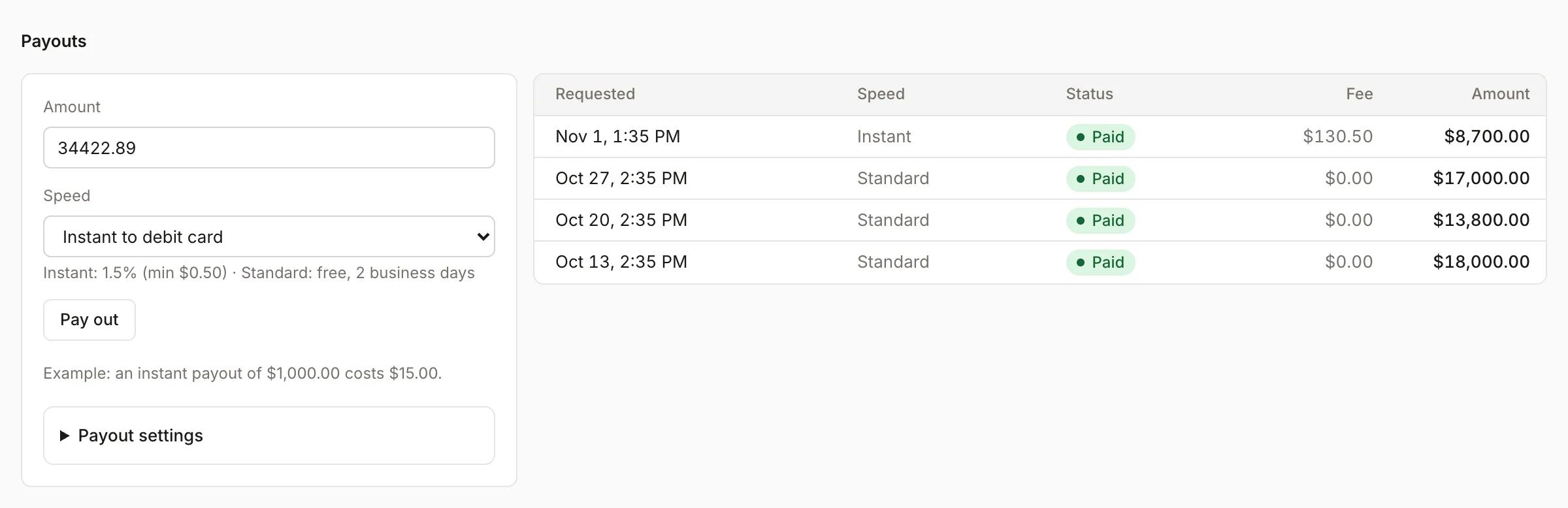
The fee is added on top of the payout, so the amount plus the fee has to fit in your available balance. The smallest payout is $1.00. Below the form, an example shows what an instant payout of $1,000 would cost.
The list on the right shows each payout's date, speed, status (including when it arrives), fee and amount.
Automatic payouts
Stripe can send your balance to your bank on a schedule. Choose Daily, Weekly or Manual only:
- On this page, open Payout settings and pick Automatic payouts. Owners and admins can also change the Instant fee % and Minimum fee shown to your team here.
- Or go to Settings → Payments and pick a Payout schedule.
Both places change the same setting. Manual holds your balance until you request a payout.
Keep your books in sync
If QuickBooks Online is connected, payments post to your books automatically. If it isn't, a banner at the top of this page offers Connect QuickBooks. See QuickBooks Online.
Was this helpful?
Related articles
Invoices and payments
Set up online payments and invoice defaults
Connect Stripe so customers can pay by card or bank, and set your sales tax, due dates and invoice terms.
Invoices and payments
Expense cards and capital
Issue spending cards to your team, code purchases to jobs, and review capital offers based on your card sales.
Invoices and payments
Take payments with a card reader
Register a Stripe card reader and use it to take tap, chip or swipe payments in person.
Integrations
QuickBooks Online
The status of the QuickBooks Online integration, what it will sync and which way, and how mappings and sync rules work.
Still stuck?
Our team answers support emails during business hours, usually within a few hours.