
Collect a payment
Take card, card-on-file, card reader, bank, cash or check payments on an invoice, including partial payments.
Use Collect payment when the customer is paying you directly: in person, over the phone, or by handing over cash or a check. Anyone who works invoices can collect, including office staff and techs.
Take a payment
- Open the invoice.
- Click Collect payment.
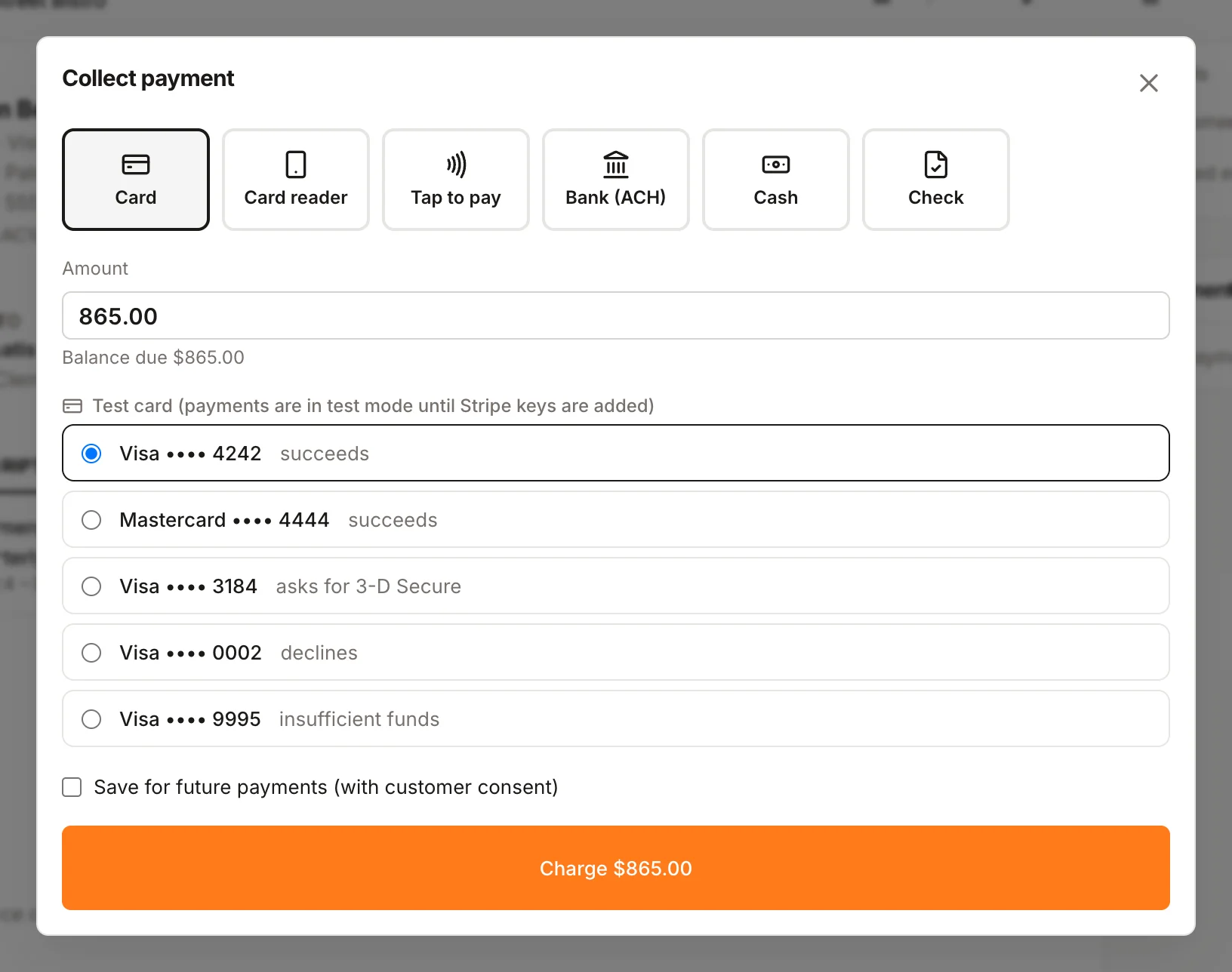
- Choose how the customer is paying:
- Card on file: charge a card the customer saved earlier. Only shows if they have one.
- Card: type in the card details.
- Card reader: send the amount to a registered reader. Only shows if you have one. See Take payments with a card reader.
- Bank (ACH): enter the customer's bank account.
- Cash
- Check: add the Check number.
- Check the Amount. It starts at the full balance due.
- Click Charge. The button shows the amount, for example Charge $250.00.
You'll see "Collected" with the amount when it goes through. The payment shows under Payments on the invoice with the method, card brand and last four digits or check number, and any processing fee.
Partial payments
To take part of the balance, change the Amount before you click Charge. The invoice moves to Partial and the balance due drops. You can't collect more than the balance due.
Save a card for later
When paying by Card or Bank (ACH), check Save for future payments (with customer consent). The card or bank account becomes Card on file for that customer's future invoices. The first one saved is used automatically for membership billing.
Only save a card when the customer has agreed to it.
Bank (ACH) payments take a few days
Bank payments take 3–5 business days to clear. Until then you'll see "Bank payment … is processing — we'll mark it paid when it clears." The invoice updates on its own when the money clears, or shows the failure reason if it doesn't.
When a card is declined
If a card is declined, you'll see the reason (for example, "insufficient funds"). Nothing is charged and the invoice balance doesn't change. Try another card or method. Some cards ask the customer to confirm with their bank; follow the prompt on screen to finish.
What the customer gets
When a payment succeeds, the customer is emailed a receipt with the amount and any remaining balance. When an invoice is paid in full, a review request text can go out too (see Settings → Automated messages).
In the mobile app
In the mobile app, you can record Cash or Check payments on an invoice. For card payments in the field, open the invoice in the office app from your phone. See Get the mobile app.
Was this helpful?
Related articles
Invoices and payments
Get paid with pay links
What a pay link is, what your customer sees when they open it, and how to share one.
Invoices and payments
Take payments with a card reader
Register a Stripe card reader and use it to take tap, chip or swipe payments in person.
Invoices and payments
Refund a payment or void an invoice
Give money back in full or in part, or cancel an invoice that shouldn't be paid.
Mobile app
Get the mobile app and sign in
Install the Homeforce app on your iPhone or Android phone, accept your team invite, and sign in with a code, password or Google.
Still stuck?
Our team answers support emails during business hours, usually within a few hours.