
Build forms and checklists
Create inspection, safety and sign-off checklists that techs fill out in the field app, attached to your job types.
Forms and checklists are what your techs fill out on a visit: a maintenance inspection, a safety check, a final walkthrough. You build them once and attach them to job types, and they show up in the field app on matching jobs.
Owners and admins can build forms.
Create a form
- Go to Settings → Forms & checklists.
- Click New form.
- Type a name, like "AC tune-up checklist".
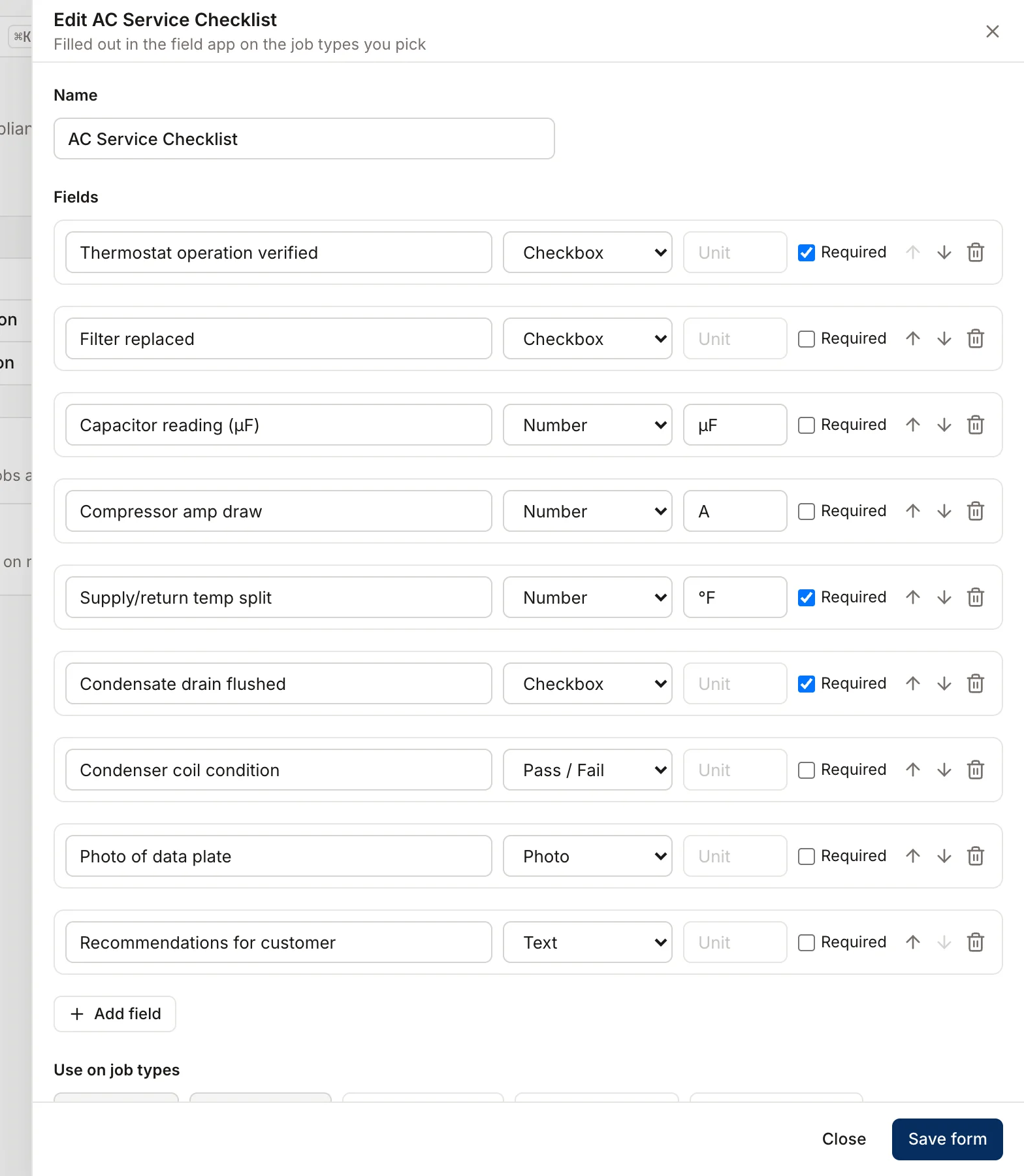
- Under Fields, click Add field for each question.
- For each field, type the question and pick a type:
- Checkbox: a simple done/not done item.
- Pass / Fail: for inspection points.
- Number: a reading. Add a Unit, like "psi" or "°F".
- Text: a short written answer.
- Photo: a picture the tech takes.
- Tick Required on anything the tech must answer.
- Use the arrows to reorder fields, or the trash icon to remove one.
- Under Use on job types, tick the job types this form belongs to.
- Click Save form.
The list shows each form's number of fields, how many are required, and which job types use it.
What techs see
On a visit in the field app, the Checklist section shows a Start button for the form linked to that job's type. If the job type has no form, the tech can pick from all your forms.
Techs can tap Save to keep their progress, and Mark complete when they're done. Homeforce won't let a checklist be marked complete until every required item is answered.
Edit a form
Click the form's name, make your changes, and click Save form. Changes apply to checklists started after you save. Checklists already started on a visit keep the questions they started with.
Was this helpful?
Related articles
Custom fields and layouts
Add custom fields
Track your own details, like gate codes, permit numbers or roof type, on customers, leads, jobs, estimates, properties and equipment.
Mobile app
Get the mobile app and sign in
Install the Homeforce app on your iPhone or Android phone, accept your team invite, and sign in with a code, password or Google.
Custom fields and layouts
Custom fields and forms by trade
Ideas for the custom fields, checklists and saved views different trades set up in Homeforce.
Custom fields and layouts
Fill in and find custom fields
Where your custom fields show up, how to fill them in, and how to use them in lists, exports and Flows.
Still stuck?
Our team answers support emails during business hours, usually within a few hours.