
Automate with Flows
Build "when this happens, do that" automations that text, email, tag, notify your team, send a webhook, or ask an AI agent.
A Flow watches for something to happen, like an invoice being paid, checks your conditions, and then takes the actions you choose. Each Flow runs once per event.
Turn Flows on
Flows are an early feature in Labs. The owner goes to Settings → Labs and clicks Turn on next to Flows. Owners and admins can then build them.
Build a Flow
- Go to AI → Flows.
- In New flow, type a Name, like "Thank big-ticket customers".
- Under When, pick the trigger.
- Under Only if, click Condition to add checks. All of them must be true.
- Under Then, set up an action. Click Action to add more.
- Click Save flow.
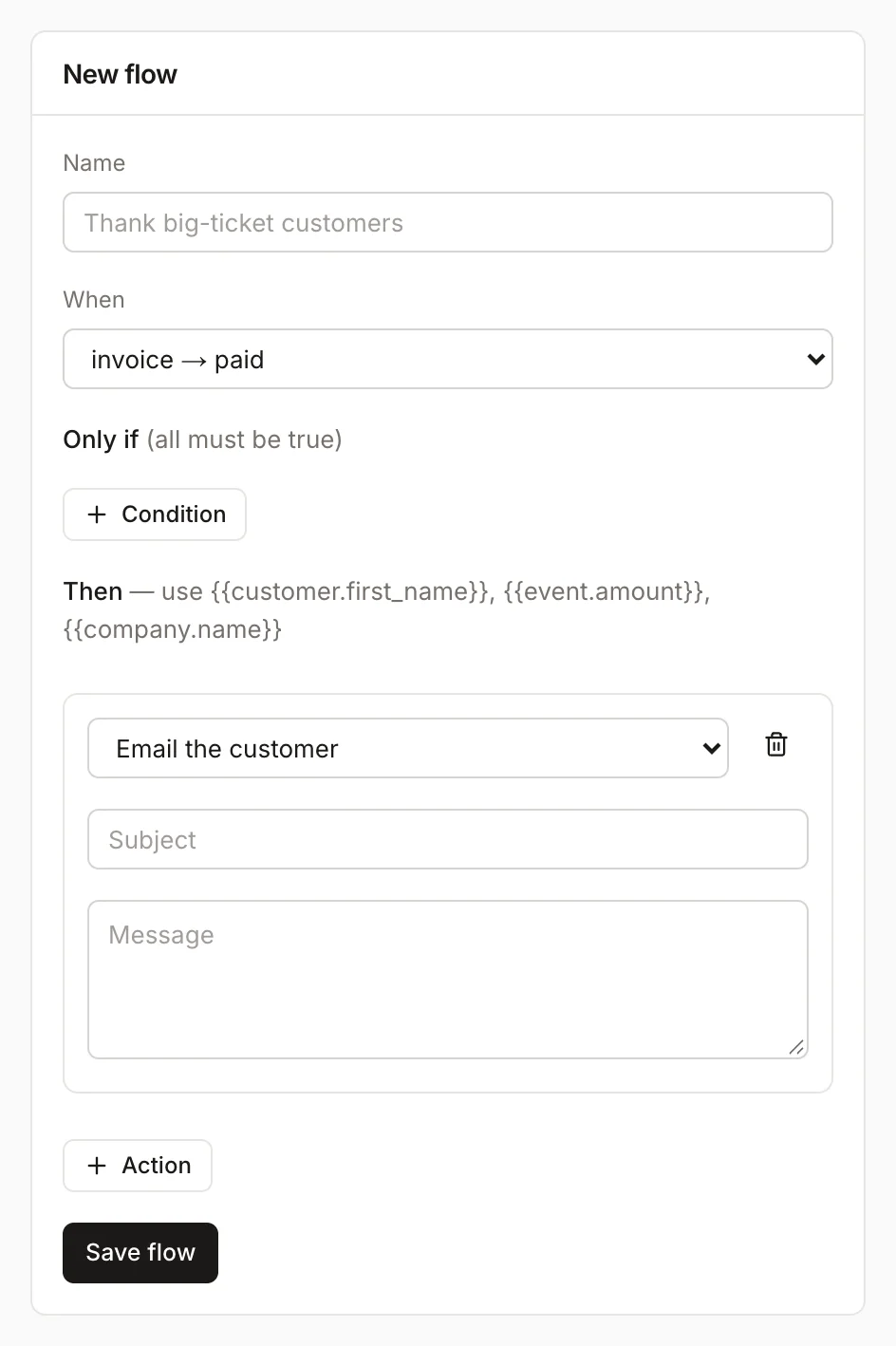
New Flows are on as soon as you save them.
Triggers
A lead, customer or job is created; a job's status changes; a visit is scheduled or completed; an estimate is sent, approved or declined; an invoice is sent or paid; a payment fails or is refunded; or a message is received.
Conditions
Pick a field, a test (is, is not, >, ≥, <, ≤, contains, is set, is empty) and a value. You can check the event amount and status, the customer's tags, membership, email and phone, and your custom fields on customers, jobs, leads and estimates.
Actions
- Text the customer or Email the customer
- Tag the customer
- Email my team: everyone with the role you pick
- Send a webhook: posts the details to a web address (must start with https://)
- Ask an agent: only shows if you have AI agents
In messages, use placeholders like {{customer.first_name}}, {{event.amount}} and {{company.name}}.
Watch, pause and resume
Each Flow's card shows its trigger, conditions and actions, how many times it has run, and the last few runs. A failed action is marked with ✗ and a reason, like "no customer on this event".
Click Pause to stop a Flow without deleting it, and Resume to turn it back on.
Was this helpful?
Related articles
AI agents
Set up AI agents
Create assistants with one job, like collections or estimate follow-up, choose what data they can read, and ask them questions.
Custom fields and layouts
Fill in and find custom fields
Where your custom fields show up, how to fill them in, and how to use them in lists, exports and Flows.
AI agents
Set AI approvals
Choose which AI actions wait for a person to approve, and see how approvals work in Homeforce today.
AI agents
AI in Homeforce
Every AI feature in Homeforce, what each one does, who can use it, and what the AI can and can't do on its own.
Still stuck?
Our team answers support emails during business hours, usually within a few hours.