
Set AI approvals
Choose which AI actions wait for a person to approve, and see how approvals work in Homeforce today.
AI approvals are your guardrails. They decide what the AI can do on its own and what waits for a person. Owners and admins set them.
Open AI approvals
Go to Settings → AI approvals. You can also get there from Settings → Agents & AI CSR → What needs your approval.
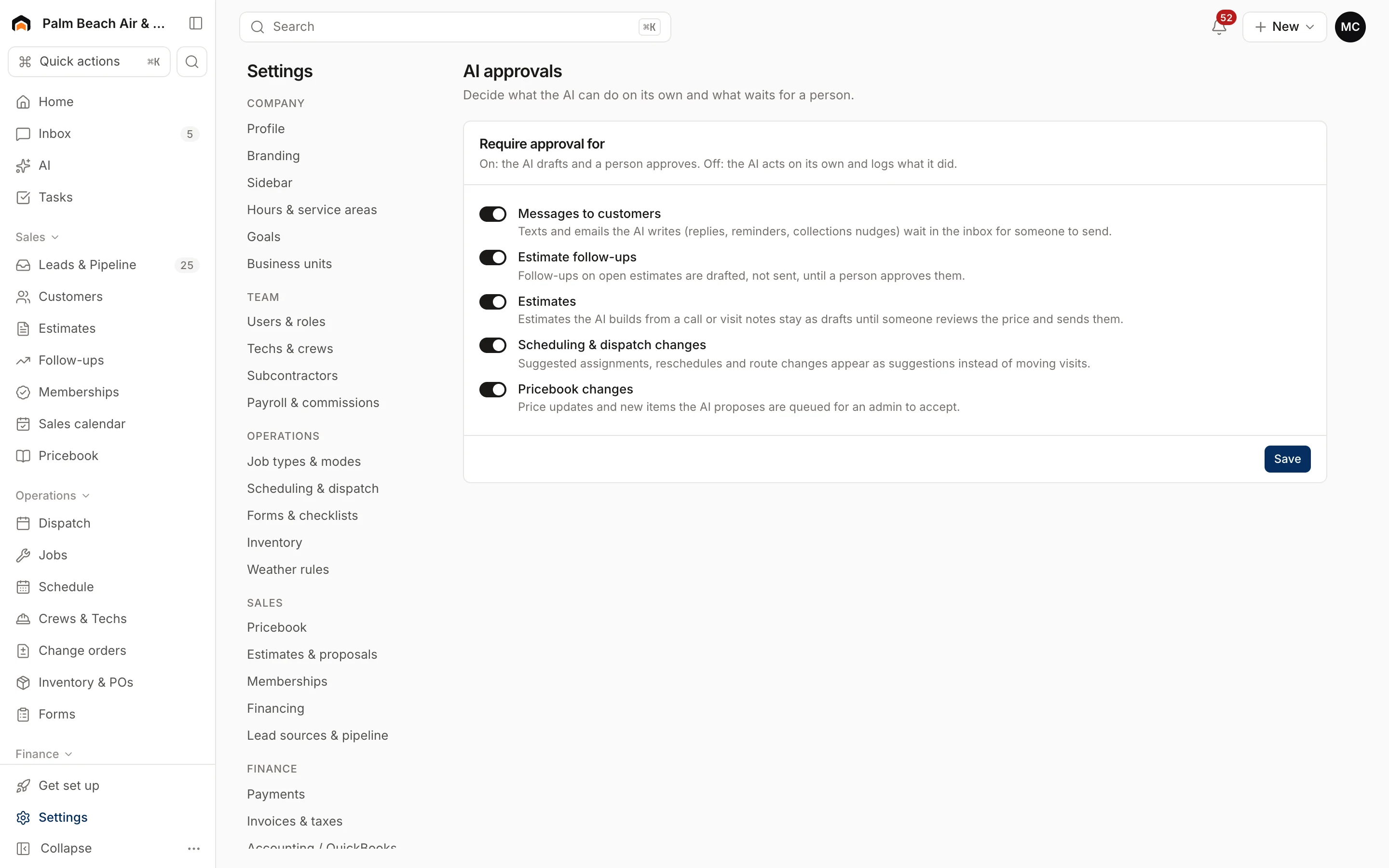
Under Require approval for, each switch works like this:
- On: the AI drafts and a person approves.
- Off: the AI acts on its own and logs what it did.
All five are on to start.
| Switch | When on |
|---|---|
| Messages to customers | Texts and emails the AI writes wait for someone to send them |
| Estimate follow-ups | Follow-ups on open estimates are drafted, not sent |
| Estimates | Estimates the AI builds stay as drafts until someone reviews the price and sends them |
| Scheduling & dispatch changes | Suggested assignments and reschedules appear as suggestions instead of moving visits |
| Pricebook changes | Price updates and new items the AI proposes are queued for an admin |
Change a switch and click Save.
How approvals work today
Right now, every AI feature in Homeforce already waits for a person, whatever these switches say:
- AI estimate creates a draft. You send it.
- Write follow-up drafts a text. You click Send text.
- AI Suggest lists techs. You click Assign.
- AI starter pricebook lists items. You choose what to keep.
- Dictate drafts notes. The tech taps Save to visit.
- Agents and Copilot only read and answer.
Your choices here are saved, and they'll control AI features that can act on their own as those arrive. Keeping them on is the safe default.
Who can use AI at all
AI features follow the same roles as the rest of Homeforce. For example, a tech can only draft an estimate on a job they're assigned to, and only roles that can see reports can use Copilot. See Users and permissions.
Was this helpful?
Related articles
AI agents
AI in Homeforce
Every AI feature in Homeforce, what each one does, who can use it, and what the AI can and can't do on its own.
AI agents
Automate with Flows
Build "when this happens, do that" automations that text, email, tag, notify your team, send a webhook, or ask an AI agent.
Settings
Users and permissions
Invite people, change their role, limit sales reps to their own pipeline, and deactivate someone who leaves.
AI agents
Try the AI receptionist
How the AI receptionist qualifies callers and books into open time, how to test it in the simulator, and what its settings do today.
Still stuck?
Our team answers support emails during business hours, usually within a few hours.