
Try the AI receptionist
How the AI receptionist qualifies callers and books into open time, how to test it in the simulator, and what its settings do today.
The AI receptionist (also called the AI CSR) holds a conversation like a good customer service rep: it asks what's wrong, gets the caller's name, phone and address, offers real open time slots, and books the job.
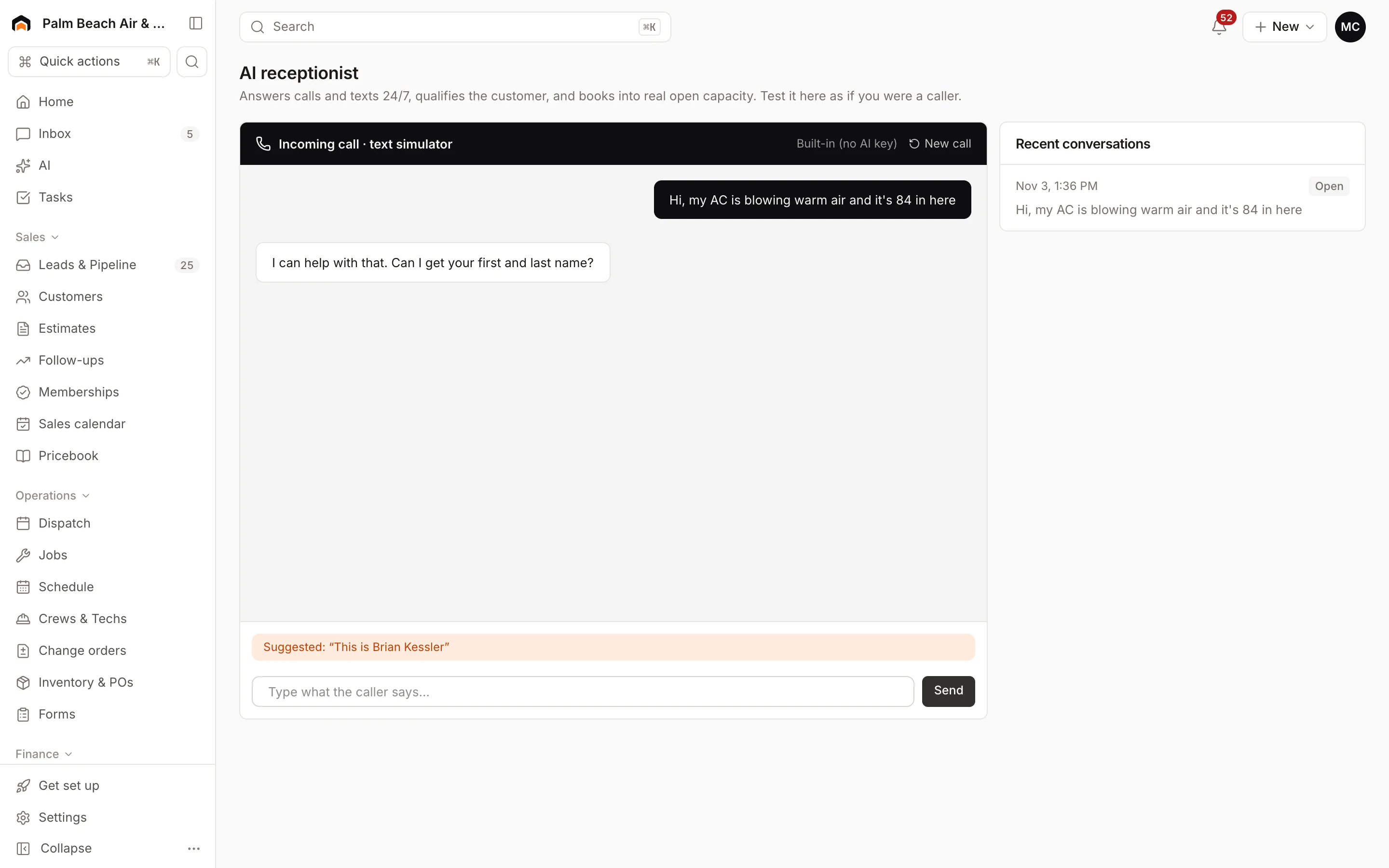
Try it in the simulator
- Go to AI → AI receptionist.
- Type what a caller would say in Type what the caller says… and click Send. Or click the Suggested line to follow a sample call.
- Keep answering its questions. When you agree to a time, it books the job.
- Click New call to start over.
When a booking goes through, you'll see the job number, the arrival window and the assigned tech, with links to open job or see it on dispatch. The booking is real: the job and visit are created in your account, just like one your office booked.
How it books
- It offers only time that's actually open on your schedule, using the same booking rules as your online booking.
- It picks a tech whose skills fit the job.
- If the caller's phone number matches an existing customer, it recognizes them.
- If the caller mentions something dangerous, like a gas smell, fire or flooding, it gives an immediate safety instruction first.
Recent conversations
The Recent conversations list on the right shows past simulator conversations. Booked ones show Booked and link to the job.
Settings
Owners and admins can find the receptionist's settings in Settings → Agents & AI CSR:
- Answer calls and chats with the AI receptionist
- Only outside business hours
- Let it book appointments (when off, it would take details and create a lead instead)
- Greeting: the first thing callers hear
These settings are saved now and will apply when the receptionist starts answering real calls and chats. They don't change how the simulator behaves.
The AI provider row on the same page shows Live when the full AI model is on. If it shows Demo mode, the receptionist uses simpler built-in answers; contact support to turn on the full model.
Was this helpful?
Related articles
AI agents
AI in Homeforce
Every AI feature in Homeforce, what each one does, who can use it, and what the AI can and can't do on its own.
Scheduling and dispatch
Use the dispatch board
See every tech's day on one timeline, drag waiting work onto the board, and keep the day on track from the office.
AI agents
Set AI approvals
Choose which AI actions wait for a person to approve, and see how approvals work in Homeforce today.
AI agents
Ask Copilot about your business
Ask plain-English questions about revenue, close rates, techs, memberships and unpaid invoices, answered from your live data.
Still stuck?
Our team answers support emails during business hours, usually within a few hours.