
The Home screen and your day
See today's stops, what's coming up, your week on the Schedule tab, and the quick actions behind the + button.
The Home tab is where your day starts. For techs it's titled Today and lists your stops in order. Owners and office roles see Business here instead, with their own stops underneath (see Use the app as an owner or office user).
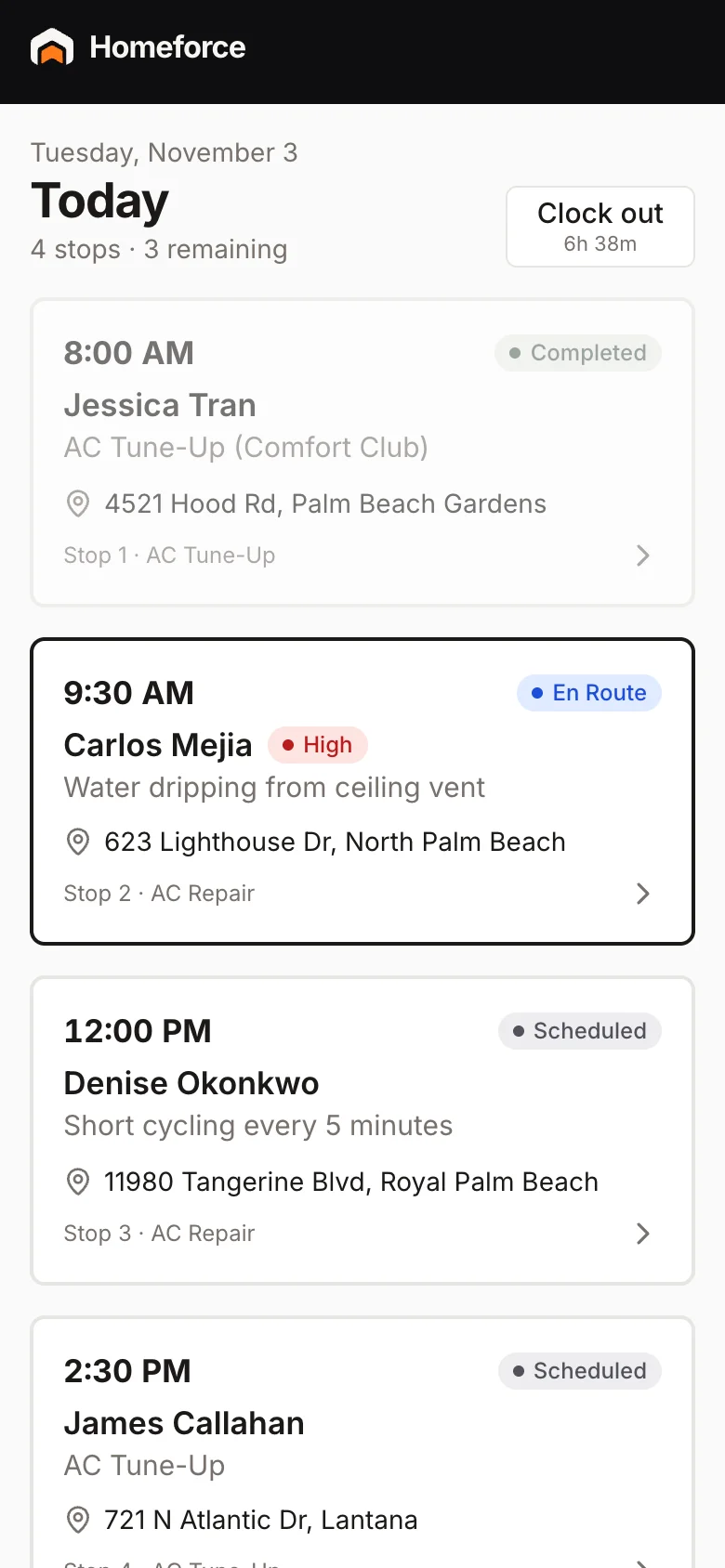
Today
At the top you'll see how many stops you have and how many are left, for example "5 stops · 3 remaining". Each stop card shows:
- The start time and the visit's status: Scheduled, En Route, On Site or Completed
- The customer's name and what the job is for
- The street and city
- The stop number, plus HIGH or EMERGENCY when the job's priority is set that way
The visit you're driving to or working on gets a bold orange border. Finished stops fade out. Tap any card to open the visit (see Work a visit from start to finish).
Below today's stops, UPCOMING lists your next visits over the coming days.
Pull down on the list to refresh it. If nothing's booked, you'll see "Nothing scheduled today."
The Schedule tab
Tap Schedule to see your week. A strip across the top shows today and the next six days. A dot means that day has visits. Tap a day to list its stops in order, with a total like "3 stops · 6.5h booked".
The + button
The orange + in the middle of the tab bar opens quick actions:
- Clock in or Clock out to start or end your shift. It works offline too.
- Next stop jumps straight to your next unfinished visit.
You only see the actions your role allows.
The header
The company name sits above the screen title. Your photo or initials are in the top right, with a small dot that shows sync status:
| Dot | Meaning |
|---|---|
| Green | Synced |
| Orange | Changes waiting to sync, or syncing now |
| Gray | Offline |
| Red | Can't reach Homeforce |
Tap your photo to open More. Press and hold it to sync right away. See Work offline for how syncing works.
Was this helpful?
Related articles
Mobile app
Work a visit from start to finish
Tap On my way, I've arrived and Complete visit, and fill in checklists, photos, notes and the customer's signature along the way.
Mobile app
Use the app as an owner or office user
What owners, dispatchers, sales reps, project managers and accounting see in the app, from the Business view to the team schedule.
Mobile app
The More menu, Inbox and your account
Search everything, open the same sections you see on the web, read customer conversations, switch companies, sign out or delete your account.
Mobile app
Get the mobile app and sign in
Install the Homeforce app on your iPhone or Android phone, accept your team invite, and sign in with a code, password or Google.
Still stuck?
Our team answers support emails during business hours, usually within a few hours.