
Work a visit from start to finish
Tap On my way, I've arrived and Complete visit, and fill in checklists, photos, notes and the customer's signature along the way.
A visit is one trip to a customer for a job. Everything you need for it lives on one screen, and one big button at the bottom moves it along: On my way, then I've arrived, then Complete visit.
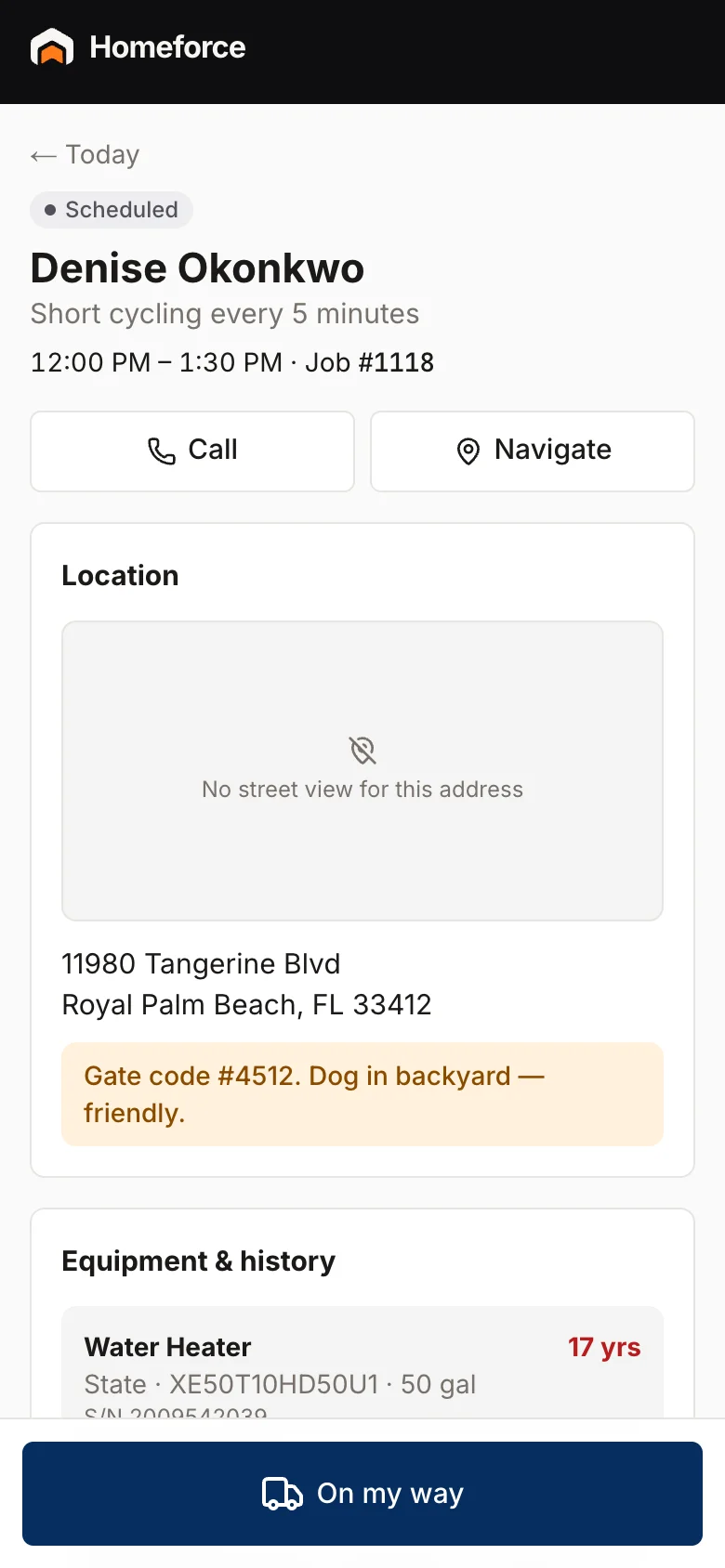
Before you leave
Open the visit from Today. The Overview tab shows:
- The time, the job number and the job type
- Call, Text and Navigate buttons. Navigate opens Apple Maps or Google Maps.
- The customer's name, marked Member if they have a membership. Tap it to see their contact details, properties and recent jobs.
- Location, with gate codes and access notes highlighted, plus any instructions from the office
- Equipment at the property, with brand, model and age
Step through the visit
- Tap On my way when you head out. Homeforce works out a drive time and texts the customer your ETA, if your company has the "on my way" text turned on. Your driving time starts.
- Tap I've arrived when you get there. Your on-site time starts.
- Do the work, and fill in the checklist, photos and notes below.
- Tap Complete visit. Your timers stop and the job's status updates for the office. If your company has the job-completed text turned on, the customer gets a wrap-up message.
After you complete it, the Overview tab shows a "Visit complete" summary: checklists done, photo count, the estimate and the invoice balance.
Checklists
If the visit has no checklist yet, tap Start followed by the checklist's name. Flip the switches for check and pass/fail items, and type answers for text and number items. Items marked * are required. When everything's done, tap Mark checklist complete. You can't mark it complete until every required item has an answer.
Photos and notes
On the Photos & Notes tab:
- Under Before, During or After, tap +, then Take photo or Choose from library.
- Under Notes, type a note for the office and tap Add note.
- Under Visit write-up, fill in "What you found" and "Work performed (customer-facing)", then tap Save write-up.
Customer signature
At the bottom of Overview, under Customer sign-off, hand the phone to the customer to sign with a finger. Tap Clear to start over, or Save signature when they're done.
Your time
The Time tab shows your shift (with Clock in and Clock out) and the driving and on-site time logged on this job.
Everything on this screen still works with no signal. Changes are saved on your phone and sent when you're back online. See Work offline.
Was this helpful?
Related articles
Mobile app
Sell and get paid in the field
Build an estimate from your pricebook on site, turn it into an invoice, and take card, cash or check before you leave.
Mobile app
Work offline and how syncing works
What you can do with no signal, how changes reach the office when you reconnect, and what the sync dot means.
Mobile app
The Home screen and your day
See today's stops, what's coming up, your week on the Schedule tab, and the quick actions behind the + button.
Mobile app
Get the mobile app and sign in
Install the Homeforce app on your iPhone or Android phone, accept your team invite, and sign in with a code, password or Google.
Still stuck?
Our team answers support emails during business hours, usually within a few hours.