
Use the Home dashboard
Read the KPI tiles, monthly goal, needs-attention list and schedule on the Home page, and view it as a team member.
Home is the first page you see. It's built for whoever is looking: owners and office staff see the company's numbers, and everyone sees their own day and what needs attention. Techs go straight to the tech app instead.
Pick the period and the person
At the top right:
- Date range: This month (default), Last month, Last 30 days, This quarter or Year to date. The KPI tiles and sales table use this window.
- View as: see Home the way a team member sees it, including their own schedule. Choose Everyone (company) to go back.
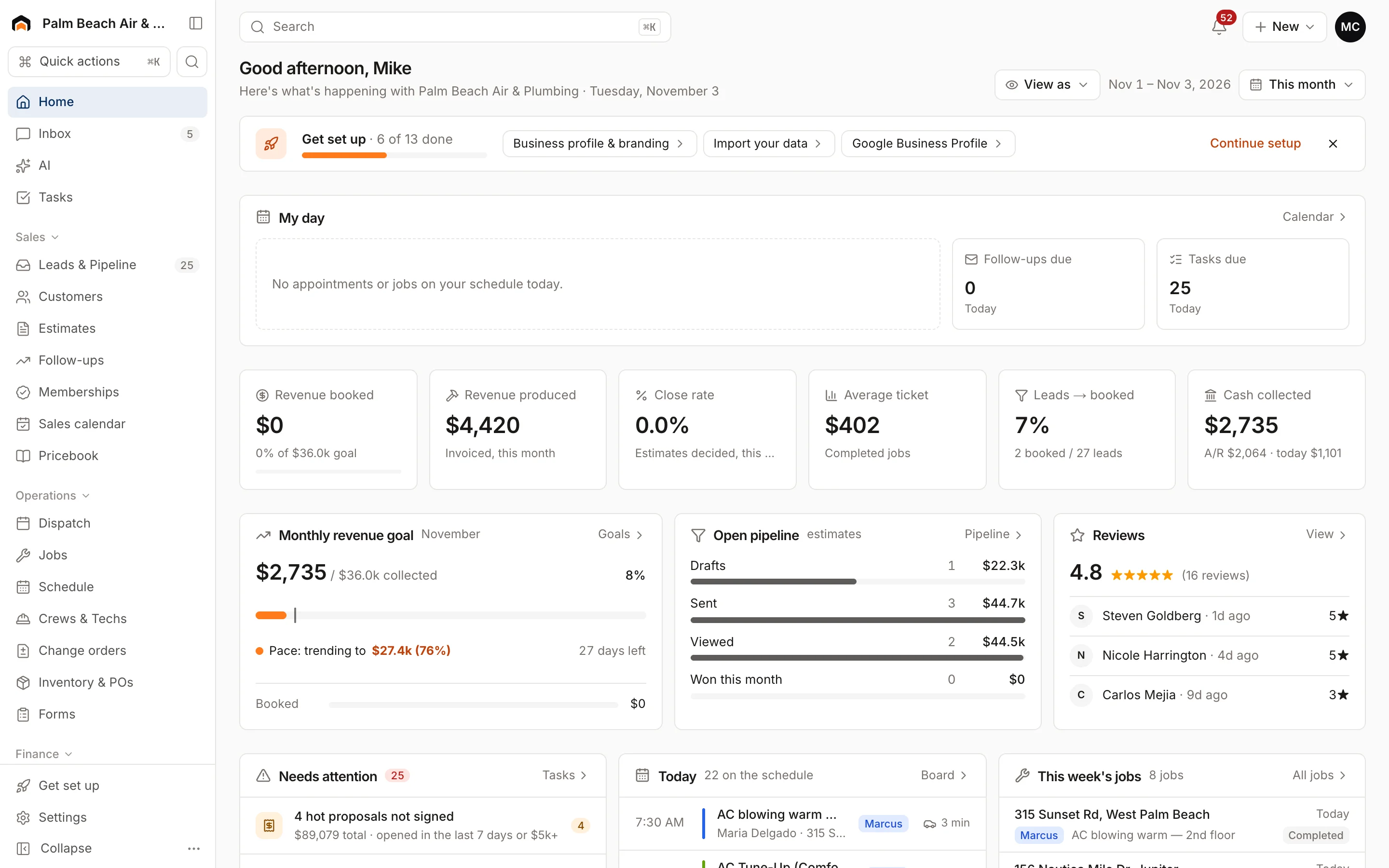
KPI tiles
Owners, admins, office staff, salespeople, project managers and accounting see six tiles. Click any tile to open the page behind it.
- Revenue booked: the value of estimates approved in the period. On This month, it also shows progress toward your monthly goal.
- Revenue produced: invoices issued in the period.
- Close rate: estimates approved out of estimates presented.
- Average ticket: the average invoice total.
- Leads → booked: how many new leads became booked work.
- Cash collected: payments received, with total A/R and what came in today.
Monthly revenue goal
This card always covers the current month. It shows cash collected against your goal, a marker for how far through the month you are, and Pace: what you'll collect by month end at the current rate. The bar turns green when you're ahead of pace.
The Booked line underneath compares approved estimates to the same goal.
If you haven't set a goal, Homeforce uses your average monthly collections over the last three months plus 10%. See Set monthly goals.
Everything else on Home
- My day: your appointments today, plus follow-ups and tasks due.
- Open pipeline: estimates in draft, sent, viewed, and won this month.
- Reviews: your average rating and the latest reviews.
- Needs attention: hot proposals not signed, drafts to send, leads nobody has contacted, overdue invoices grouped by customer, and jobs that aren't ready (no tech in the next 48 hours, or waiting on parts). Each group links to the right list.
- Today and This week's jobs: what's on the schedule, with assigned techs or crews.
- Sales performance: each rep's booked revenue, proposals, wins, close rate and average ticket for the period. See Team performance.
- Next 7 days: visits per day.
You only see the parts your role can open.
First steps
For the first 30 days after you finish setup, Home opens on a First steps tab with a getting-started checklist. Click Overview to see the dashboard. See Welcome to Homeforce.
Was this helpful?
Related articles
Reports
Reports overview
See revenue, invoicing, average ticket, close rate, team performance and lead source ROI for any recent period.
Reports
Set monthly goals
Set a monthly revenue goal for Home, and record targets for sales, close rate, ticket size, leads and reviews.
Reports
Track technician and sales performance
See visits, hours, revenue, close rate and sales for each tech and salesperson, and how each number is counted.
Getting started
Welcome to Homeforce
What Homeforce does, how the app is laid out, and what you see on Home when you sign in.
Still stuck?
Our team answers support emails during business hours, usually within a few hours.