
Measure lead source ROI
See which marketing channels bring in leads, booked jobs and revenue for what you spend.
The Lead source ROI table on Reports shows, for each lead source, what you spent, what it brought in, and whether it paid for itself.
Set up your sources
The report is only as good as two things:
- Every lead and job has a lead source. Set it when you create the lead or job. See Manage leads.
- Each source has a monthly cost. Owners and admins enter it as Monthly cost ($) in Settings → Lead sources & pipeline.
Read the table
Go to Reports and pick a period. Every active lead source is listed, highest revenue first.
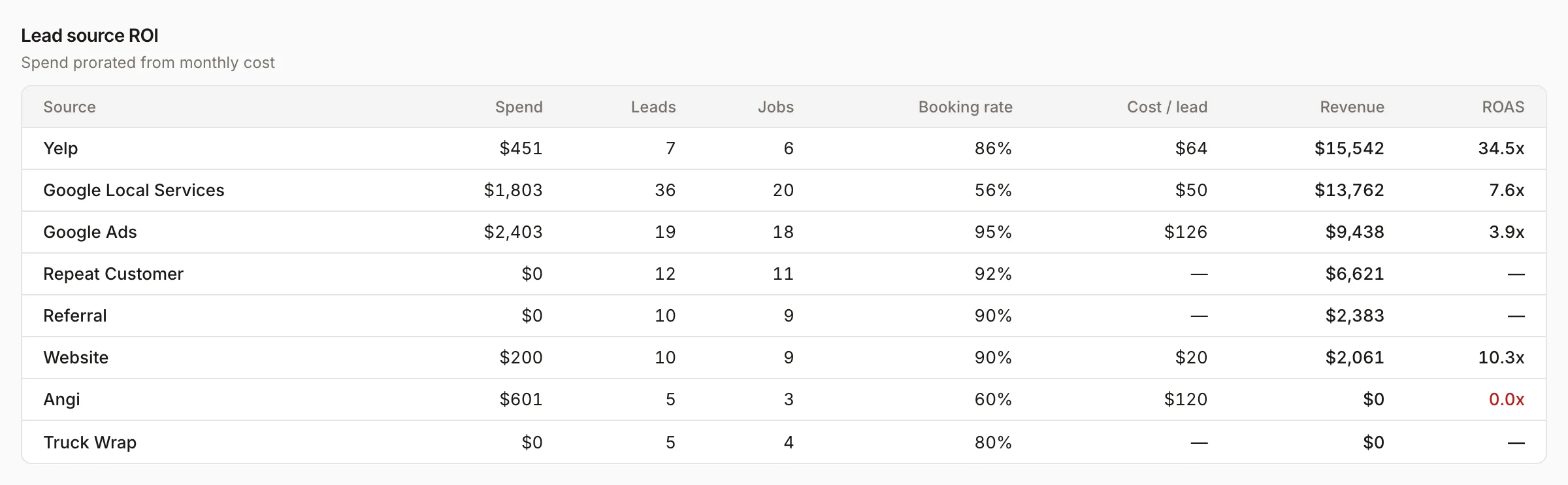
| Column | How it's counted |
|---|---|
| Spend | The source's monthly cost, prorated to the period (a 60-day period counts about two months) |
| Leads | Leads from this source created in the period, plus jobs from this source that didn't start as a lead |
| Jobs | Jobs from this source created in the period |
| Booking rate | Jobs out of leads |
| Cost / lead | Spend divided by leads |
| Revenue | Invoices issued in the period on jobs from this source (sent, partial or paid; deposit invoices aren't counted) |
| ROAS | Revenue divided by spend. Shown in red below 2.0x. A source with no spend shows ∞ |
Making decisions with it
- A source with a high Cost / lead but strong Revenue may still be worth it. Look at ROAS.
- A low Booking rate can mean poor-quality leads, or slow follow-up. Check the Needs attention list on Home for leads nobody has contacted.
- Compare periods. Switch between 30, 60 and 90 days to smooth out a slow week.
Was this helpful?
Related articles
Reports
Reports overview
See revenue, invoicing, average ticket, close rate, team performance and lead source ROI for any recent period.
Sales
Manage leads
Work every new inquiry on the Leads board, from New to Contacted to Booked, and see where your leads come from.
Reports
Track technician and sales performance
See visits, hours, revenue, close rate and sales for each tech and salesperson, and how each number is counted.
Reports
Use the Home dashboard
Read the KPI tiles, monthly goal, needs-attention list and schedule on the Home page, and view it as a team member.
Still stuck?
Our team answers support emails during business hours, usually within a few hours.